
How to Set a Reminder on iPhone (2025 Guide)
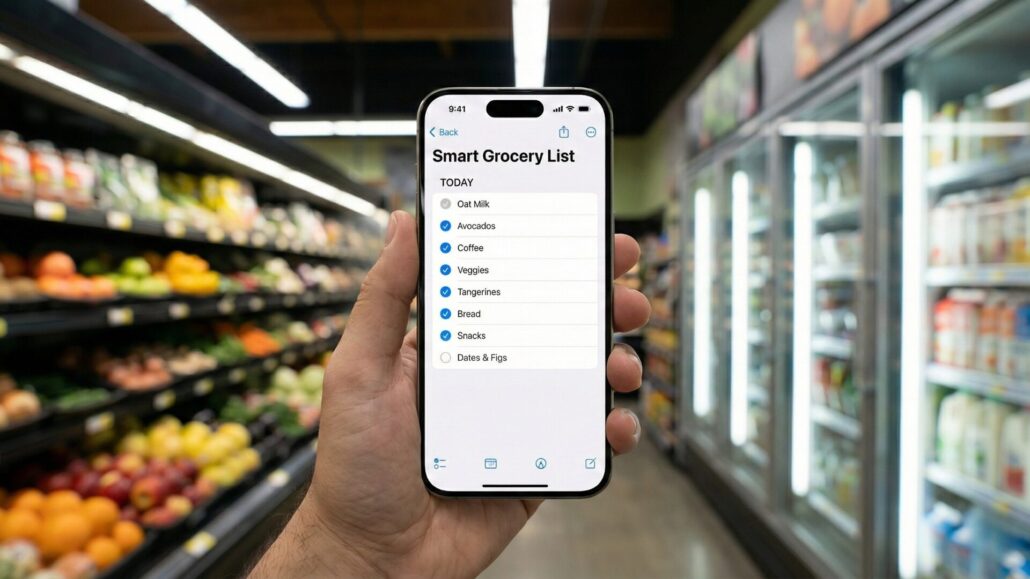
Let’s be honest: our brains are overloaded. Between work, side projects, and trying to remember if you actually fed the dog, things slip through the cracks. That is where the iPhone Reminders app comes in.
It used to be a basic checklist, but with the latest iOS updates, it has become a productivity powerhouse that rivals paid apps. Here is how to master it.
1. The Basics: How to Set a Quick Reminder
Setting a reminder on your iPhone is designed to be frictionless. You don’t need to navigate complex menus; you just need to get the task out of your head and into the phone.
- Open the Reminders app.
- Tap the + New Reminder button in the bottom left.
- Type your task (e.g., “Cancel free trial”).
- Tap Done.
Pro Tip: You can also use the toolbar above your keyboard to instantly add a date, location, or flag priority without leaving the typing screen.

2. Set It and Forget It: Recurring Reminders
Do you have a weekly meeting or a monthly bill? Don’t create a new reminder every time. Use the recurring feature to automate your memory.
- Create a reminder or tap an existing one.
- Tap the “i” (Info) button to open details.
- Toggle Date to ON.
- Tap Repeat and choose your frequency (Daily, Weekly, Monthly, etc.).

3. Advanced Features You Should Be Using
The Reminders app is deeper than most people realize. Here are three features that will change how you use it:
- Location-Based Reminders: Tap the arrow icon in the toolbar. You can set your phone to buzz you specifically when you arrive at the grocery store or leave work.
- “Remind Me When Messaging”: In the details menu, you can tag a contact. The next time you text that person, a banner will drop down reminding you to tell them whatever you forgot.
- Siri Integration: Stop typing. Just say, “Hey Siri, remind me to take out the trash when I get home.” It works seamlessly with your contact card addresses.
4. Customize the Nag: Sounds and Priority
If you ignore your notifications because they all sound the same, it’s time to change that. You can assign specific alert tones to Reminders so you know it’s a task, not just another Instagram like.
Go to Settings > Sounds & Haptics > Reminder Alerts.
From here, you can set a distinct noise (or a silent vibration pattern) specifically for your to-do list.

Troubleshooting: If It Just Won’t Work
Sometimes tech fails. If your reminders aren’t firing, here is the quick fix checklist:

- Check iCloud: Go to Settings > Your Name > iCloud and ensure “Reminders” is toggled ON.
- Location Services: If location reminders fail, go to Privacy & Security > Location Services and make sure Reminders is set to “While Using the App.”
- Update iOS: Apple fixes sync bugs frequently. Ensure you are on the latest version of iOS.
Conclusion
The best productivity app is the one you actually use. Since Reminders is baked into iOS, has dark mode, and syncs instantly to your Mac and iPad, it removes the friction of managing your tasks. Stop trying to remember everything—offload it to your phone and get back to doing the work.



Leave a Reply
Want to join the discussion?Feel free to contribute!