
AI & Software · Tutorial
How to Check a Webpage for Accessibility Issues With WAVE
Use WebAIM WAVE to inspect a public webpage, understand the report, and know why manual accessibility testing still matters.
 By Tony Simons 3 min read
Disclosure: We may earn a commission when you shop through the links below. It never changes the verdict. Details
Disclosure
We may earn a commission when you shop through the links below. Opinions stay independent. Full disclosure
A page can look fine to its creator and still be frustrating for someone using a keyboard, a screen reader, or a different display. WebAIM’s WAVE tool can flag some issues on a public webpage and help you decide what to inspect next.
Think of it as a starting point, not an accessibility certificate. The online tool sends the address to WAVE; don’t submit private links or URLs containing credentials or personal information. We ran WAVE’s online tool against WebAIM’s own introduction page in a desktop browser. We also tried the TRT homepage, where WAVE received a security interstitial instead of the page; those results cannot tell us whether the homepage is accessible.
Evaluate one public page
- Open WAVE and enter the complete public page address in Web page address.
- Select the WAVE button and wait for the report. First check that the page displayed in the report is the page you meant to test—not a login screen, error, or security challenge.
- Read the Summary and expand or inspect items in Details. WAVE places icons on the rendered page and groups results such as errors, contrast errors, alerts, features, and structure in its sidebar.
- Select an item’s Reference control to learn what it means and inspect the associated element. Fix an issue in your site’s source or editor, publish the correction through your normal workflow, and rerun WAVE on the public page.
The screenshot shows WAVE’s report for WebAIM’s introduction page, with the summary on the left and annotations on the page. Counts can change when a page or the tool changes.
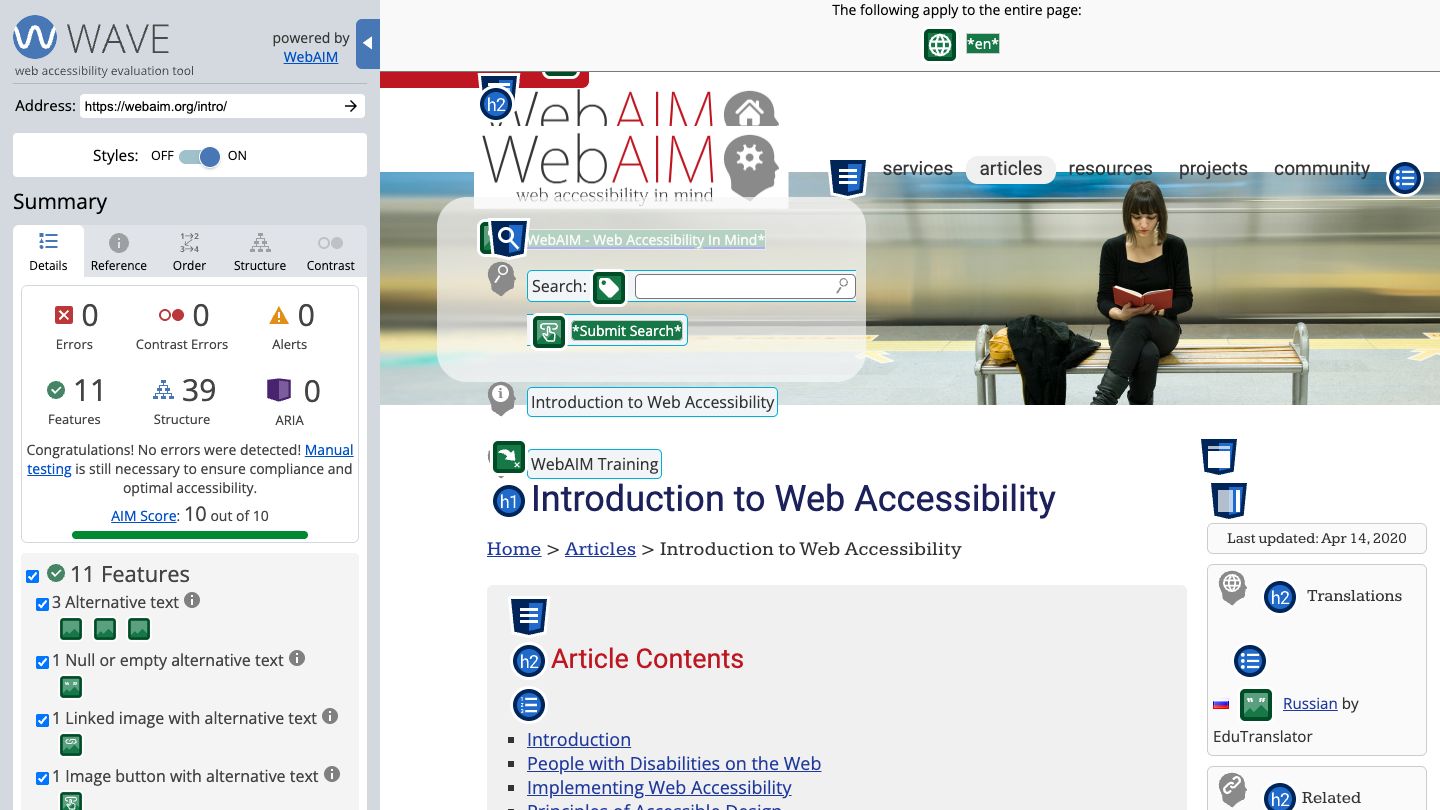
Errors, alerts, and a clean-looking report
Start with errors, then investigate alerts in context. An alert is a prompt for human review, not necessarily proof of a problem. Likewise, a feature or structural icon is information about the page, not an automatic endorsement of how well it works. WAVE’s help page explains its categories and how to use the report.
Zero detected errors does not mean a page is accessible or WCAG-conformant. WebAIM says no automated tool can check every issue. Try the page with a keyboard, check that focus remains visible, review image descriptions in context, and include testing with assistive technology and people with disabilities. WebAIM’s testing quick reference is a useful next step. Our contrast-checking guide covers one narrower check.
If WAVE can’t show the right page
The online service needs a page it can retrieve. Login walls, security challenges, and dynamic content can change what it sees. If the report displays something else, don’t treat its score or findings as an audit of your intended page. WebAIM offers browser extensions for pages that are password-protected or highly dynamic; use them only in a browser and environment you trust.
How we checked: We submitted WebAIM’s public introduction page to the online WAVE tool and inspected its summary and annotated page in a desktop browser. We did not perform a manual accessibility audit or test the browser extension. Screenshot captured from WAVE and WebAIM.
The Inner Circle
One AI shortcut a week. Tested first.
The tools and tricks I actually kept using, sent once a week. Skip the hype threads.
- New verdicts and scores
- Same-day workflow tips
- No spam, unsubscribe anytime
Written by
Tony Simons
Tony has a bachelor's degree from the University of Phoenix and over 14 years of writing experience between multiple publications in the tech, photography, lifestyle, and deal industries.


