
How to Use Google’s 2025 Year in Search and AI Mode to Explore the Biggest Moments of the Year
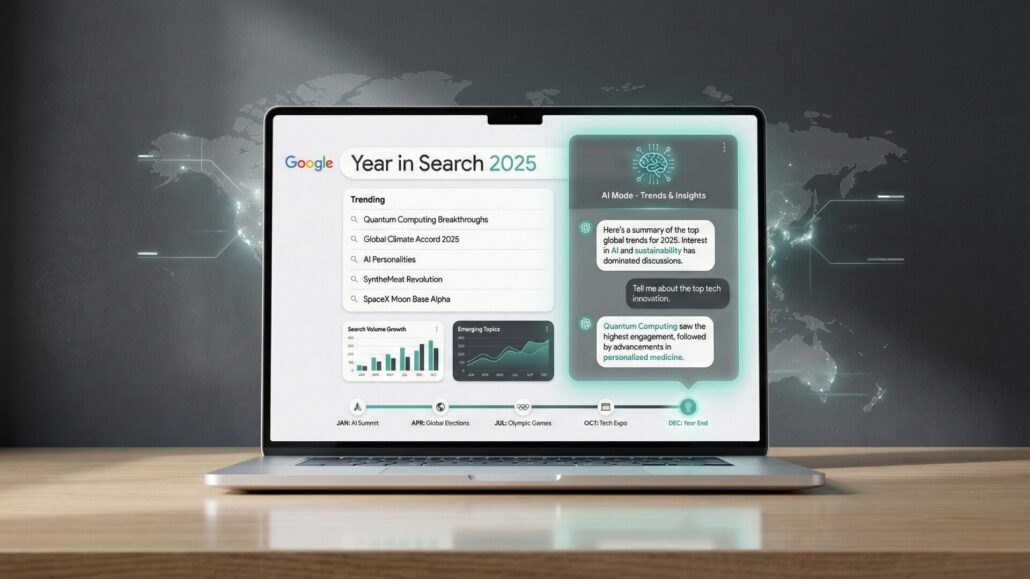
Every year, Google’s ‘Year in Search‘ offers a unique lens through which to view the collective curiosity of the world. It distills billions of queries into a compelling narrative of the moments, people, and topics that captured our attention. For 2025, this annual tradition is taking a significant leap forward with the introduction of an integrated AI Mode, promising a richer, more interactive experience.
This new AI layer isn’t just about presenting data; it’s about providing context, connections, and deeper understanding. Imagine not just seeing what trended, but also understanding why it trended, its broader implications, and how it connects to other major events. This guide will equip you with the knowledge to navigate this powerful new tool, ensuring you can fully explore and comprehend the defining moments of 2025.
Before You Start: What You’ll Need
To make the most of Google‘s 2025 Year in Search and its advanced AI Mode, ensure you have the following:
- A Google Account: While basic Year in Search content might be accessible without one, full functionality, including personalized insights or saving preferences in AI Mode, will likely require you to be logged into your Google account.
- A Modern Web Browser: Use an up-to-date version of Chrome, Firefox, Edge, or Safari. Newer browsers offer better compatibility with advanced web features and AI interfaces.
- Stable Internet Connection: AI-powered analyses and interactive elements can be data-intensive, so a reliable connection will ensure a smooth experience.
- An Open Mind: Be ready to explore and ask questions. The AI Mode thrives on user interaction, allowing you to tailor your journey through the year’s events.
Step-by-Step: Navigating Google Year in Search and Engaging AI Mode
Here’s how to dive into the biggest moments of 2025 with Google’s enhanced Year in Search:
1. Accessing Google Year in Search 2025
- Navigate to the Official Page: Open your web browser and type
trends.google.com/trends/yis/2025(the exact URL might vary slightly but will be prominently linked from the Google homepage or via a simple search for “Google Year in Search 2025”). - What you should see: The main landing page for Google Year in Search 2025, featuring a prominent banner, perhaps a brief introductory video, and initial categories like “News,” “People,” “Culture,” or “Technology.”
2. Exploring Traditional Year in Search Categories
- Browse by Category: Click on the various thematic categories presented on the homepage. These typically include top searches in news, entertainment, sports, and more.
- What you should see: A curated collection of articles, videos, image galleries, and trending search terms related to that specific category. You’ll observe a traditional, editorialized summary of the year’s events.
3. Activating AI Mode for Deeper Insights
- Locate the AI Mode Toggle/Button: As you browse through a specific topic or category, look for a clearly labeled button or toggle, often positioned near the top of the content area. It might say “Activate AI Insights,” “Explore with AI,” or “AI Mode.”
- What you should see: Upon activation, the interface may subtly shift. A new sidebar or overlay might appear, prompting you to ask questions or offering initial AI-generated summaries or key takeaways for the current topic.
4. Interacting with AI Mode
- Ask Specific Questions: Type your questions into the provided text box. For example, if you’re viewing a section on a major scientific breakthrough, you could ask, “What are the long-term implications of this discovery?” or “How does this compare to similar advancements in previous years?”
- What you should see: The AI will process your query and generate a concise, context-aware response, often drawing from a broader range of Google’s indexed information beyond just the Year in Search content itself. It might also suggest follow-up questions.
5. Requesting Trend Analysis and Connections
- Prompt for Trends: Instead of specific questions, you can ask the AI to identify trends. For instance, “Show me the relationship between economic shifts and tech adoption in 2025” or “Analyze the public sentiment surrounding [specific event] throughout the year.”
- What you should see: The AI will synthesize information to highlight patterns, correlations, and causal links between different events or topics, often presented with data visualizations or summarized bullet points.
6. Cross-Referencing Information
- Compare Topics: Use the AI to compare different Year in Search topics. Ask, “How did searches for ‘sustainable energy’ compare to ‘space exploration’ in 2025?” or “What cultural events influenced political discussions this year?”
- What you should see: The AI will draw parallels or contrasts, providing a holistic view of how various aspects of 2025 interconnected, often revealing unexpected insights.
7. Saving and Sharing Your Insights
- Utilize Sharing Features: Look for share icons (typically a paper airplane or an arrow) to share specific Year in Search pages or AI-generated insights via social media, email, or direct link.
- What you should see: A pop-up with sharing options. If AI Mode allows for saving, you might find a “Save” or “Bookmark” option to revisit specific AI conversations or analyses within your Google Account.
Troubleshooting Common Issues
While Google’s Year in Search and AI Mode are designed to be intuitive, you might encounter a few hiccups:
- AI Mode Not Appearing: If you don’t see the AI Mode option, first ensure you’re on the official 2025 Year in Search page. Try refreshing your browser, clearing your cache and cookies, or checking if your browser is up to date. Occasionally, AI features might roll out regionally, so patience may be key.
- Slow AI Responses: A slow internet connection is the most common culprit. Try moving closer to your Wi-Fi router or switching to a wired connection. High server load during peak usage times can also cause delays; try again later.
- Inaccurate or Nonsensical AI Summaries: While Google’s AI is robust, it’s not infallible. If you receive an answer that seems incorrect or irrelevant, try rephrasing your question more clearly and specifically. Remember, AI is a tool; critical thinking remains essential.
- Browser Compatibility Issues: Older browsers might struggle with the dynamic elements of AI Mode. Update your browser to its latest version for optimal performance. If issues persist, try a different browser.
- Missing Features: If a feature described isn’t visible, it might be a phased rollout. Google often introduces new functionalities gradually. Keep an eye on official announcements for availability.
Extra Tips for Maximizing Your Exploration
To truly master Google’s 2025 Year in Search and its powerful AI Mode, consider these advanced strategies:
- Refine Your AI Prompts: The clearer and more specific your questions, the better the AI’s responses will be. Instead of “Tell me about tech,” try “What were the three most disruptive emerging technologies in 2025, and what challenges did they face?”
- Explore Global vs. Local Trends: Pay attention to any options that allow you to filter results by region or country. This can reveal fascinating differences in what captured attention worldwide versus in your local area. AI Mode can be particularly useful here for comparative analysis.
- Use Year in Search for Research: Whether you’re a student, journalist, or marketer, the AI Mode can be an invaluable research assistant. Use it to quickly grasp the context of events, understand public sentiment, or identify emerging topics for content creation.
- Cross-Reference with Other Sources: While Google’s AI is a powerful summarizer, always remember to cross-reference critical information with other reputable sources. This practice strengthens your understanding and ensures accuracy.
- Look for ‘Related Topics’ and ‘Deep Dive’ Options: Beyond direct AI interaction, many Year in Search sections will offer curated links to related articles or deeper dives into specific sub-topics. These can provide a human-curated alternative or complement to AI analysis.
- Provide Feedback: If you encounter issues or have suggestions for AI Mode, look for feedback options (often a small icon or link). Your input helps Google improve the tool for everyone.









Leave a Reply
Want to join the discussion?Feel free to contribute!