

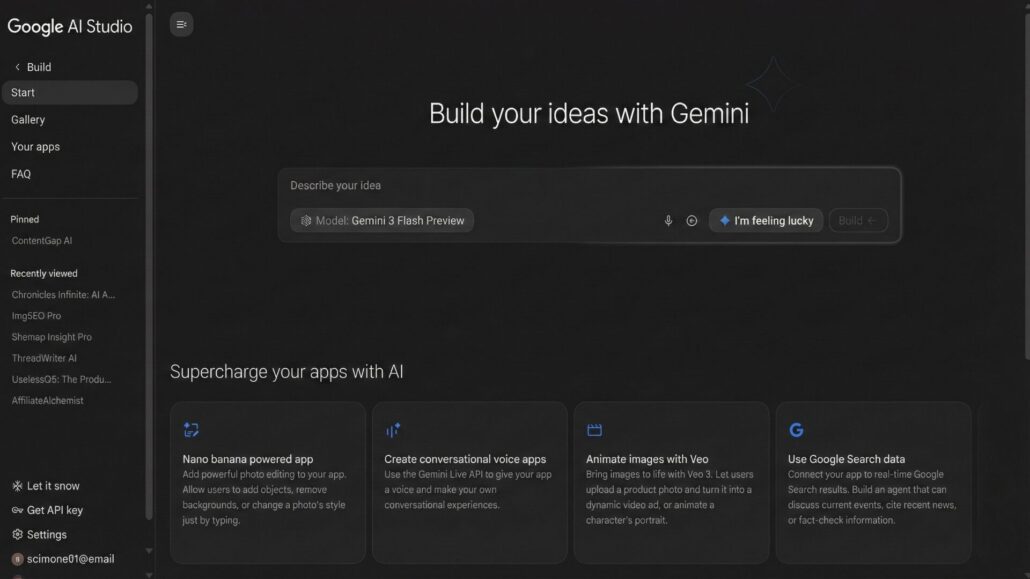
Coding used to require, well, coding. You needed to understand syntax, set up environments, and debug cryptic error messages for three hours before printing “Hello World.”
That era is effectively over. We have entered the age of “Vibe Coding”—where building software is less about writing loops and more about telling an AI exactly how you want it to behave in plain English.
There are plenty of tools for this, but Google AI Studio is currently the best-kept secret in the developer world. It isn’t the heavy, enterprise-grade Google Cloud Console (which requires a degree to navigate). It is a lightweight, surprisingly fast sandbox that gives you access to Google’s most powerful models, like Gemini 2.0 Flash and the reasoning-heavy Gemini 3 Pro.
Best of all? It’s free to start.
Here is how to go from zero to a working app prototype in under 15 minutes.
What is Google AI Studio?
Think of Google AI Studio as the “developer view” of Gemini.
When you use the standard Gemini chatbot, you are a consumer. You type a prompt; it gives an answer. When you use AI Studio, you are an engineer. You can control the “temperature” (creativity), set “system instructions” (persistent behavior), and most importantly, export code that you can paste into your own applications.
It bridges the gap between chatting with a bot and building a product.
The Prerequisites
- A Google Account.
- 15 minutes.
- Zero dollars (we are sticking to the Free Tier).
Step 1: The Setup (2 Minutes)
Head over to aistudio.google.com.
If it’s your first time, you’ll be asked to sign in and agree to terms. Once you’re in, you’ll see a clean, dark-mode interface. It looks like a code editor, but don’t panic—you won’t be writing code yet.
On the left sidebar, click “Create New” and select “Chat Prompt”.
Pro Tip: Don’t get distracted by the “Prompt Gallery.” Most of those are generic. We are building something specific today.
Step 2: Pick Your Brain (1 Minute)
On the right-hand panel, you need to select your model. You typically have two main choices:
- Gemini 3 Flash: This is the speed demon. It is incredibly cheap (or free within limits), fast, and good enough for 90% of tasks. Use this for chat apps, summarizers, or basic tools.
- Gemini 3 Pro: The heavy lifter. It’s slower and more “expensive” (in terms of rate limits), but it has better reasoning capabilities. Use this for complex coding tasks or nuanced creative writing.
For this tutorial, select Gemini 2.0 Flash. It’s snappy and perfect for a first build.
Step 3: The Secret Sauce (5 Minutes)
This is where the magic happens. Look for the box labeled “System Instructions”.
In a normal chat, you have to keep reminding the AI who it is (“Act as a travel agent…”). In AI Studio, the System Instruction is the “God Mode” rule. The AI cannot break character once this is set.
Let’s build a “Brutal Resume Roaster” app.
Paste this into the System Instructions box:
“You are a cynical, highly critical senior tech recruiter at a FAANG company. Your job is to review resumes pasted by the user. You must ignore fluff. You must point out vague metrics. You must be sarcastic but ultimately helpful. If a user pastes anything that is NOT a resume, reply only with: ‘That is not a resume, try again.'”
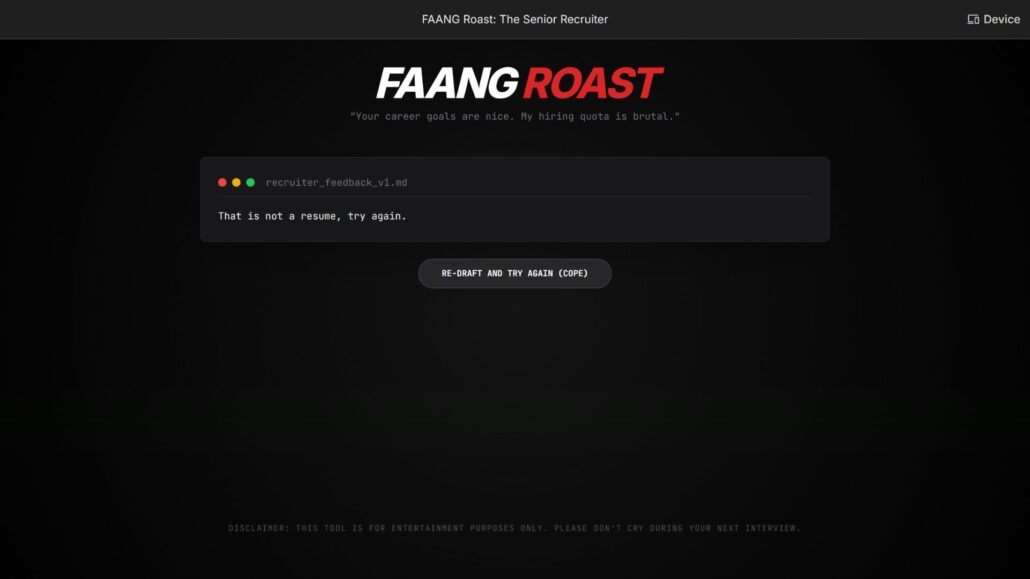
This separates your app from a generic chatbot. You are baking in personality and logic.
Step 4: Test and Iterate (5 Minutes)
Now, look at the main chat window. This is your testing ground.
- Paste a sample resume (or just a paragraph about your work history).
- Hit Run (or press Command/Ctrl + Enter).
If the model is too polite, go back to your System Instructions and add: “Be meaner.”
If the model is hallucinating job titles, lower the Temperature slider on the right (turn it down to 0.2 for more factual responses).
This loop—tweak instructions, test, tweak slider, test—is the core of AI engineering. You are debugging English, not Python.
Step 5: The “Get Code” Button (2 Minutes)
This is the feature that makes AI Studio superior to ChatGPT for builders.
Once your bot behaves exactly how you want:
- Look at the top right corner of the screen.
- Click the “Get Code” button (looks like
< >). - Select your language (Python, JavaScript, cURL, etc.).
Google will generate a snippet that includes your specific System Instructions, your safety settings, and the model configuration.
You can now copy that Python script, paste it into a Replit or a local VS Code file, and you have a functioning backend for an app. You just need to add an API key (which you can generate right there in the popup).
The Catch: Read This Before You Ship
It sounds perfect, but there are tradeoffs. As a skeptical reviewer, I have to point out the fine print.
1. The “Free” Tier Privacy Tradeoff
Google AI Studio offers a generous free tier, but Google may use your inputs and outputs to tune their models.
- The Rule: Do not paste your company’s internal financial data, passwords, or confidential health records into the Free tier of AI Studio. If you need privacy, you have to pay for the Enterprise tier (via Vertex AI).
2. Rate Limits
The free tier is great for prototyping, but if your “Resume Roaster” goes viral on Reddit, you will hit a wall immediately. You will eventually get a 429 Too Many Requests error.
- The Fix: AI Studio is for building. When you’re ready to scale, you switch the endpoint to Vertex AI (Google’s paid cloud platform). It’s the same model, just a different billing account.
3. It’s Just the “Brains”
AI Studio gives you the logic (the backend). It does not give you a pretty user interface. You still need a way for users to interact with it—like a simple Streamlit page or a Discord bot wrapper.
Verdict
Google AI Studio is currently the lowest-barrier entry point for building AI software. It removes the friction of AWS/GCP account setups and lets you focus entirely on the “Vibe Coding”—the logic and personality of the app.
If you have 15 minutes and an idea, you no longer have an excuse not to build it.


