Bright colors, animated effects, and a surprisingly useful set of physical controls make the LIFX Luna more than just another decorative smart light.
Disclosure: LIFX provided the Luna for review. All opinions and experiences shared here are my own.
Affiliate disclosure: If you buy through links on Tony Reviews Things, I may earn a commission at no extra cost to you.
I’ve been making some improvements to my streaming studio lately, and one of the things I’ve been focusing on is lighting. I’ve already got plenty of blue going on, but I wanted something that would add a little contrast and make the background more interesting without taking over the entire scene.
That’s where the LIFX Luna comes in.
It’s a compact smart lamp with customizable colors, animated lighting effects, and physical buttons that can do quite a bit more than you might expect. At $79.99 before any discounts, it’s not exactly an impulse purchase, especially if you’re thinking about buying several.
I’ve been using mine on a shelf behind me, and it’s turned out to be a pretty cool addition to my setup.
The interesting part is that some of my favorite things about the Luna weren’t even features I knew about when I started testing it.
Let’s get into it.
The verdict
LIFX Luna
A vibrant, versatile smart lamp that makes my streaming background look better, with customizable physical buttons I actually use.
- Type
- Smart Ambient Lamp
- Brightness
- Up to 1,000 lumens (rated)
- Connectivity
- 2.4GHz Wi-Fi + Matter
- Smart home
- Google Home, Alexa, Apple Home, SmartThings
- Controls
- 4 customizable physical buttons
- Standout
- Double-press Studio Flame shortcut
What works
- Excellent light and color: Vibrant output with plenty of brightness for my studio.
- Flame and Meteor effects: Red animated lighting that looks great against my existing blue setup.
- Flexible placement: Upright, wall-mounted, or face down for a softer shelf glow.
- Useful physical controls: A double press recalls my saved Studio Flame scene without opening the app.
- Easy setup: The LIFX app and Google Home connection worked without hassle in my testing.
- Smart-home support: Matter plus Google Home, Alexa, Apple Home, and SmartThings support.
- Customizable buttons: Single, double, and long presses can trigger different actions, including cloud scene shortcuts.
Tradeoffs
Tony's take
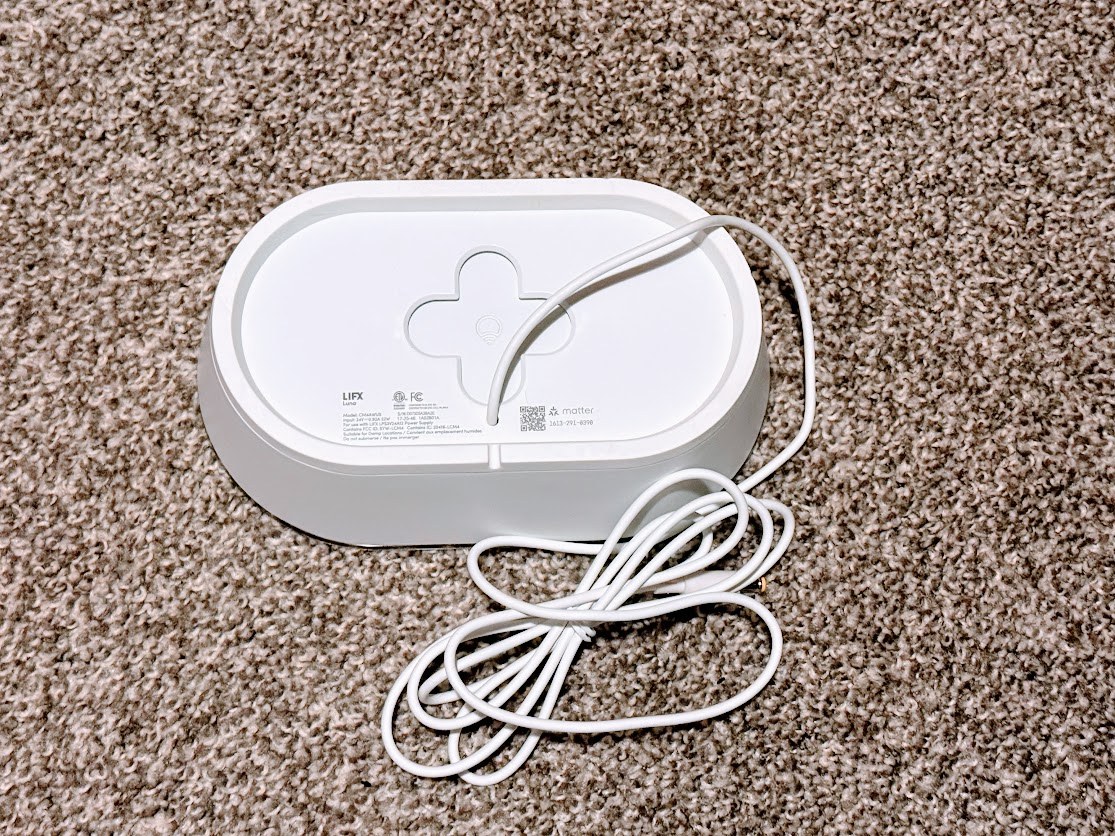
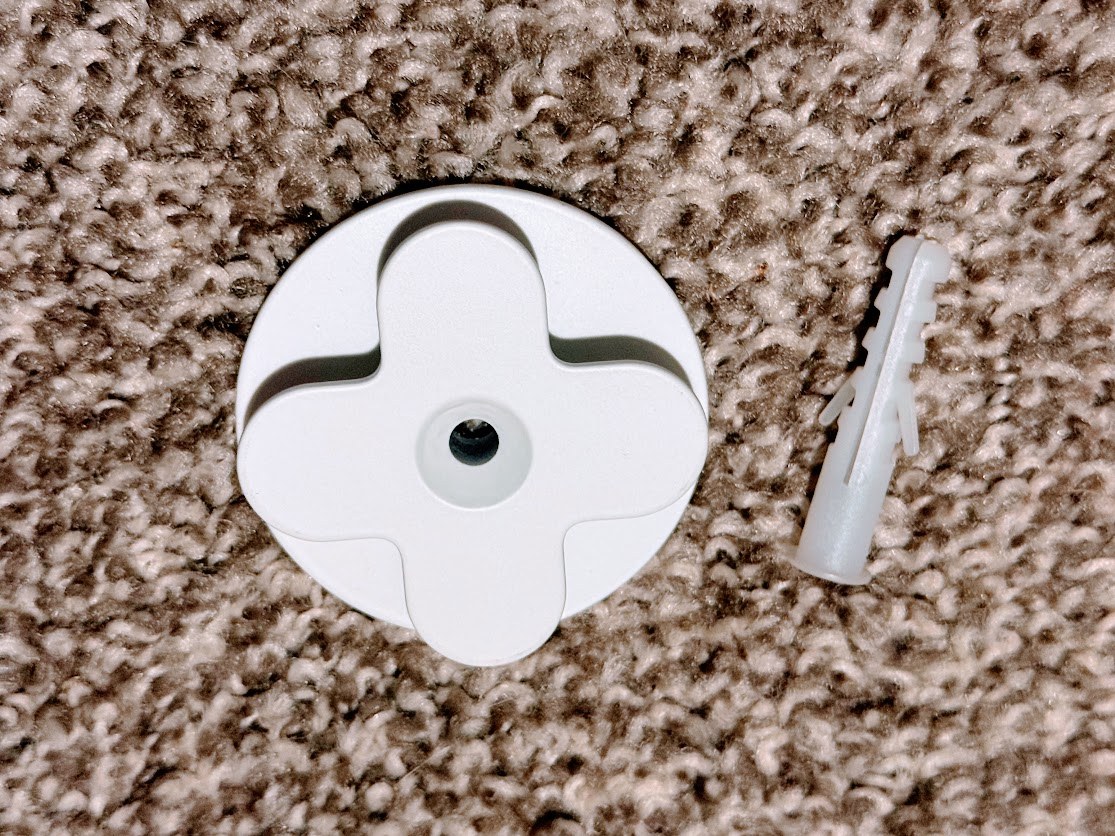
Design and build quality: Bigger than I expected
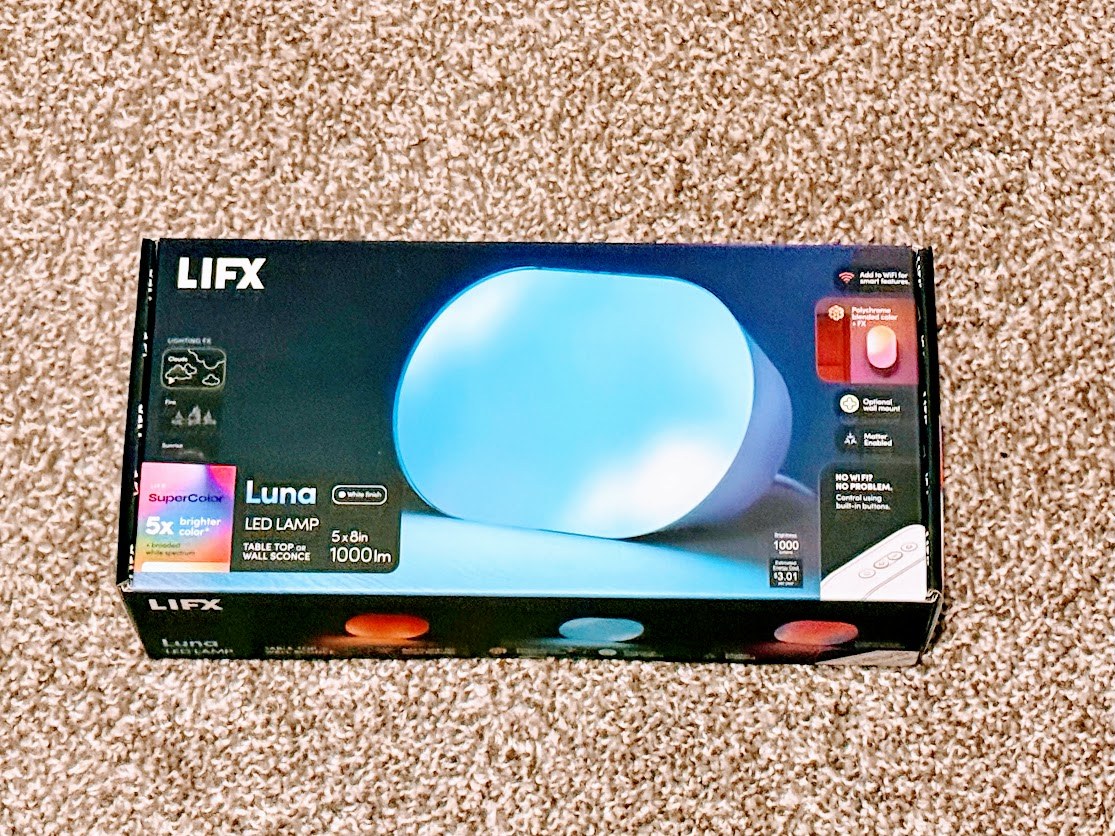
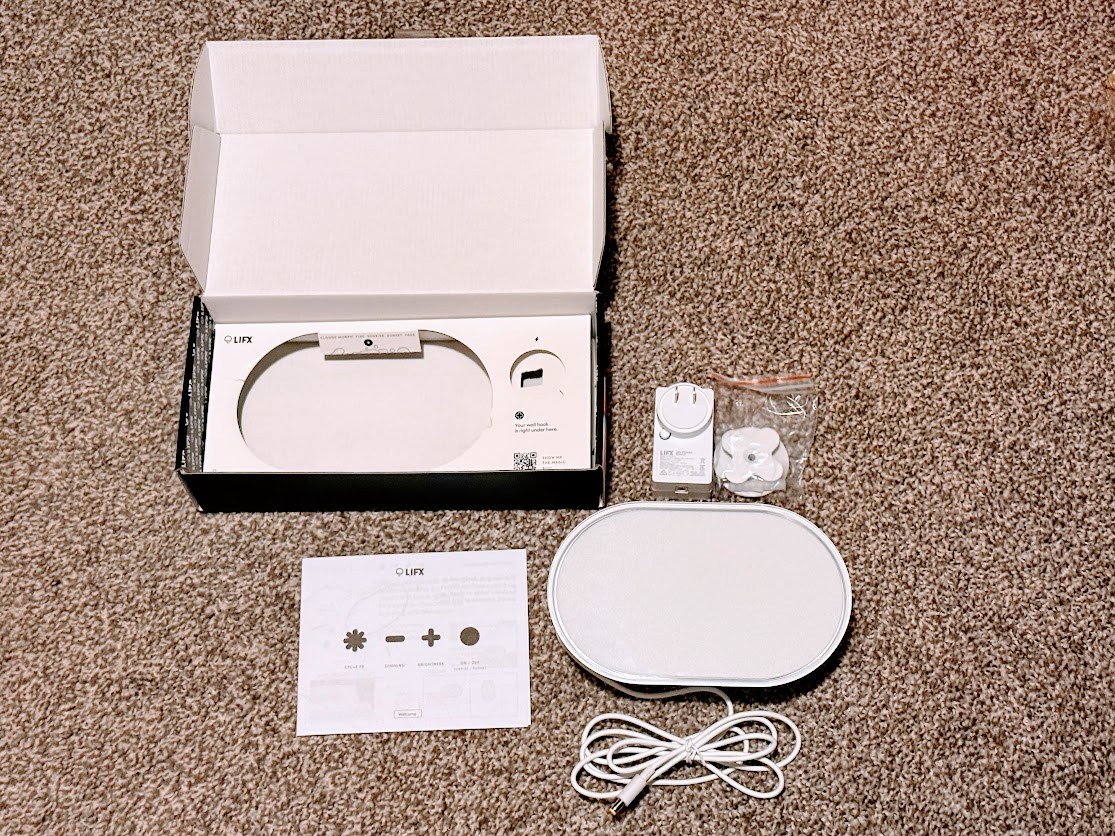
The first thing I noticed when I pulled the Luna out of the box was its size.
I don’t know exactly what I was expecting, but this thing was considerably bigger than I had pictured in my head.
That’s not necessarily a bad thing, though.
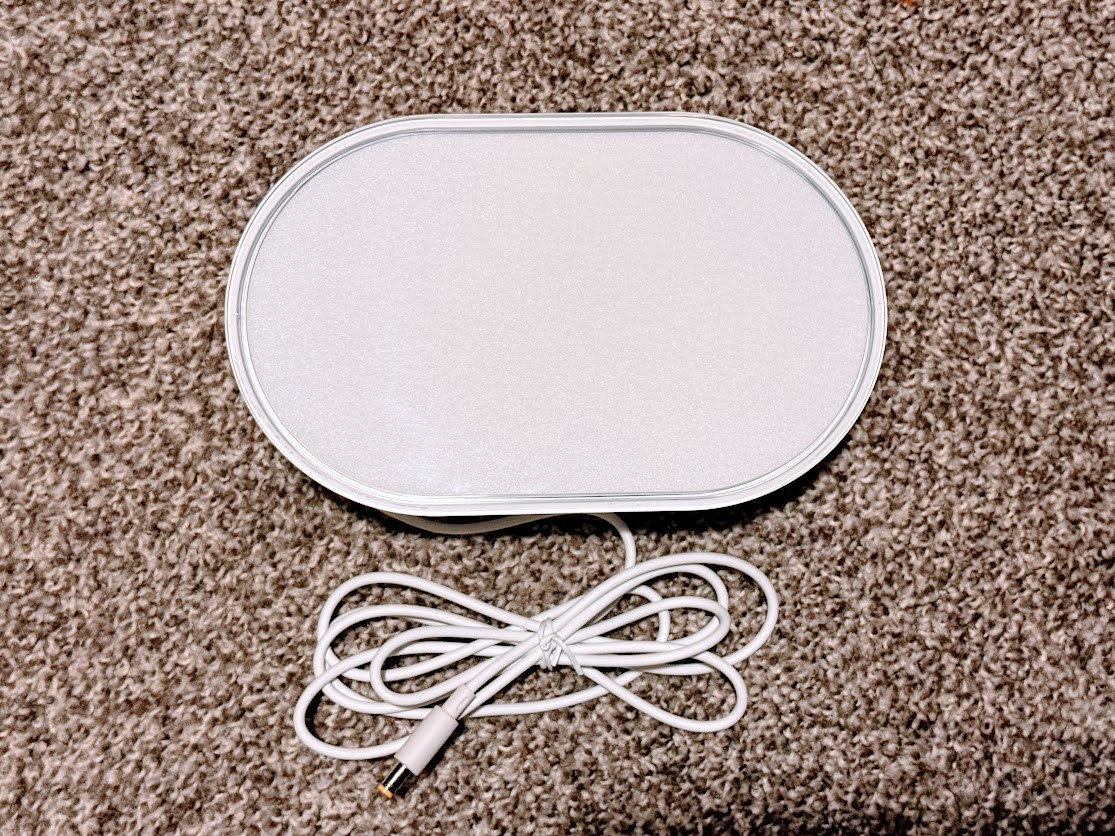
The Luna feels substantial. It’s a little chunky, but it isn’t particularly heavy. More importantly, it feels like a well-built piece of equipment rather than some cheap plastic light you grabbed off a discount shelf.
The white matte finish looks clean, and the exterior feels smooth to the touch. It’s got a modern design that should fit into plenty of different environments without looking out of place.
Even the physical buttons feel good.
They’ve got nice rubber covers, and pressing them feels satisfying. It’s a small detail, but the buttons contribute to the overall premium feel of the device.
I had a positive first impression before I even plugged it in.
The design is also surprisingly flexible. You can stand it upright on a desk or shelf, lay it on its back to direct light upward, or mount it on a wall using the included hardware.
And there’s another placement option that I discovered during testing that might actually be my favorite.
We’ll get to that in a minute.
Setup: Surprisingly painless
Smart-home products have a special talent for turning what should be a five-minute setup into an entire afternoon of troubleshooting.
Thankfully, that wasn’t my experience with the Luna.
I downloaded the LIFX app from the iOS App Store, installed it, and got everything connected without any real difficulty.
The process was straightforward.
I also connected the Luna to Google Home so I could control it through my Google Home speaker.
That worked without any problems, too.
I’ve had some pretty frustrating experiences getting smart-home devices connected to Google Home in the past, so it was nice to have one that just worked.
Beyond Google Home, Luna supports Apple Home, Amazon Alexa, and SmartThings through its smart-home connectivity features. It uses 2.4GHz Wi-Fi and supports Matter.
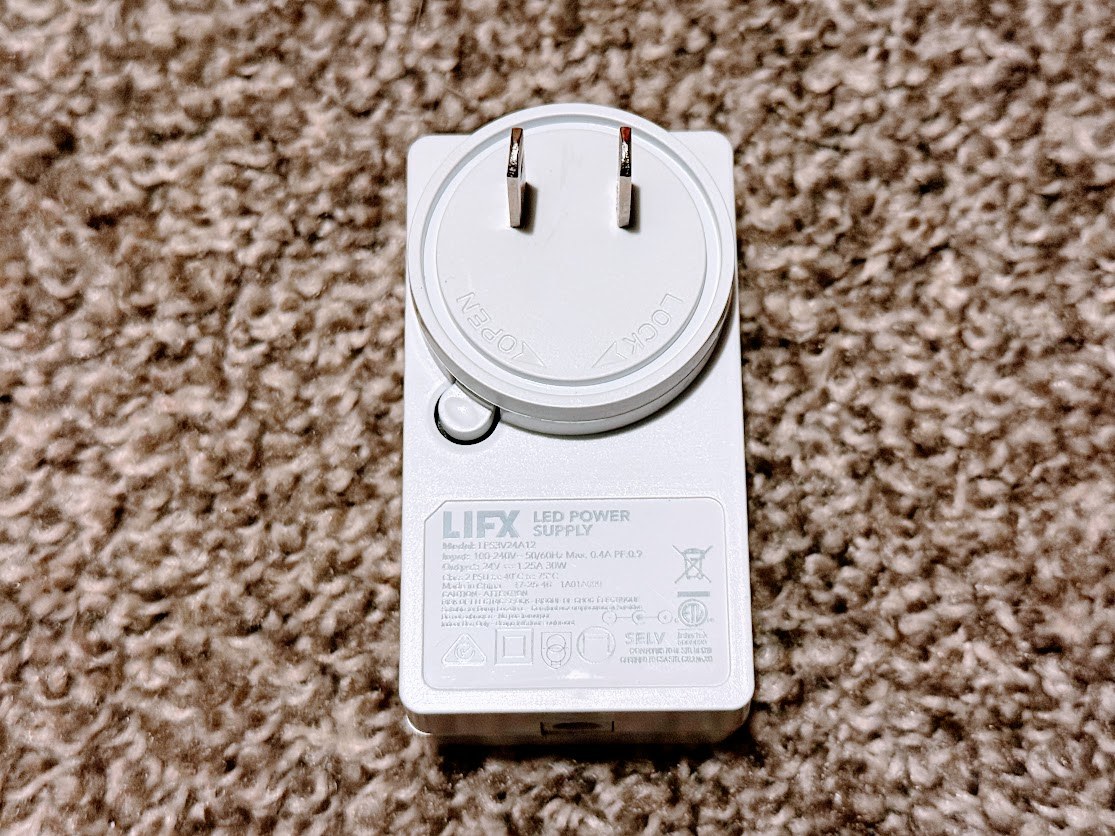
You don’t need to buy a separate proprietary LIFX hub just to use the lamp and its app.
I haven’t personally tested every supported smart-home ecosystem, but my experience getting it connected to Google Home was excellent.
And once everything was set up, I could finally start playing with the lighting.
Lighting performance: This sucker is bright
My immediate reaction when I first powered up the Luna?
This sucker’s bright.
I remember it coming on in what appeared to be a normal white lighting mode. Nothing particularly unusual there.
Then I started exploring the app.
That’s when things got interesting.
LIFX rates the Luna at up to 1,000 lumens, with adjustable white temperatures ranging from 1500K to 9000K. That gives it quite a bit of flexibility, whether you’re looking for a warm ambient glow or a cooler white light.
I haven’t measured its actual light output with professional equipment, but I can tell you that it certainly doesn’t feel underpowered.
The colors are vibrant, and there’s plenty of brightness available.
For my particular setup, though, the animated effects are where the Luna really shines.
Flame and Meteor are my favorites
My studio’s primary lighting is blue.
I wanted something that would contrast with that blue rather than just adding more of the same color.
Two effects I’ve really enjoyed are Flame and Meteor.
Both give me the red lighting I’m looking for, along with movement that makes the background a little more interesting.
Flame, in particular, has become my go-to.
With the Luna sitting on the shelf behind me, the animated red lighting adds a nice pop against the blue without being overly distracting.
It’s the kind of thing that helps a streaming background feel a little more alive.
There’s one important catch, though.
You have to watch the brightness on camera
When I’ve got the Luna facing directly toward my camera, I need to turn the brightness all the way down to its lowest setting.
Otherwise, it’s just too bright for the look I’m going for.
At minimum brightness, the colors still look good. They don’t get completely washed out, and I can actually see the effect rather than just a glowing white blob.
Unfortunately, not every animated mode behaves the same way.
Some effects increase the brightness as part of their animation, which can cause the illuminated face to wash out on camera.
That means not every effect works equally well when you’ve got the Luna pointed directly at the lens.
It’s not a dealbreaker for me because I’ve found effects that work well for my setup. But it’s something streamers and content creators should keep in mind.
And it actually led me to discover another way to use the Luna.
My favorite discovery: Turn it face down
This might be my favorite little trick with the Luna.
Instead of standing it upright with the illuminated surface facing the camera, you can lay it face down.
When you do that, light escapes around the edges and creates a really nice glow.
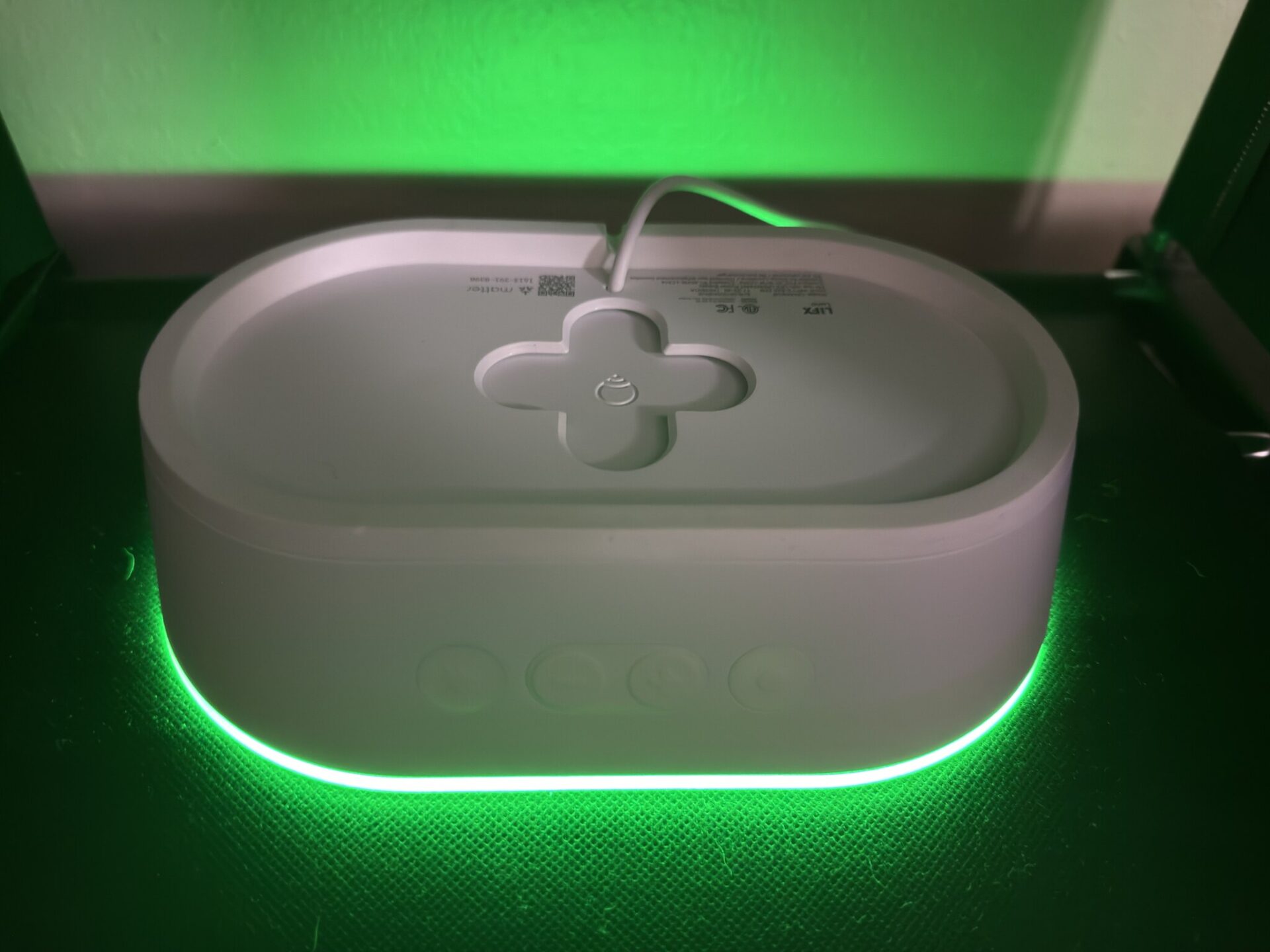
I tried putting it face down inside one of the cubes on the shelf behind me, and I really like how it looks.
Instead of seeing the entire illuminated face, you get this softer lighting effect coming from inside the cube.
It’s a completely different look.
I can also turn the brightness up more than I normally would when the lamp is facing the camera.
That gives me another option for lighting the background without having the lamp itself dominate the shot.
Honestly, I think it looks pretty cool just sitting there glowing.
The flat rear surface also makes the face-down configuration an interesting way to use the space on a shelf, although I haven’t tested placing anything on top of it, and I wouldn’t recommend blocking ventilation or treating it as a load-bearing stand.
This kind of versatility is something I appreciate.
You aren’t stuck with one orientation or one particular lighting style.
You can move it around, experiment with different placements, and find something that works for your room.
For me, that little glowing cube has become one of my favorite ways to use it.
The LIFX app: Plenty to play with
The LIFX app is where you’ll spend most of your time configuring the Luna.
You can adjust the colors, change brightness, explore lighting effects, and create scenes that save your preferred settings.
I’ve found it straightforward to use.
Once I had the Luna connected, I started exploring the different colors and effects without having to spend much time figuring out how the app worked.
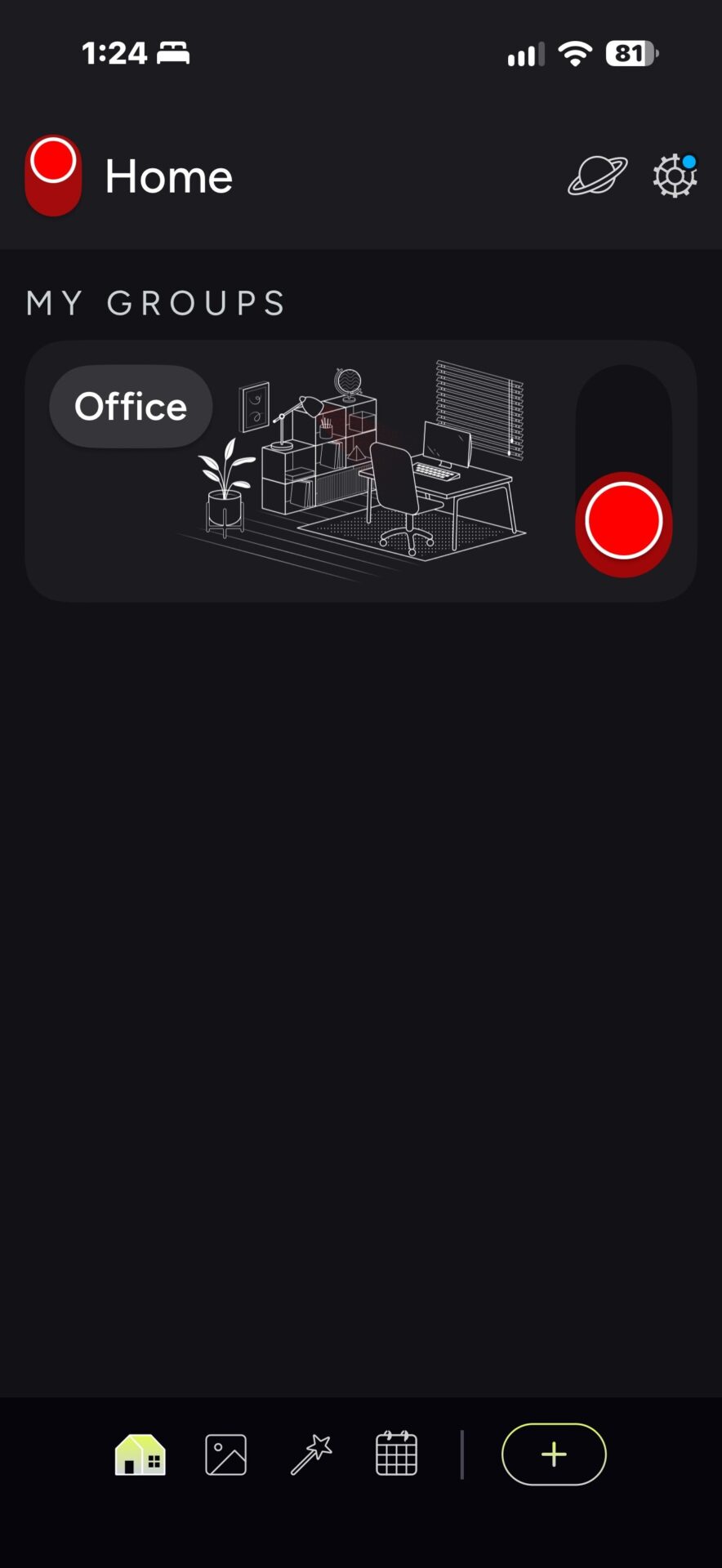
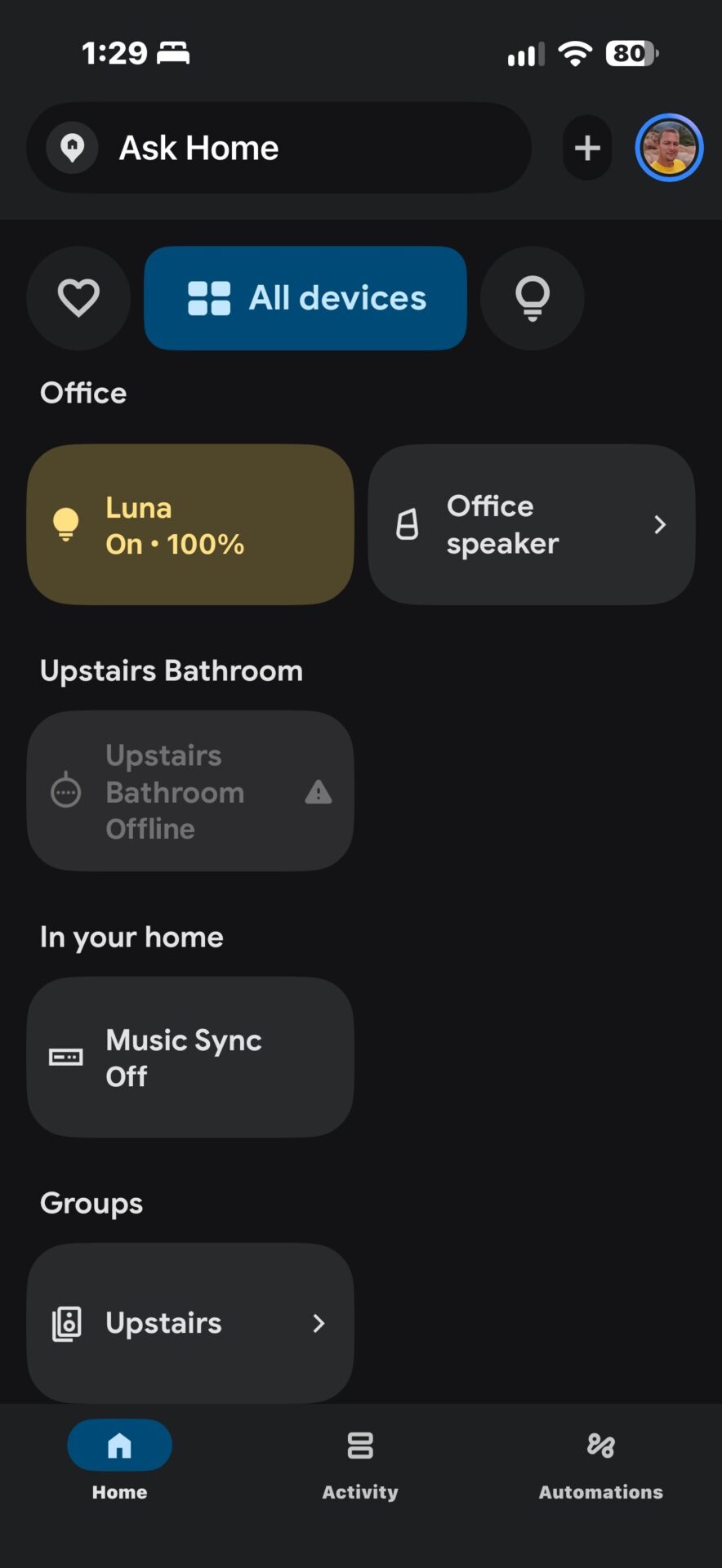
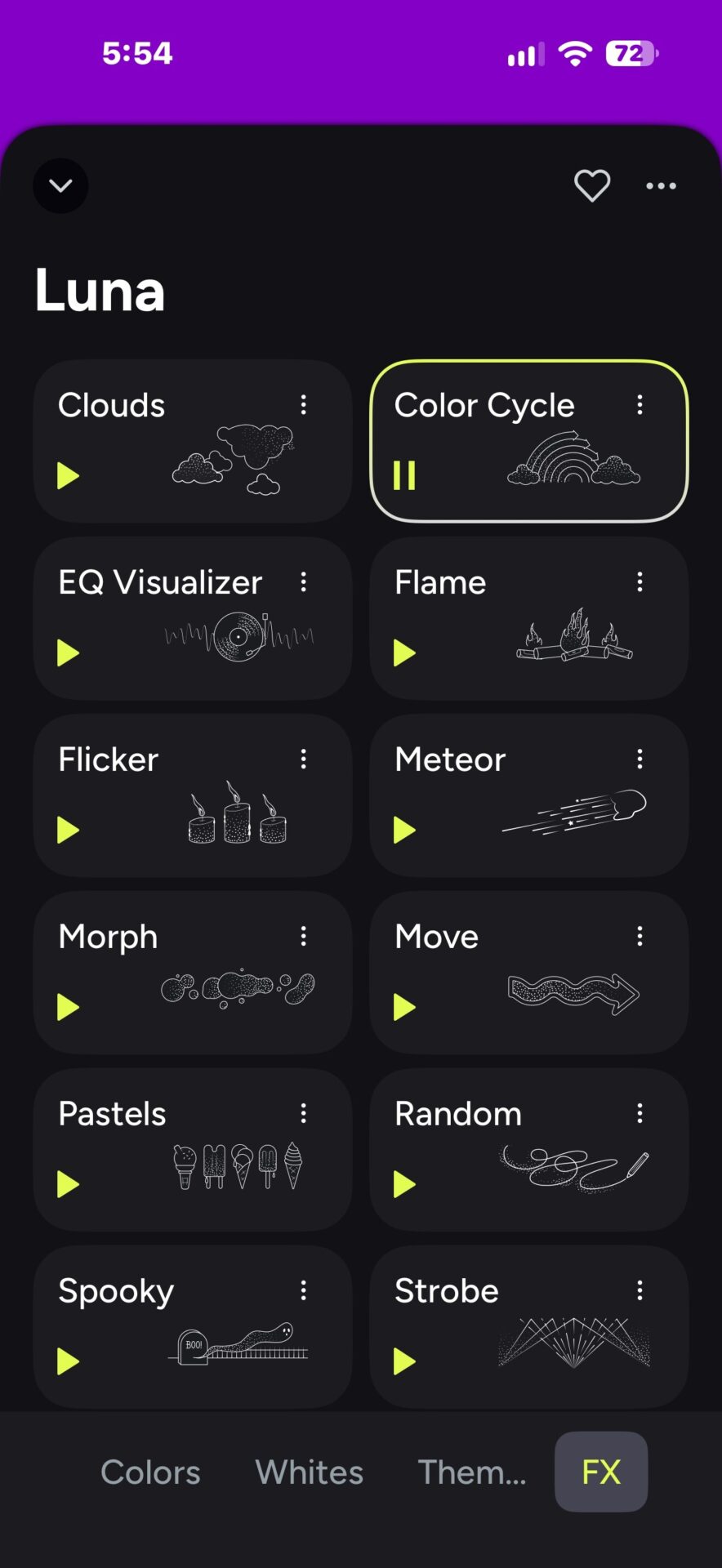
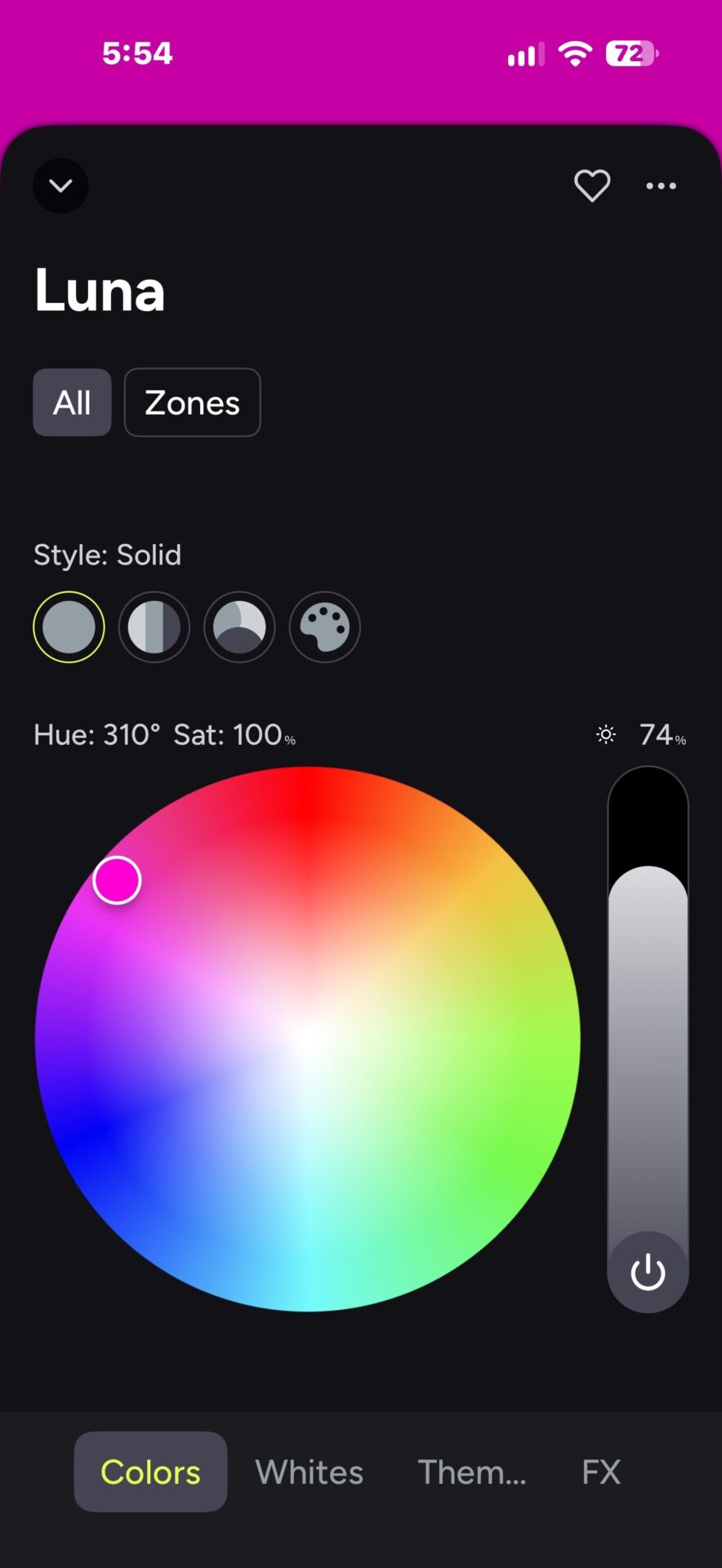
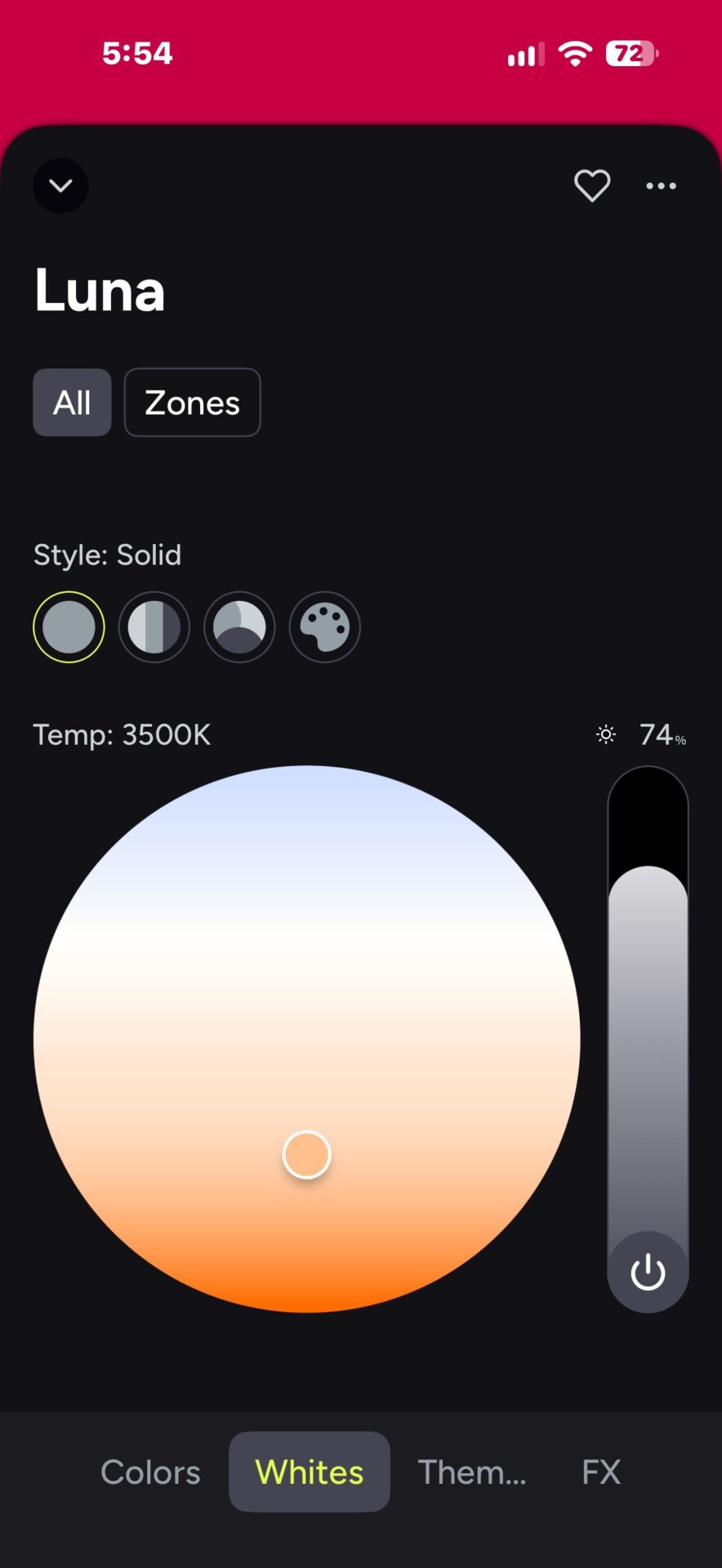
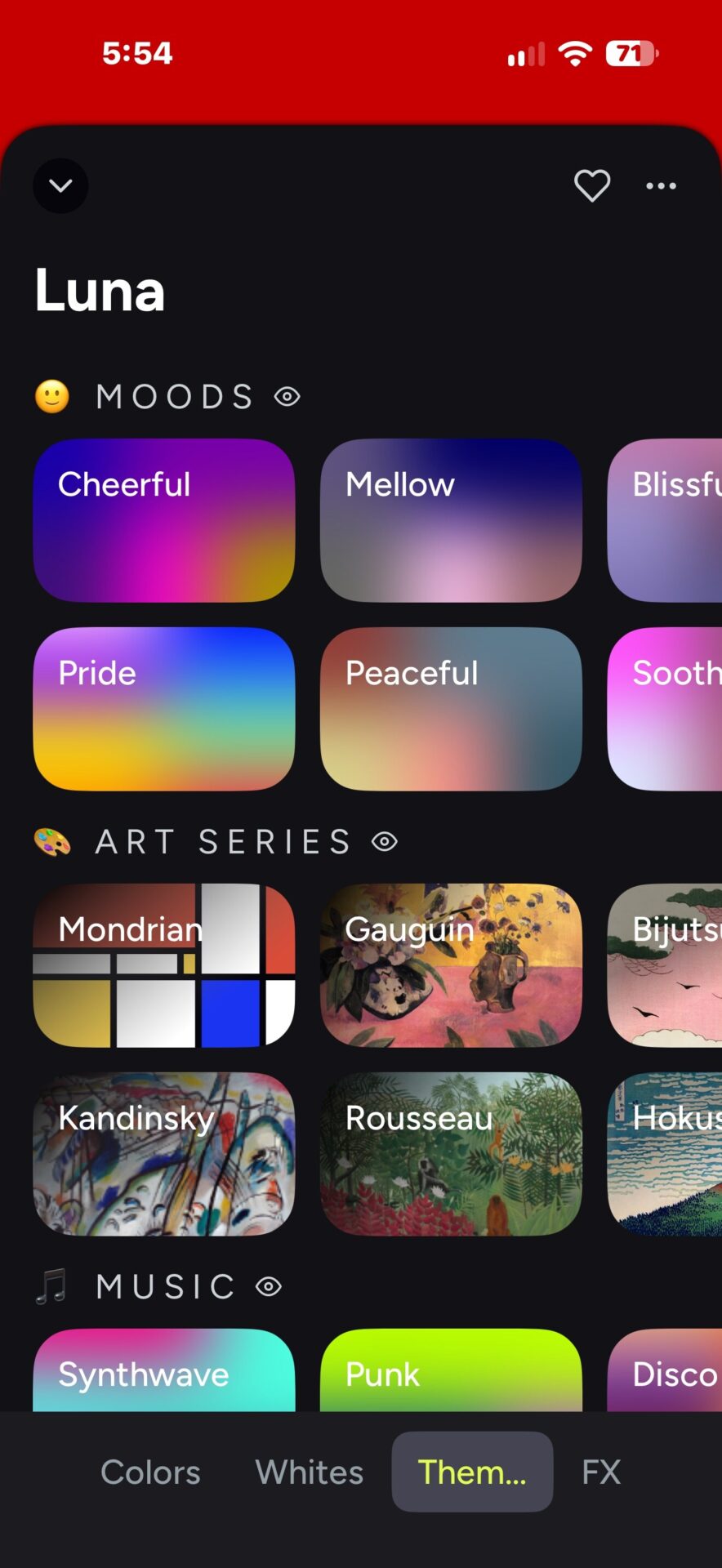
There’s plenty to experiment with, especially if you enjoy customizing the appearance of your setup.
You can go with a simple solid color, use one of the animated effects, or create a scene for a particular mood.
And if you want something more understated, you don’t have to use the colorful effects at all.
You can just use the Luna as a white or warm ambient light.
That makes it more versatile than something designed exclusively for colorful gaming setups.
But there’s another feature that I almost completely overlooked.
The physical buttons.
The hidden gem: Customizable physical buttons
When I first started using the Luna, I didn’t even realize the physical buttons were customizable.
I knew they could control the light, obviously, but I hadn’t really explored what else they could do.
Once I found the Buttons menu in the LIFX app, I started digging into the available actions.
The basic options include toggling the light on and off, increasing and decreasing brightness, cycling through effects, stopping effects, and activating sunrise or sunset behavior.
You can also assign different actions to single presses, double presses, and long presses.
With four buttons, that gives you quite a bit of flexibility.
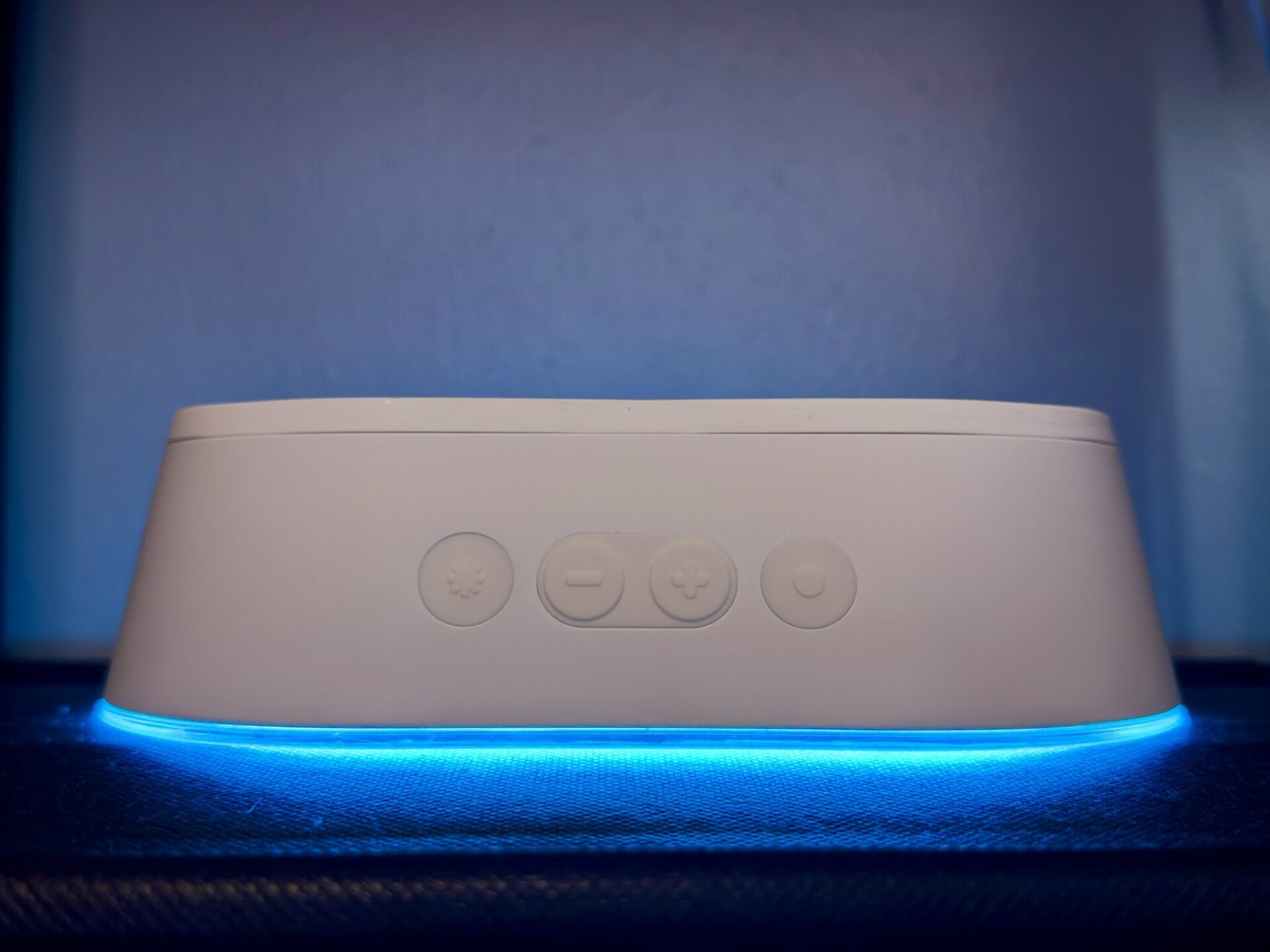
The really interesting part is that the buttons aren’t limited to controlling the Luna itself.
Depending on your configuration, you can use Matter actions to control compatible lighting or cloud actions to control other LIFX devices and activate saved scenes.
That’s where I found something genuinely useful for my studio.
Setting up my Studio Flame shortcut
As I mentioned earlier, Flame is probably the effect I use most.
Whenever I want to get my streaming background looking right, that’s usually where I end up.
Naturally, I thought it would be pretty cool if I could just press a button and have the Luna switch directly to Flame.
But when I looked through the basic button actions, I couldn’t find an option to select a specific effect.
I could cycle through the effects, but that wasn’t quite what I wanted.
Then I discovered that I could create a scene and assign it to a button using Cloud Actions.
So that’s exactly what I did.
Here’s how I set it up.
Step 1: Get the lighting looking right.
I opened the LIFX app and activated my preferred Flame effect.
Step 2: Save it as a scene.
I created a new scene, named it “Studio Flame,” selected the Luna, and saved it with a one-second transition.
Step 3: Configure the button.
I went back into the Luna’s button settings, selected the double-press action for the effects button, and chose Cloud Actions.
From there, I selected Scene and assigned my new Studio Flame scene.
Step 4: Test it.
I switched the Luna away from Flame, went over to the lamp, and double-tapped the button.
And it worked perfectly.
Just like that, I had my own physical shortcut for my favorite lighting setup.
Now, instead of grabbing my phone and opening the app every time I want to activate Flame, I can just double-tap the button.
Very cool.
It’s a small convenience, but it’s one of those features that becomes genuinely useful once you’ve got everything configured the way you want it.
One thing worth noting is that this particular shortcut uses a cloud action. The Luna’s basic onboard controls can work without an internet connection, but the cloud-based scene shortcut has different connectivity requirements.
Still, the extra setup was pretty painless, and I’m glad I took the time to figure it out.
Who is the LIFX Luna for?
After spending time with the Luna, I think its biggest strength is how many different environments it could work in.
For streamers and content creators, it’s an excellent way to add some interesting lighting to a background.
If you’re building a gaming-oriented setup with colorful lighting and animated effects, I can definitely see the appeal.
That’s where I’ve enjoyed using it most.
But I don’t think that’s the only kind of setup where it makes sense.
If you’re going for a more professional or understated appearance, you can skip the animated colors entirely and use the Luna as a warm or neutral backlight.
You don’t have to have a room full of RGB lighting to get something useful out of it.
I could also see it working well in a bedroom, a kid’s room, or just about any space where somebody wants decorative ambient lighting.
Its different placement options make it especially interesting for shelves and wall accents.
Those are potential applications rather than environments I’ve personally tested, but the flexibility is definitely there.
Ultimately, it depends on the look you’re going for.
If you want something colorful and animated, Luna can do that.
If you want something a little more subtle, it can do that, too.
Price and value: Eighty dollars adds up
The Luna carries a regular retail price of $79.99, although discounts may be available.
Check current availability at LIFX or Amazon.
For a single lamp, I think there’s quite a bit to like here.
You’re getting a well-built device with vibrant lighting, multiple effects, smart-home connectivity, and physical controls that can be customized to do more than simply turn the lamp on and off.
It’s also flexible enough that you aren’t limited to using it in one particular spot.
But there’s something to keep in mind if you’re planning to decorate an entire room with these things.
At around $80 apiece, the cost can add up pretty quickly.
Buying one to add a little character to your streaming background is one thing.
Buying four or five to fill an entire room is a different conversation.
For my needs, a single Luna has been a really nice addition to the studio.
Whether it’s worth buying multiple units is going to depend on how much you value decorative lighting and how elaborate you want your setup to become.
What I liked and what you should know
There hasn’t been anything about the Luna that I’ve outright disliked during my time with it.
The build quality is excellent, the setup was easy, and the lighting looks really good in my studio.
The animated effects are fun to experiment with, and the customizable buttons turned out to be considerably more useful than I initially expected.
I especially like being able to activate my preferred Flame scene without having to reach for my phone.
The biggest practical consideration I’ve encountered is brightness when using the Luna directly in front of a camera.
Some animated effects become too bright for the appearance I want, even when I’ve turned the light down.
That’s why I’ve settled on certain effects for the front-facing configuration and started experimenting with alternative placements.
Beyond that, the price is worth considering, particularly if you’re thinking about buying several units.
I haven’t encountered a major reliability problem, but I also haven’t conducted a long-term durability test. My impressions are based on my experience using the Luna in my own setup.
Final verdict: A really nice addition to my streaming studio
I went into this review looking for something that would make my streaming background more interesting.
The LIFX Luna delivered exactly what I was looking for.
It’s well-built, surprisingly bright, easy to set up, and packed with enough lighting options to keep things interesting.
The Flame and Meteor effects work particularly well with the blue lighting I’ve already got in my studio, and I’ve really enjoyed experimenting with different ways to position the lamp.
Using it face down inside one of the cubes on my shelf was an especially cool discovery.
And the customizable buttons?
I didn’t even know they were a feature when I started testing the Luna, but now I’ve got a dedicated shortcut for the effect I use most.
That’s the kind of practical little detail I appreciate.
I think the Luna is a particularly nice addition to a streaming or gaming setup, but it’s versatile enough that I wouldn’t limit it to those environments.
You can go colorful and animated, keep things warm and subtle, or use it as a decorative accent somewhere else in your home.
At around $80, it’s worth considering how many you actually need.
But for somebody who wants to add a little extra personality to their streaming background without completely redesigning the room, I think the LIFX Luna is a really good option.
It’s earned its spot in my studio.