
AI & Software · Review
Perplexity’s Comet Browser Might Make You Ditch Chrome Forever
Chrome-like familiarity with a real AI agent that helps research, summarize, and finish tedious web tasks, if you supervise it.
 By Tony Simons Updated 8 min read
Disclosure: This page may contain affiliate links; I may earn a commission at no extra cost to you. It never changes the verdict. Details

Disclosure
I may earn a commission from qualifying purchases. Opinions stay independent. Full disclosure

I’ve been chasing a Chrome replacement for years, and usually the story ends the same way: I install a “better browser,” love it for 48 hours, and then crawl back to Chrome the minute my workflow gets even slightly annoying.
After a couple of weeks using Perplexity’s Comet on Windows, I’m genuinely surprised to report this: Comet might be the first time I’ve felt comfortable actually leaving Chrome, not because it’s wildly different, but because it’s basically Chrome… plus a capable AI agent that can do real work.
Perplexity Comet Browser: the short version
Chrome-like familiarity with a real AI agent that helps research, summarize, and finish tedious web tasks, if you supervise it.
My take
- Tested On
- Windows
- Base
- Chromium
- Big Hook
- Agentic Assistant
- Best For
- Content Creators
- Caution
- Supervise Actions
- Catch
- Usage Limits
Pros
- Chrome feel, zero friction: Familiar UI and Chrome extensions without the “relearn your life” moment.
- Agentic help that actually works: Strong summaries, cross-tab research, and action-style assistance when you hit a wall.
- Great for brain-melters: Docs and API troubleshooting (like Facebook’s) become faster when the assistant guides next steps.
- Performance feels normal: No meaningful slowdown versus Chrome in day-to-day use.
Cons
- Usage limits can sting: The assistant is the point, and free tiers (even promos) can hit a ceiling.
- You must supervise it: Letting an agent click around your browser is powerful, and risky on sensitive sites.
- Trust is a workflow choice: Separate profiles and stricter guardrails are smart if you use it daily.
Opinions are my own. Affiliate links may earn me a commission at no extra cost to you. How I test things →
Tested For
- Platform: Windows
- Time Used: About two weeks
- Goal: A realistic Chrome replacement with an assistant I’d actually use
- What I Tested: Page and tab summaries, cross-tab research, and the agent-style “do this for me” actions
Disclosure
I’m using Comet through a Student + Faculty free-year plan. I’m not writing this from a demo session. This is the browser I’ve been living in day to day, and I have hit the assistant limits at least once or twice.
How I Evaluate Agent Browsers
I don’t care if the assistant can write a poem. I care if it makes the web feel less tedious without breaking the basics. Here’s the checklist I use:
- Does it keep my Chrome workflow intact? If extensions, logins, and muscle memory are a fight, I’m out.
- Does it reduce cognitive load on real tasks? Research, docs, troubleshooting, and the repetitive stuff.
- How often does the agent succeed without me correcting it? “Agentic” is only helpful if it is dependable.
- Are there sane guardrails for sensitive actions? Money, credentials, and account settings should never be casual.
What Comet Is (And What It’s Trying to Be)
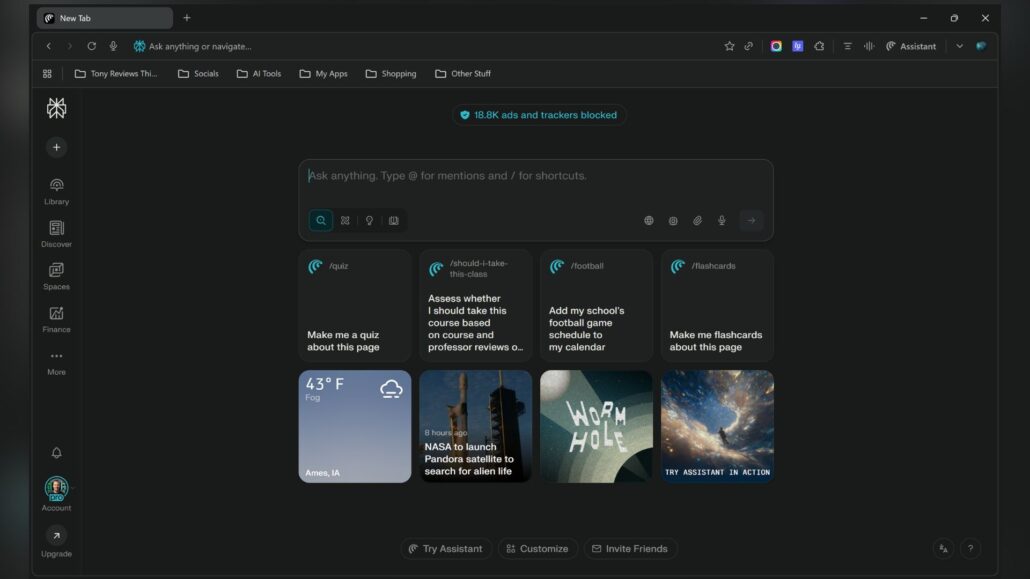
Comet is a Chromium-based browser that keeps the familiar “Chrome-ness” (tabs, extensions, muscle memory) but adds a built-in assistant designed to understand what’s on your screen and help you act on it.
That last part matters.
A lot of browsers and browser features claim “AI,” but what they really mean is “there’s a chatbot in a panel.” Comet’s assistant goes further: it can answer questions about what you’re viewing, pull context across tabs, and (when you let it) take actions for you inside the browser.
Painless, Especially If You’re Coming From Chrome
If you’ve ever switched between Chromium browsers, you already know the script:
- Import your bookmarks and browsing data
- Install your usual extensions
- Log into your usual accounts
- Get back to work
Comet follows that playbook. The UI feels immediately familiar, and my normal Chrome extensions worked without drama. There wasn’t a “relearn your entire life” moment.
The Comet Assistant Is Where This Browser Earns Its Name
I’ve used pretty much every big feature the assistant offers so far, and the headline is simple: it works. More importantly, it works in ways that feel practical, not like a novelty panel you forget about after day three.
1) Ask Questions About What’s on the Page
This is the “AI sidebar” use case, but done in a way that actually fits browsing. My bar here is straightforward: it should turn a confusing page into clear next steps, not just paraphrase the page back at me. When I’m reading something dense, comparing sources, or trying to decode a page that’s doing too much, the assistant is fast at:
- Summarizing what I’m looking at
- Explaining jargon or code-like documentation
- Pulling out the key steps from a long guide
- Turning “what is this even saying?” into something actionable
2) Research Across Tabs (And Reduce the Chaos)
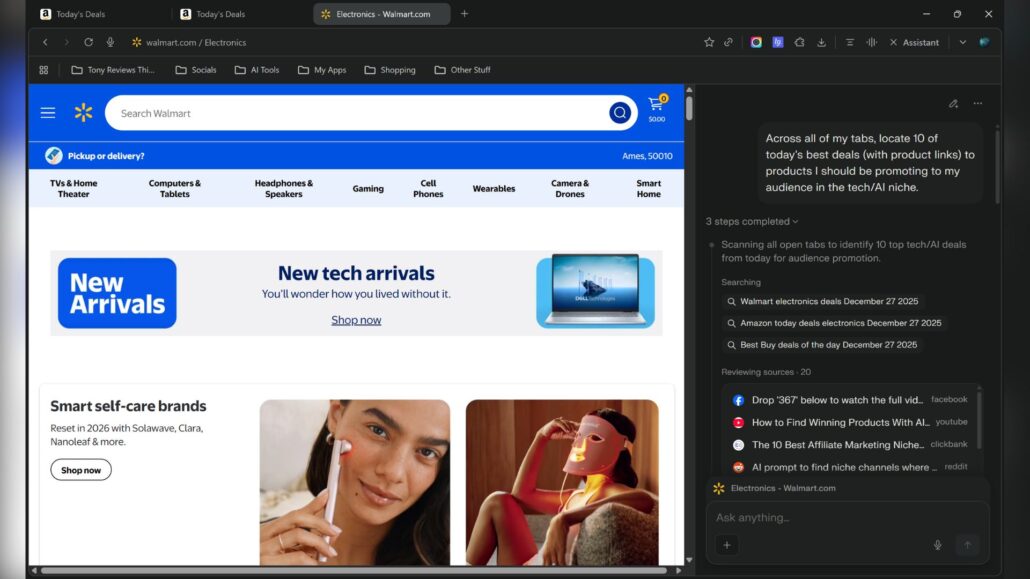
This is where Comet feels less like a browser and more like a workflow tool. The assistant is most valuable when you already have ten tabs open and you need a clean mental model of what matters.
Instead of treating each tab as a separate universe, the assistant can help you reason across what you already have open. That’s been great for me when the task is “read four different explanations and tell me what actually matters.”
A simple example: when I’m outlining something, I’ll ask it to pull the key points from the tabs I already have open and propose a tighter structure. It doesn’t replace judgment, but it gets me out of tab paralysis faster.
3) Agentic Actions: Powerful, and You Need to Babysit It
Comet’s big differentiator is the agent behavior: the “take control of the browser and do things for me” side.
It’s exactly as useful as it sounds… and exactly as sketchy as it sounds.
When it’s working well, it can save you time on repetitive tasks. When it’s being overly confident, you really want to be watching.
My rule of thumb: treat the assistant like a smart intern.
- Great at doing tedious things quickly
- Not great at understanding which situations are sensitive
- Needs supervision when money, credentials, or “don’t mess this up” tasks are involved
The “Make My Brain Hurt Less” Browser
My favorite use case has been using the assistant as a relief valve for tasks that normally drain my will to live.
If I’m wrestling with something like Facebook’s API (or any workflow that turns into documentation soup), I’ll take a shot myself first. If I can’t get it done quickly, I bring in the assistant to:
- Clarify what an error message is actually telling me
- Suggest the next step when the docs are vague
- Help me translate “this should work” into “here’s the exact configuration you missed”
It’s not magic, but it’s consistently useful, and that’s more impressive.
Comet Vs. Chrome (Gemini)
Here’s the simplest way I can describe why Comet feels different: Chrome has an assistant; Comet has an agent.
Chrome’s Gemini integration is useful for questions and writing help. In my experience, it does not give you the same “take action inside the browser” capability that Comet is built around. If Google brings true on-screen, do-it-for-me agency to Chrome, the Comet advantage shrinks fast. Until then, Comet’s edge is that it can move you from “what should I do?” to “I did it,” with you supervising the process.
Basically Chrome, Which Is the Point
I haven’t noticed any meaningful performance hits compared to Chrome. Tab switching, heavy web apps, and day-to-day browsing have felt normal.
That’s one of Comet’s smartest choices: it doesn’t demand you trade speed and compatibility for “AI features.” It mostly feels like a familiar browser that gained a superpower.
Extensions and the Chrome-Centric Experience
If your life depends on Chrome extensions, Comet is the kind of browser you hope for.
So far, I haven’t hit a “Comet doesn’t do that” moment. That’s not a small win; it’s the reason most Chrome alternatives fail.
Security, Privacy, and Common Sense
Here’s the uncomfortable truth: an agentic browser raises the stakes.
A normal browser is already a sensitive tool. It’s where your accounts live, where your payment methods show up, and where you inevitably end up logged into everything. Adding an AI assistant that can act on your behalf means you should approach Comet with the right mindset.
Practical Safety Rules I Actually Follow:
- I pause or avoid the assistant on sensitive sites (banking, healthcare, admin portals).
- I keep separate profiles for “work tasks” versus “life and money.”
- I never let it complete purchases, logins, or irreversible actions unattended.
- I treat anything involving credentials or account settings as a two-person job (me plus the assistant, with me watching).
- I assume the AI can be wrong even when it sounds confident.
So far, nothing has gone off the rails for me. But this is absolutely a “proceed with caution” product.
The Catch: Assistant Limits (Especially on Free Plans)
Comet as a browser is easy to recommend. The assistant usage, however, is where Perplexity nudges you toward paid tiers.
If you mostly want a Chromium browser with extensions, Comet is fine. If you want the agent to be your daily driver, your plan and limits become part of the product.
I’m on a free year through the Student + Faculty plan, and I’ve still hit limits once or twice. If you’re a heavy user, you’ll notice the ceiling.
The practical takeaway: Comet’s core browser experience is familiar, but the “wow” factor is usage-based. If you’re evaluating Comet, test your real workflow for a week and see whether you hit the wall, because that’s the moment your opinion of the browser can change quickly.
Who Comet Is For (And Who Should Probably Skip It)
Comet shines when you have real work to delegate.
It’s fantastic for:
- Busy people who live in tabs and do repetitive web tasks
- Content creators (research, outlining, cleanup, “turn this mess into something usable”)
- Anyone who regularly hits “ugh, this should be easy” workflows
It’s not ideal for:
- Anyone who needs strict security protocols for their daily browsing
- People who want a “set-it-and-forget-it” agent on sensitive accounts
- Users who hate the idea of an assistant having any level of screen or context access
If you fall into those groups, you can still experiment with Comet, but I would treat it as a separate, task-specific browser profile, not your default.
What I Want Next
Comet is already strong, but if it wants to be a long-term default browser, I’d love to see:
- More generous assistant access for free users (even if it’s throttled differently)
- More granular permission controls (per-site, per-task)
- A clearer “audit trail” of what the agent did and why
- Better guardrails for purchases, logins, and anything involving personal data
Bottom Line
Comet is the most realistic “Chrome replacement” I’ve used because it doesn’t fight Chrome; it builds on it.
If Chrome eventually ships a true agentic assistant with similar capabilities, the advantage shrinks fast. But right now, Comet is the browser that finally gave me a reason to switch: it keeps my workflow intact and makes the hard parts easier.
Just don’t confuse “helpful” with “safe to run unattended.”
Reviewed & written by
Tony Simons
Tony has a bachelor's degree from the University of Phoenix and over 14 years of writing experience between multiple publications in the tech, photography, lifestyle, and deal industries.


