AI & Software · Tutorial
How to See What Changed on a Wikipedia Page
Find older Wikipedia page versions, compare revisions, and share a link to the exact change.
 By Tony Simons 3 min read
Disclosure: We may earn a commission when you shop through the links below. It never changes the verdict. Details
Disclosure
We may earn a commission when you shop through the links below. Opinions stay independent. Full disclosure
Ever land on a Wikipedia article and wonder what it said before someone changed it? You can find out in a few clicks. Wikipedia keeps a revision history for its pages, and its comparison tool shows the differences between two saved versions.
This is handy when a claim looks different from what you remember, when you’re tracking down a source, or when you just want to see how an article evolved. Here’s how to use it on the desktop website.
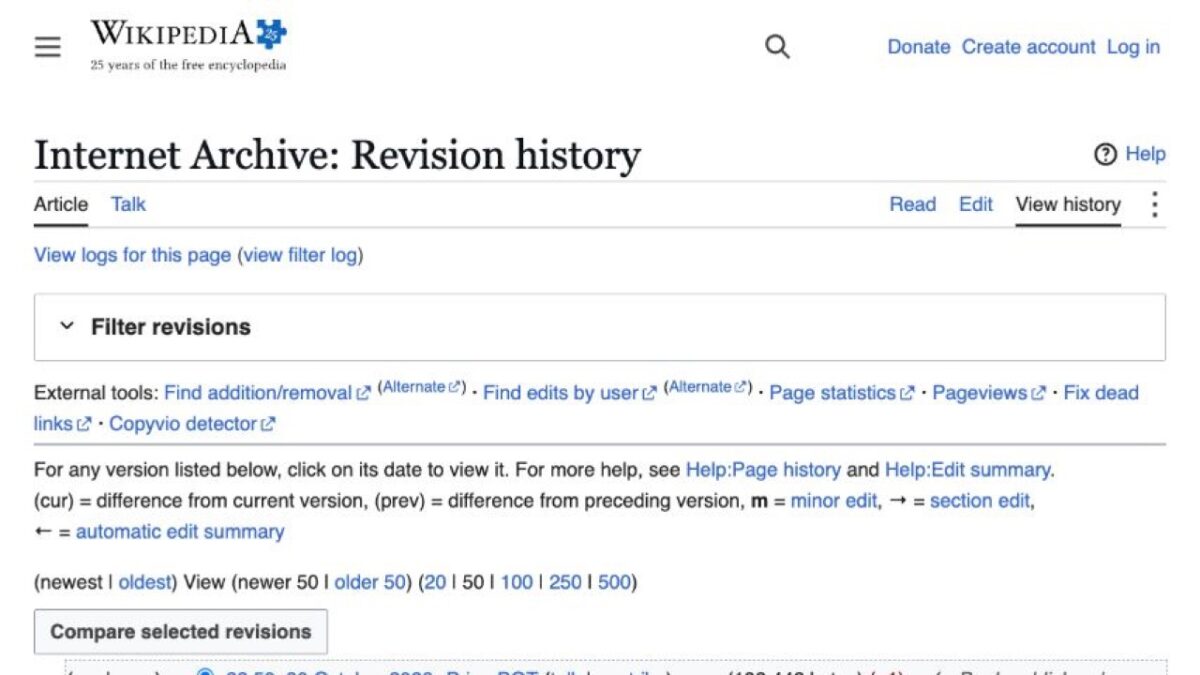
Open a Wikipedia article’s history
- Open the English Wikipedia article you want to investigate. For a practice run, try Internet Archive.
- Click View history near the top of the article. You’ll see a list of revisions, usually with the newest first.
- Each row can show a date and time, the editor, the size of the change, and an edit summary. Click a revision’s date to open that version of the page.
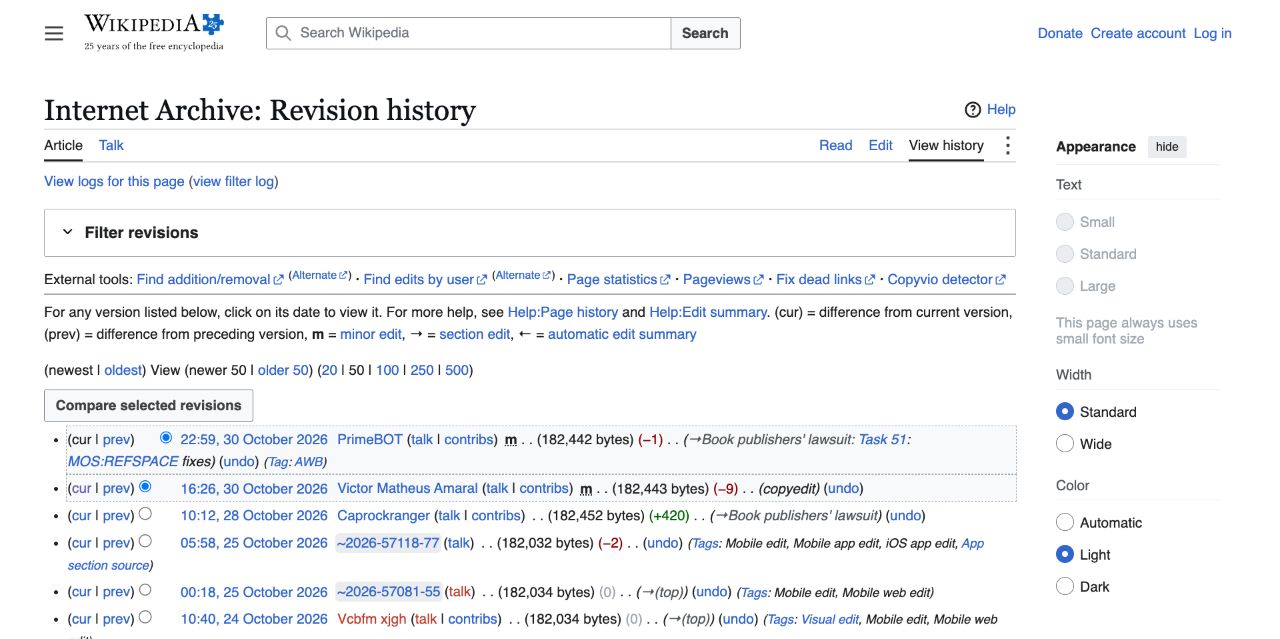
Don’t worry if the list looks busy. You can ignore most of the links while you get started. The two small selectors next to the revisions and the Compare selected revisions button are the important bits.
Compare two versions
- In the history list, select the circle for the older revision and the circle for the newer revision. The available selectors can shift as you choose a row.
- Click Compare selected revisions.
- On the comparison page, review the older version on the left and the newer version on the right. Highlighting and plus/minus markers show changed passages. You can also switch to an inline view if that’s easier to read.
Want to check a single edit quickly? The prev link beside a revision compares it with the preceding revision. cur compares a revision with the latest version. Wikipedia’s page-history help and diff guide explain the controls in more detail.
As a real example, the desktop comparison tested for this guide showed a bot’s small reference-spacing cleanup in the Internet Archive article. That’s a useful reminder: a highlighted change isn’t necessarily a dramatic rewrite. You can open the exact comparison and see it for yourself.
Share the exact change, not just the current article
Once you’re on a comparison page, copy the URL from your browser’s address bar and share it. That link points to the compared revisions, so the other person can see the same change even if the article gets more edits later. To share an entire older version instead, click its date in the history and copy that page’s URL.
What the history can—and can’t—tell you
A diff shows what changed between saved revisions. It doesn’t prove which version is correct or why an editor made a change. An edit summary can give context, but it’s a short explanation written by the editor, not independent verification. Follow citations in the relevant version and check the underlying sources before repeating a claim.
Some changes only touch formatting or citation markup, and a comparison spanning many edits can be hard to read. Try a smaller range or use prev to step through individual edits. Some deleted or suppressed revisions may not be visible to everyone. On mobile, the layout and available controls may look different. The comparison was checked on the desktop website without signing in, using the pair of revisions already selected.
If you need an old version of a website outside Wikipedia, the Wayback Machine guide covers a different tool for that job.
The Inner Circle
One AI shortcut a week. Tested first.
The tools and tricks I actually kept using, sent once a week. Skip the hype threads.
- New verdicts and scores
- Same-day workflow tips
- No spam, unsubscribe anytime
Written by
Tony Simons
Tony has a bachelor's degree from the University of Phoenix and over 14 years of writing experience between multiple publications in the tech, photography, lifestyle, and deal industries.