AI & Software · Tutorial
How to Check and Fix Hermes Agent Memory
Save a useful preference, verify it in the right profile, and fix stale Hermes Agent memory without guessing.
 By Tony Simons 5 min read
Disclosure: We may earn a commission when you shop through the links below. It never changes the verdict. Details

Disclosure
We may earn a commission when you shop through the links below. Opinions stay independent. Full disclosure
Your agent says “I’ll remember that.” Great. But did it actually save the fact—and will the next conversation see it? Hermes Agent’s persistent memory is useful precisely because it carries important context forward, but it’s small, profile-specific, and worth checking.
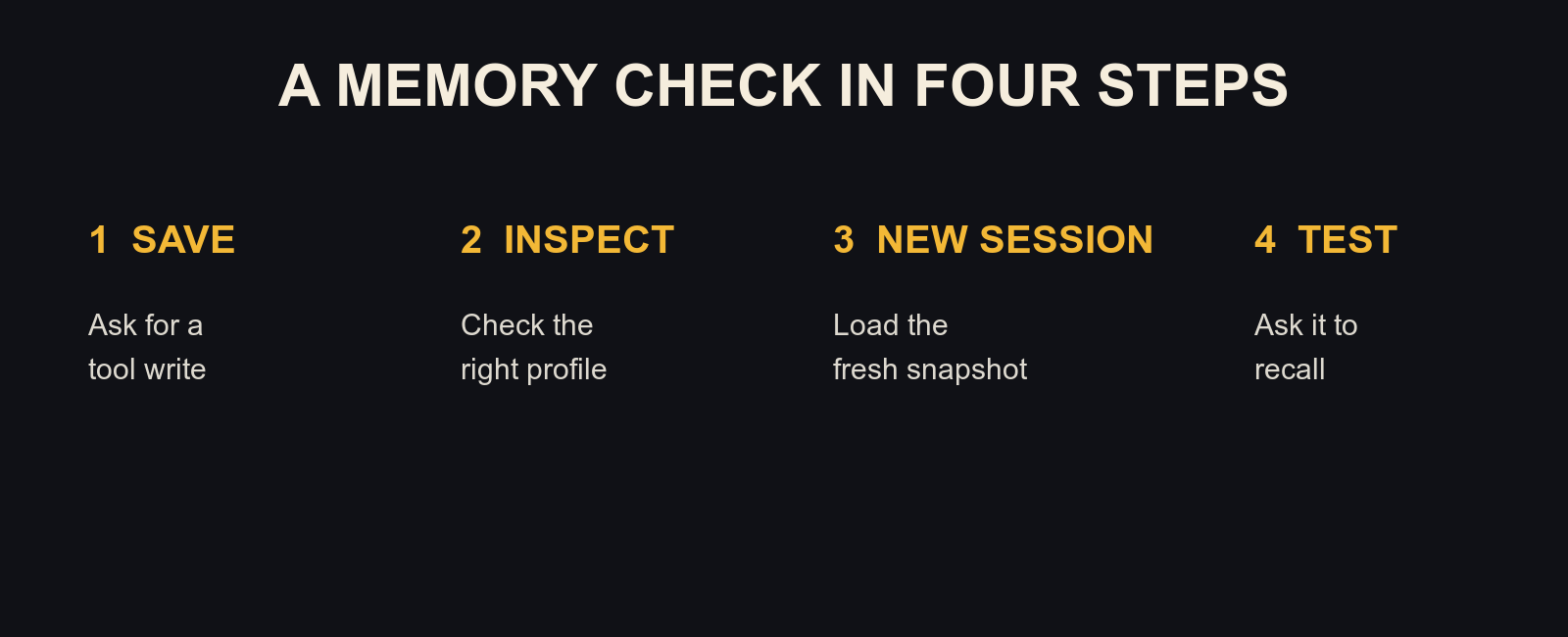
Quick answer: Ask Hermes to use its memory tool to save a short, non-sensitive preference. Verify the entry in the correct profile’s memory file, start a fresh session, and ask it to recall the preference. If the answer is wrong, inspect and correct the stored entry instead of assuming a chat confirmation proves a save.
This guide covers Hermes Agent’s built-in memory, based on Nous Research’s memory documentation, checked October 30, 2026. The workflow below was not independently tested for this article; versions, configuration, and interfaces can differ. External memory providers have their own behavior.
Featured image uses the official Hermes Agent banner by Nous Research, placed on an editorial background with added guide text.
What Hermes keeps—and what it doesn’t
Built-in memory has two small stores. MEMORY.md holds durable environment facts, conventions, and lessons. USER.md holds user preferences and communication details. By default, they’re under ~/.hermes/memories/. The documented default limits are 2,200 and 1,375 characters respectively, though configuration can change them.
Think of memory as a compact cheat sheet, not a transcript of everything you’ve ever said. Hermes can also search past sessions when it needs details that aren’t in that cheat sheet. A reusable procedure belongs in a skill; a stable fact or preference is a better fit for memory. See the official tips on memory and skills.
Save a fact and verify it
- Start with a harmless, durable preference, such as “I prefer concise bullet points for status updates.” Avoid passwords, tokens, and private information you don’t need stored.
- Ask Hermes: “Use your memory tool to save that preference. Tell me which store you used.”
- Check the tool result or inspect the relevant file. In a terminal on macOS or Linux, the default-profile paths are
cat ~/.hermes/memories/USER.mdandcat ~/.hermes/memories/MEMORY.md. These commands display potentially private notes, so don’t share their output casually. - Start a new session after the save. In a gateway chat,
/newcreates a fresh session; a fresh CLI invocation is another route. Then ask what format you prefer for status updates. - Compare the response with the saved entry. If the entry is absent, ask Hermes to use the tool again and inspect the result. If it is present but recall is wrong, check the profile and settings below.
Why the new session? The documentation says memory is loaded into the system prompt as a snapshot at session start. A change can be written to disk immediately without changing the snapshot in a session that is already running. A response in the same conversation may reflect chat context rather than a successful persistent save.
Fix a stale or incorrect memory
First identify the entry you want to change. Ask Hermes to inspect the relevant memory and replace the outdated fact with the correct one, for example: “Update the memory that says my project uses Python 3.9: it now uses Python 3.12. Show me the result.” Check the live tool response or the file, then start a new session and test the correction.
Be specific about what should change. “Clean up everything” can remove useful context. Keep sensitive details out of prompts and screenshots, and review a proposed change before approving it if your setup stages writes. If a memory was removed, that does not automatically delete old conversations or data held by an external provider.
Know which profile you’re editing
Hermes scopes built-in memory by profile. The default store lives under ~/.hermes/memories/; the documented work profile uses ~/.hermes/profiles/work/memories/. A CLI conversation on the default profile and a gateway using another profile won’t necessarily share the same notes. Run hermes profile list to see configured profiles, and check which one your chat uses before editing.
Nous also warns against pointing two agent processes at the same Hermes home because automatic memory writes can interfere. Use separate profiles or a suitable external provider for shared memory instead. Details and deployment choices are in the memory documentation.
Review writes before they stick
If you want a review gate, the documentation describes /memory approval on. With approval enabled, foreground writes in the interactive CLI prompt for approval; other writes, including messaging and background review, are staged. Use /memory pending to inspect the queue, then /memory approve <id> or /memory reject <id> for a specific item. Review the text and the target before approving. Availability can depend on your installed version and configuration.
Approval is a control over future writes, not a cleanup of notes already saved. Audit existing entries separately. If Hermes says it saved something but you can’t find it, check for a pending write before assuming it landed.
When memory seems broken
- It remembered in one chat but not the next: Verify the tool actually wrote the entry, that it wasn’t staged for approval, and that both chats use the same profile.
- The correction doesn’t seem to take effect: Check the live file or tool output, then start a fresh session; the current session’s injected snapshot stays fixed.
- Memory is full: The documented tool rejects writes that would exceed the configured limit. Ask Hermes to shorten or remove an obsolete entry and retry, then verify the result. Don’t assume it silently made room.
- The tool isn’t available: Check whether built-in memory and the user profile are enabled in configuration. External providers can behave differently; consult their own documentation.
Once you’ve confirmed one harmless preference across a fresh session, build from there. Save the facts that actually change how Hermes works for you, keep them concise, and audit them when your setup changes. For the larger picture, see our Hermes Agent automation guide.
Reviewed & written by
Tony Simons
Tony has a bachelor's degree from the University of Phoenix and over 14 years of writing experience between multiple publications in the tech, photography, lifestyle, and deal industries.