AI & Software · Tutorial
How to Move Your Passwords to Google Password Manager Safely
Import passwords into Google Password Manager on desktop, check the results, and safely clean up the exported CSV.
 By Tony Simons 5 min read
Disclosure: We may earn a commission when you shop through the links below. It never changes the verdict. Details
Disclosure
We may earn a commission when you shop through the links below. Opinions stay independent. Full disclosure
Switching password managers should not mean resetting every account you own. On a computer, Chrome can import a CSV export from another manager into Google Password Manager. The move is straightforward, but there is one file you should treat like a pile of house keys: the CSV itself.
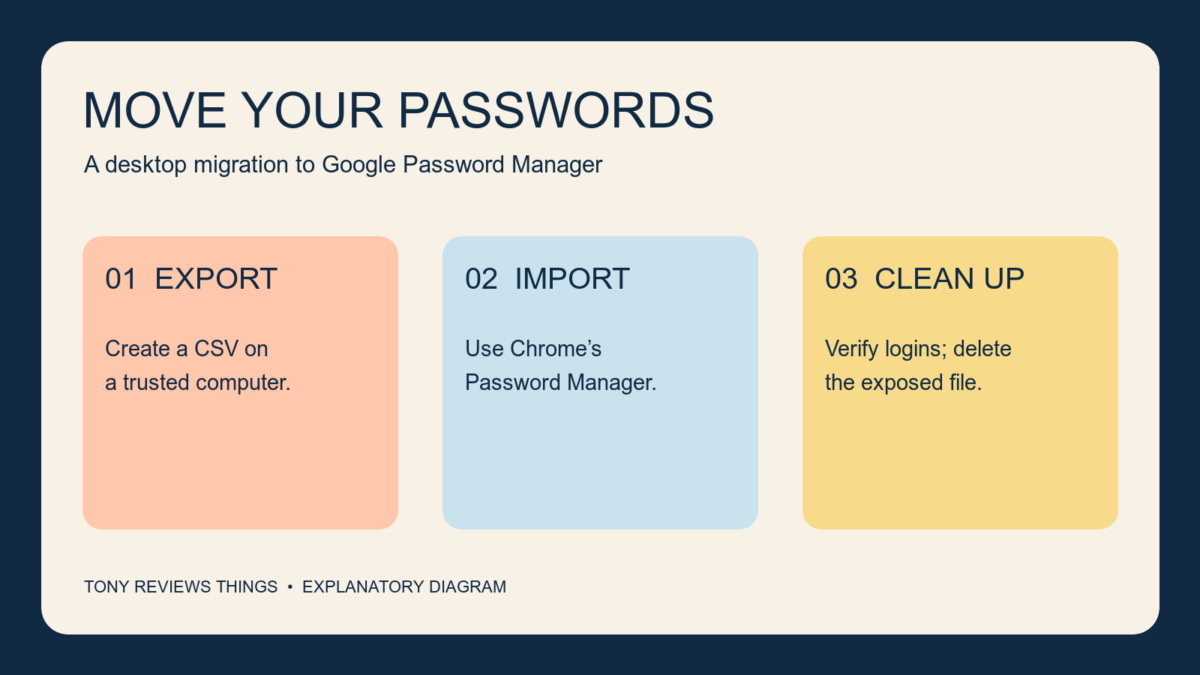
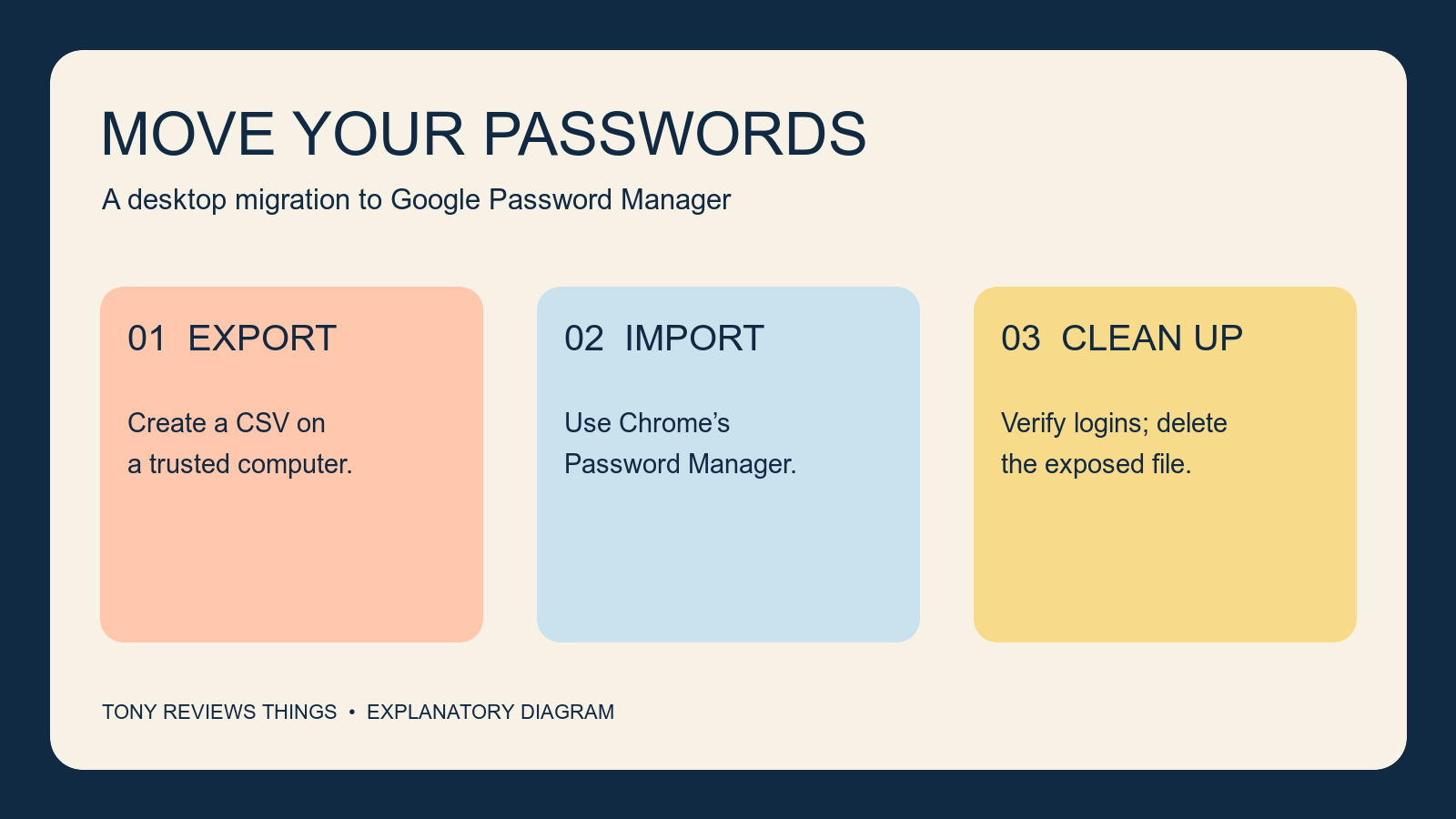
Quick answer: Export your passwords as a CSV on a trusted computer, open Chrome → Passwords and autofill → Google Password Manager → Settings, and choose Select file under Import passwords. Check several entries, then delete the CSV and any unnecessary copies. Keep your old manager until you have verified the move.
This guide covers password imports in desktop Chrome. It follows Google’s current instructions, checked October 30, 2026. We did not perform a real password migration for this article; the export screens and prompts vary by provider and device.
Before you export anything
Use a computer you trust and make sure you can still unlock your old manager. Decide where the passwords should live: Google says Chrome can save passwords to your Google Account when you are signed in, or locally on your device when you are not. Check the Chrome profile and account before importing. Account-stored passwords can be used across your devices; local storage is a different destination. Google explains the storage options.
A CSV is sensitive. Google warns that anyone using the device can open the exported file and access its passwords. Do not email it to yourself, upload it to a shared folder, or leave it in Downloads for later. Avoid a shared computer. If your Downloads folder syncs to cloud storage, check for copies there too.
This desktop CSV procedure is for passwords. Do not assume it transfers passkeys, authenticator codes, attachments, or every other item in your old vault. Check your provider’s export documentation and inventory separately before retiring it.
1. Export the passwords from your old manager
- Open your current password manager and find its export option. It may ask you to unlock the vault or verify your identity.
- Choose a CSV password export if offered and save it temporarily on the trusted computer. Note exactly where it goes.
- Keep the old manager intact while you check the import.
Export instructions differ. Google’s import guide links to instructions for Safari, Edge, 1Password, Bitwarden, Dashlane, and LastPass. Follow the source provider’s current directions rather than guessing where its export button lives.
2. Import the CSV in Chrome
- Open Chrome on your computer and check the active profile.
- Open the three-dot menu → Passwords and autofill → Google Password Manager → Settings.
- Under Import passwords, select Select file.
- Choose the CSV you exported and follow the on-screen prompts. Read any results or errors before closing them.
Google says imports are limited to 3,000 passwords at a time and a Google Account can store up to 10,000. If you need to split a larger export, handle each CSV as sensitive and clean up every temporary copy afterward.
3. Verify the move before calling it done
Search Google Password Manager for several accounts you recognize, including an important account and one with more than one username. Compare the usernames and website addresses with the old manager. Google notes that site and app names may not land in the expected field; try searching for the site or app if an entry seems missing.
Try signing in to a few sites you own, ideally while retaining an existing signed-in session. Confirm that the right username appears and that you can complete sign-in. A small sample is useful, but it does not prove every entry or extra vault item migrated. Resolve discrepancies while the old manager remains available.
Next, open Checkup in Google Password Manager. Google says it can flag passwords that may be exposed, weak, or reused. Review the results and change affected passwords on the relevant websites, starting with important accounts. Google’s password management guide describes Checkup.
4. Delete the exposed export
Once you have confirmed the import and no longer need the CSV, delete it from the computer. Check Downloads, any location you selected, and any cloud or backup copies created during the process. Follow your device’s deletion instructions, including its trash or recycle bin if appropriate. Do not remove the original vault until you have verified what you need and made a separate plan for anything that did not transfer.
When something goes sideways
Chrome rejects the file. Google’s desktop instructions require CSV. It says the first row should include url, username, and password column names. Check your provider’s export format and Google’s instructions. If you inspect or edit the file, remember that its contents are readable; avoid sharing it or creating extra copies.
An account seems missing. Search by site or app name, check that you are in the intended Chrome profile, and compare against your old manager. If it is still missing, use your provider’s instructions to resolve the export and import; don’t delete the old record in the meantime.
Autofill offers the wrong account. Check the saved username and site address. Google says Chrome may let you choose among saved credentials when more than one username exists. Test the correct entry before removing anything.
You need passkeys too. Check the current instructions for your devices and both credential managers. Google documents a separate Android transfer flow for passwords and passkeys between supported managers; the desktop CSV steps above should not be treated as that flow.
Finally, make sure you can get back into the Google Account that holds your passwords. Our Google passkey and recovery guide walks through preparing for a lost phone. A successful import is useful; being able to reach it later is even better.
Reviewed & written by
Tony Simons
Tony has a bachelor's degree from the University of Phoenix and over 14 years of writing experience between multiple publications in the tech, photography, lifestyle, and deal industries.