AI & Software · Tutorial
How to Set Up a Google Passkey and Prepare for a Lost Phone
Set up a Google Account passkey, check recovery options, and prepare for a lost phone without locking yourself out.
 By Tony Simons 6 min read
Disclosure: We may earn a commission when you shop through the links below. It never changes the verdict. Details
Disclosure
We may earn a commission when you shop through the links below. Opinions stay independent. Full disclosure
Your Google Account is the key to a lot more than Gmail. Photos, Drive, YouTube, and other services can all depend on it. A passkey makes signing in easier, but the smart move is to plan for the day your phone disappears before that happens.
Quick answer: On a device you own, visit Google's passkey page, choose Create a passkey, and follow the prompts. Then check your recovery phone and email and, if you use 2-Step Verification, consider saving backup codes somewhere safe. Keep your existing sign-in methods until you've confirmed your alternatives work.
This guide covers a personal Google Account. It's based on Google's documentation, checked October 30, 2026. The setup flow wasn't completed hands-on for this article; menus and availability can differ, especially on work or school accounts.
What a passkey actually does
Instead of typing a password, you unlock a device using its screen lock, fingerprint, or face recognition. Google says the biometric data stays on the device. A passkey is designed to resist phishing, but it doesn't make an unlocked device safe from someone who can use it. Anyone who can unlock a device with your Google passkey may be able to access your account. So use a strong screen lock and create a passkey only on a device you personally own and use.
Adding a passkey does not automatically remove your password or other recovery methods. Google also says a passkey can satisfy sign-in without a separate second step when 2-Step Verification is enabled. That makes access to the device and its unlock method a big deal. Google explains the details here.
Before you create one: make a recovery plan
Don't wait until you're locked out to find out your recovery email is an address you abandoned five years ago.
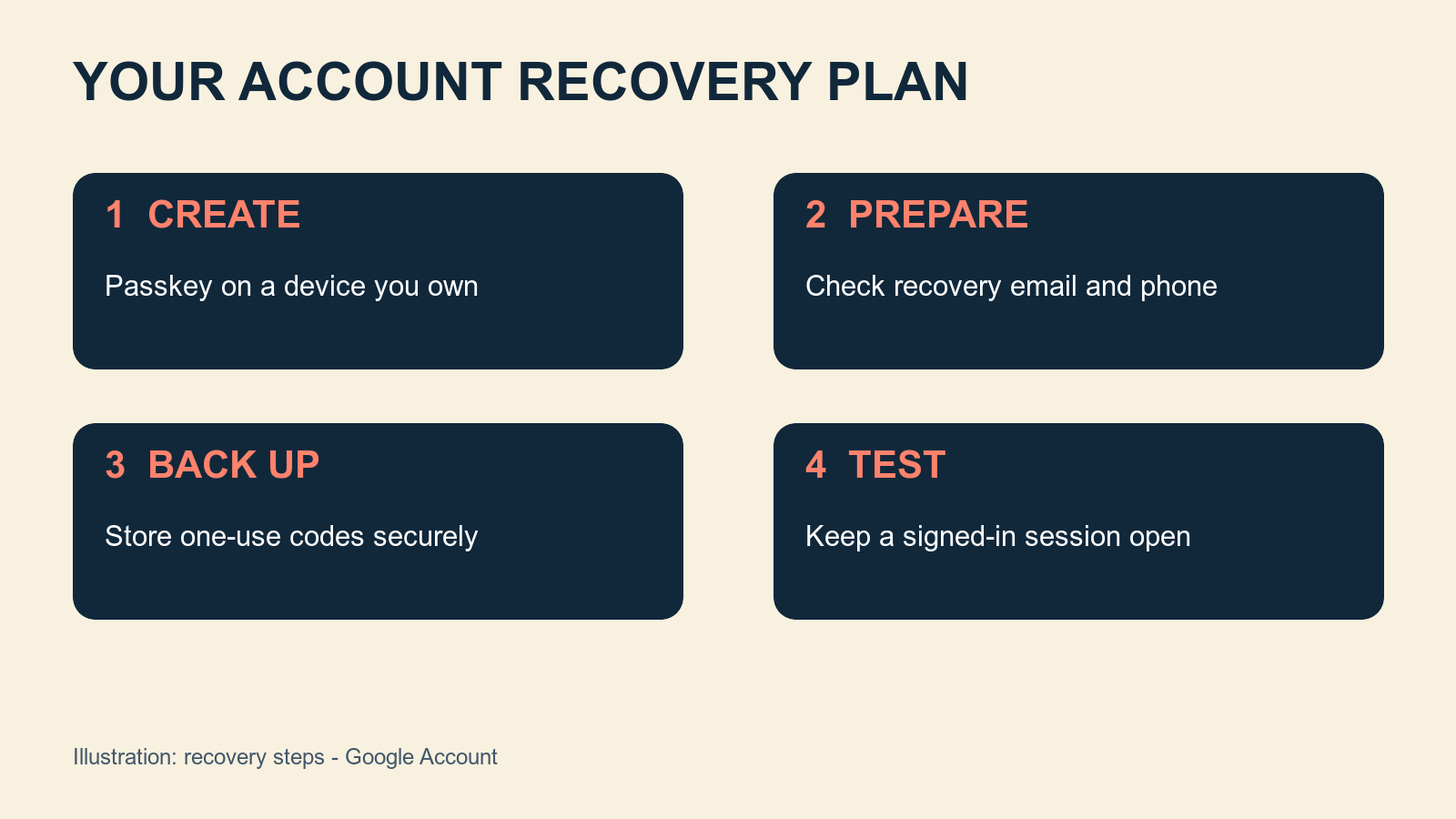
- Open Google Account and select Security & sign-in.
- Under How you sign in to Google, check Recovery phone and Recovery email. Update either if needed and follow the verification prompts.
- Choose a recovery email you can actually access that is different from the address you're protecting. Use a phone number that belongs to you and can receive texts. Google advises against a Google Voice number for recovery because you may need the locked account to reach it. Recovery setup instructions.
- If you use 2-Step Verification, open that section and look for Backup codes. Generate a set and store it somewhere secure that you can reach without the locked device. Each code works once; generating a new set invalidates the old set. Don't share them. Google's backup-code guide notes that Advanced Protection users can't download the codes.
Changes to a recovery phone can take up to seven days to take effect, according to Google. Don't assume a brand-new recovery method is immediately available in an emergency.
Create a Google Account passkey
- On your own phone or computer, open myaccount.google.com/signinoptions/passkeys. Sign in or verify your identity if Google asks.
- Select Create a passkey, then Create a passkey again if prompted.
- Follow your device's prompts and unlock it. The exact dialog depends on your device and credential manager.
- Read the confirmation and note where the passkey was saved. If you want another passkey on another device you own, repeat the process on that device.
Google notes that a new passkey may take up to seven days before it can be used at sign-in. If you already have a trusted passkey or security key, Google may offer a way to speed up trust. Android devices signed in to the account may also have automatically registered passkeys. Google's setup and removal instructions cover both cases.
Using a physical security key? Google says to choose Create a passkey, then Use another device, and follow the prompts. The key must support FIDO2; you may need to insert it and enter its PIN or use its fingerprint sensor. A separate backup key is worth considering if you rely on physical keys. Google's Advanced Protection FAQ recommends a primary and backup key for that program.
Test the sign-in without stranding yourself
Keep your current signed-in session open. In a separate browser or private window on a device you own, go to a Google sign-in page and try signing in. If offered the passkey, follow the device unlock prompt. The goal is to confirm that you can reach the account, not to delete every other way in.
If Google doesn't offer the passkey, check that you're using the intended account and device, and allow for the possible waiting period. Choose Try another way to return to other available sign-in options. Google documents that fallback in its 2-Step Verification troubleshooting guide. The exact challenge depends on your account and Google's risk checks, so a fallback is not guaranteed in every situation.
What if the device is lost?
If you can still sign in from another trusted device, open Google Account → Security & sign-in → Passkeys and security keys, select the passkey you created for the missing device, and choose Remove. For an automatically created Android passkey, Google's instructions instead say to open Your devices → Manage all devices and sign out of the missing device's sessions. Check for multiple sessions with the same name. If a third-party credential manager still offers a removed passkey, Google says to remove it there too. See Google's full removal steps.
If you can't sign in at all, use Google's account recovery process and follow its prompts. Recovery isn't instant or guaranteed. Google recommends using a familiar device, browser, and location when possible in its recovery tips. Never give a password or verification code to someone contacting you by phone, email, or message; enter them only at Google's sign-in site.
Common snags
- I don't see Create a passkey. Confirm you're on the correct account and check Google's current requirements and prompts. Work or school accounts may have administrator restrictions.
- Google asks me to verify my identity first. That's part of protecting a sensitive account setting. Complete the prompt yourself; don't share your password or codes.
- I saved backup codes, but a code doesn't work. Each code is single-use. A newly generated set deactivates the older set. Try an unused code from the latest set, if Google offers it.
- My passkey works on one device but not another. Availability depends on where it was saved and the credential manager. Don't assume it has synced: check that manager's settings and create or test another method on a device you own.
A passkey is a useful upgrade. A passkey plus a recovery plan you've checked is the part that keeps a lost phone from turning into a full-blown account disaster.
For another Google starting point, see our practical first-day Gemini guide.
Reviewed & written by
Tony Simons
Tony has a bachelor's degree from the University of Phoenix and over 14 years of writing experience between multiple publications in the tech, photography, lifestyle, and deal industries.