AI & Software · Tutorial
How to Use Firefox Containers to Keep Two Accounts Separate
Use Firefox containers to keep work and personal logins separate, and learn when Mozilla's extension adds useful controls.
 By Tony Simons 5 min read
Disclosure: We may earn a commission when you shop through the links below. It never changes the verdict. Details
Disclosure
We may earn a commission when you shop through the links below. Opinions stay independent. Full disclosure
Having to sign out of one account just to check another is a ridiculous amount of ceremony for a browser tab. Firefox containers give you a cleaner option: keep work and personal logins in separate, color-coded tabs inside the same browser.
Quick answer: In desktop Firefox, right-click or press and hold the new-tab button and choose a container. Open the same site in a second container and sign in to your other account. For site assignments and other extras, add Mozilla’s Multi-Account Containers extension.
This walkthrough follows Mozilla’s Firefox containers guide and Multi-Account Containers instructions, checked October 30, 2026. It covers desktop Firefox; the workflow wasn’t independently tested for this article. Menus and availability can vary by version.
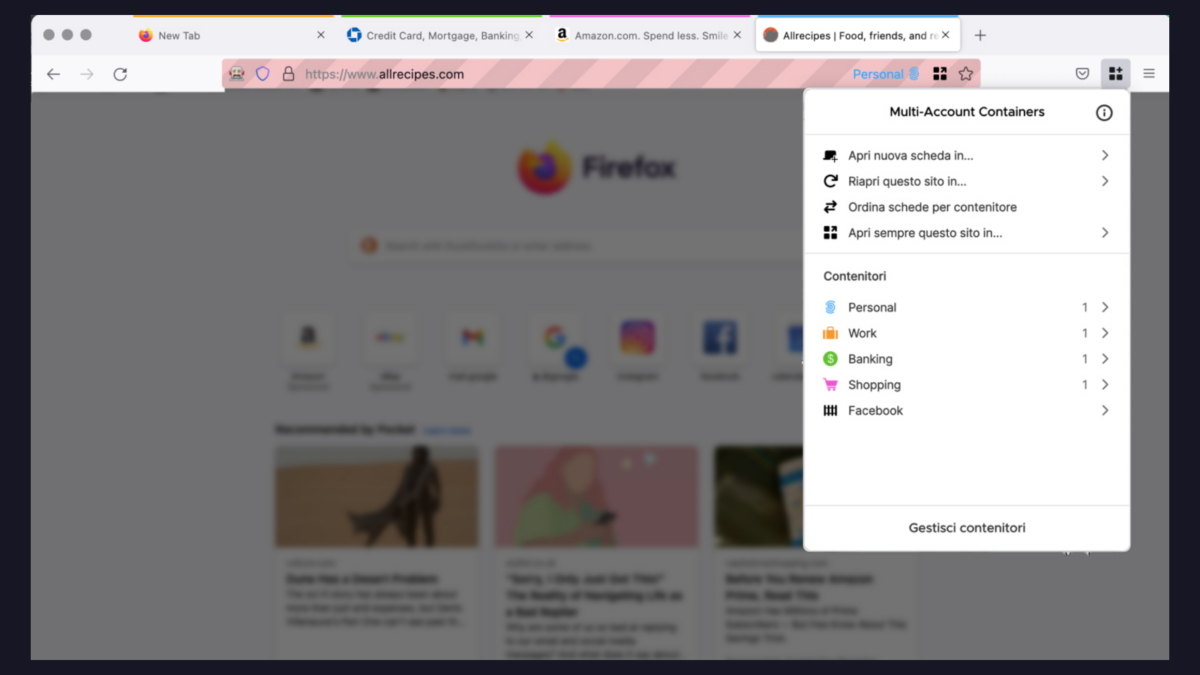
Featured image: a Mozilla add-on listing screenshot showing the Multi-Account Containers menu in Italian; the layout may differ from the current English interface. Source: Mozilla Firefox Add-ons, screenshot resized and bordered; CC BY-SA 3.0. Firefox is a trademark of the Mozilla Foundation in the US and other countries.
What a container actually separates
A container gives a tab a separate set of website data, including cookies. That lets the same website see your Work tab and Personal tab as separate sign-in contexts. Open your work account in one and your personal account in the other, and switching can be as simple as switching tabs.
It’s useful separation, not invisibility. Mozilla says your IP address and device characteristics can still be the same across containers. Containers don’t automatically create a VPN or make you anonymous. Firefox profiles go further: Mozilla says profiles separate settings, bookmarks, and add-ons too; containers separate cookies, logins, and site data within one profile. Mozilla explains the difference.
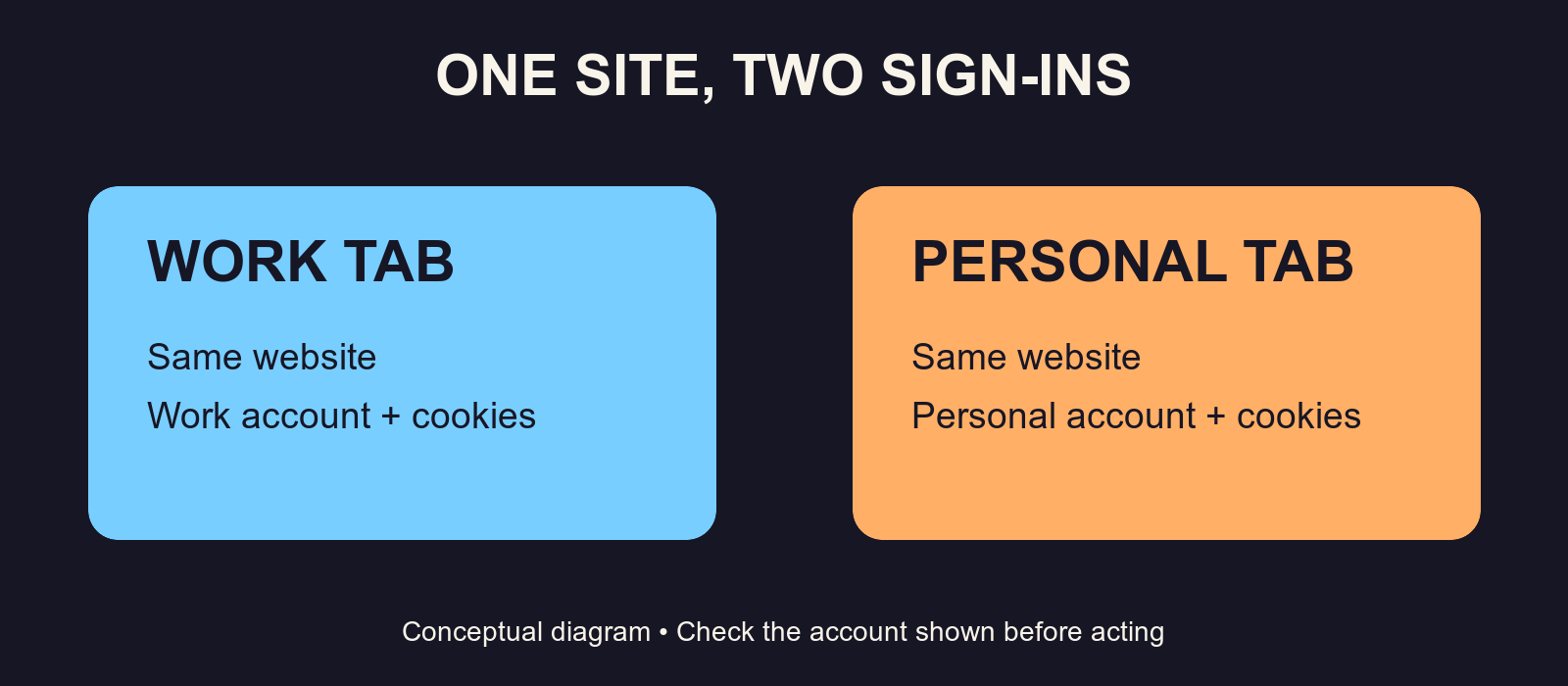
Open two accounts side by side
- In desktop Firefox, open Settings and check that container tabs are enabled under the Tabs section. Mozilla says current Firefox versions include the feature; if the setting is missing, update Firefox or use its Multi-Account Containers extension.
- Right-click or press and hold the new-tab (+) button and select Work from the container menu.
- Go to a site where you have two accounts and sign in to the work account.
- Open another container tab the same way, this time choosing Personal. Visit the same site and sign in to your personal account.
- Switch between the tabs and check the account name in each before sending or changing anything.
Start with a service you already use for both work and personal life. If you need to share a link with a specific account, right-click it and choose Open Link in New Container Tab, then choose the intended container. A site’s own account switcher and sign-in rules still apply.
Add site assignments with Mozilla’s extension
The built-in containers handle separate tabs. The Firefox Multi-Account Containers extension adds features including assigning sites to containers and syncing container settings. On the official add-on page, choose Add to Firefox, read the requested permissions, and select Add if you’re comfortable. Mozilla’s listing says the extension requests access to tabs, browsing history, and data for all websites; review the current listing before installing.
To assign a site, open it, click the Containers toolbar icon (look under the extensions button if it isn’t visible), choose Always open this site in…, and select the container. For example, a work-only project site might belong in Work. Mozilla’s instructions explain how to remove the assignment later through Manage Containers → select the container → Manage site list.
Be deliberate with assignments: if you regularly need two accounts on the same site, forcing that site into one container can work against your goal. Leave it unassigned while you learn the workflow, then assign sites that really do belong in one context.
Make the setup useful
Use names that reflect what you’re doing: Work, Personal, Shopping, or a client name. In the extension, choose Manage Containers → New container to add one, then choose its name, color, and icon. A clear name is more useful than a rainbow of tabs you can’t remember.
Before you rely on a container for a sensitive task, verify the account shown on the site itself. Containers help organize sign-ins; they don’t replace strong account security or the privacy rules on a shared or work computer.
When it doesn’t work
- The container menu is missing: Check the container-tab setting and Firefox version. Mozilla says containers are disabled in Private Browsing windows and when Never Remember History is selected.
- I’m seeing the wrong account: Check the container label and the site’s account indicator. Open a fresh tab in the intended container and sign in there.
- A site keeps opening in the wrong container: Review its assignment in the extension’s Manage site list and remove it if you need a choice again.
- I want different bookmarks and extensions too: Consider separate Firefox profiles. Containers are for separating site data inside a profile; profiles have a broader boundary.
- I expected a VPN: Containers alone don’t hide your IP address. Mozilla VPN integration is a separate option, not a default property of container tabs.
Give the two-account test a try before assigning every site. Once the labels make sense, you’ll spend less time signing in and out—and more time getting on with the thing you opened the browser to do. For a different way to organize browser projects, see our Chrome tab groups guide.
Reviewed & written by
Tony Simons
Tony has a bachelor's degree from the University of Phoenix and over 14 years of writing experience between multiple publications in the tech, photography, lifestyle, and deal industries.