AI & Software · Tutorial
How to Use Chrome Tab Groups to Organize Projects and Find Them Later
Organize related Chrome tabs, close and reopen a group, and understand what happens when you sync or delete it.
 By Tony Simons 5 min read
Disclosure: We may earn a commission when you shop through the links below. It never changes the verdict. Details
Disclosure
We may earn a commission when you shop through the links below. Opinions stay independent. Full disclosure
Your browser doesn't have to look like a yard sale every time you start a project. Chrome tab groups let you put related pages under one named, colored label, tuck them away, and reopen the group when you're ready to pick up where you left off.
Here's the quick version: right-click a tab, choose Add tab to group → New group, give it a name, and drag related tabs into it. When you're done for now, right-click the group name and choose Close group. To return, open it from the saved groups area or the tab groups menu.
This guide covers Chrome on a computer. Menu labels can change, and the mobile layout is different. The instructions below follow Google's desktop help. Cross-device syncing is described by Google; it wasn't independently tested for this guide.
Make your first group
Start with a few pages that belong together: a trip itinerary, a hotel page, and a couple of restaurant options, for example.
- Right-click one of the tabs.
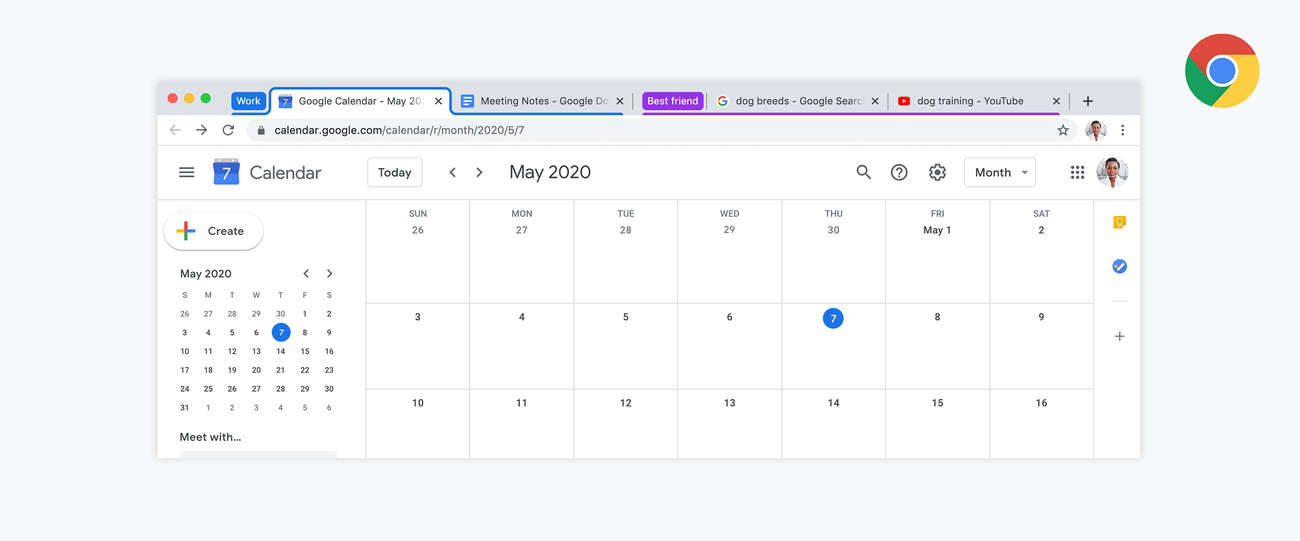
- Choose Add tab to group, then New group.
- Type a short name such as Weekend trip and choose a color.
- Drag the other relevant tabs into the group. You can also right-click a tab and add it to an existing group.
Click the colored group label to collapse the tabs under it; click it again to expand them. The pages are still part of the group when it's collapsed. Right-click the label to rename the group or change its color.
Give the group a name that tells you what you'll do with it. “Trip” is fine; “Chicago weekend” is easier to recognize when you have several projects going.
Close a group and bring it back
This is the part that makes groups more useful than a splash of color on the tab strip.
- Right-click the group label.
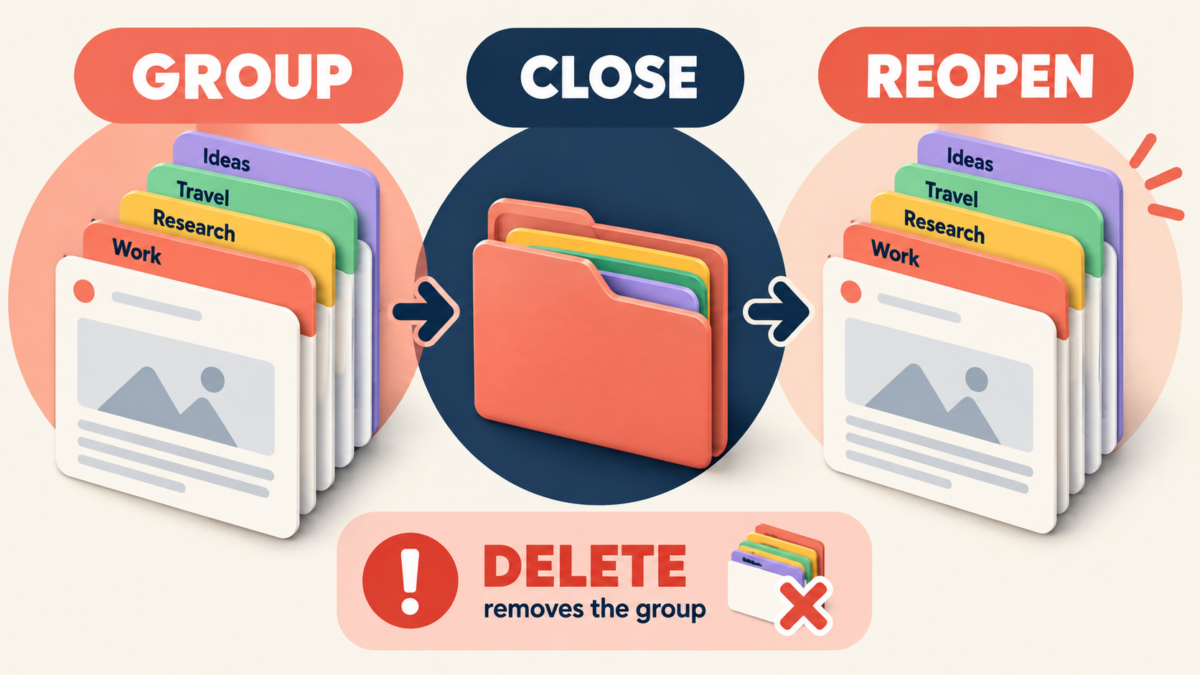
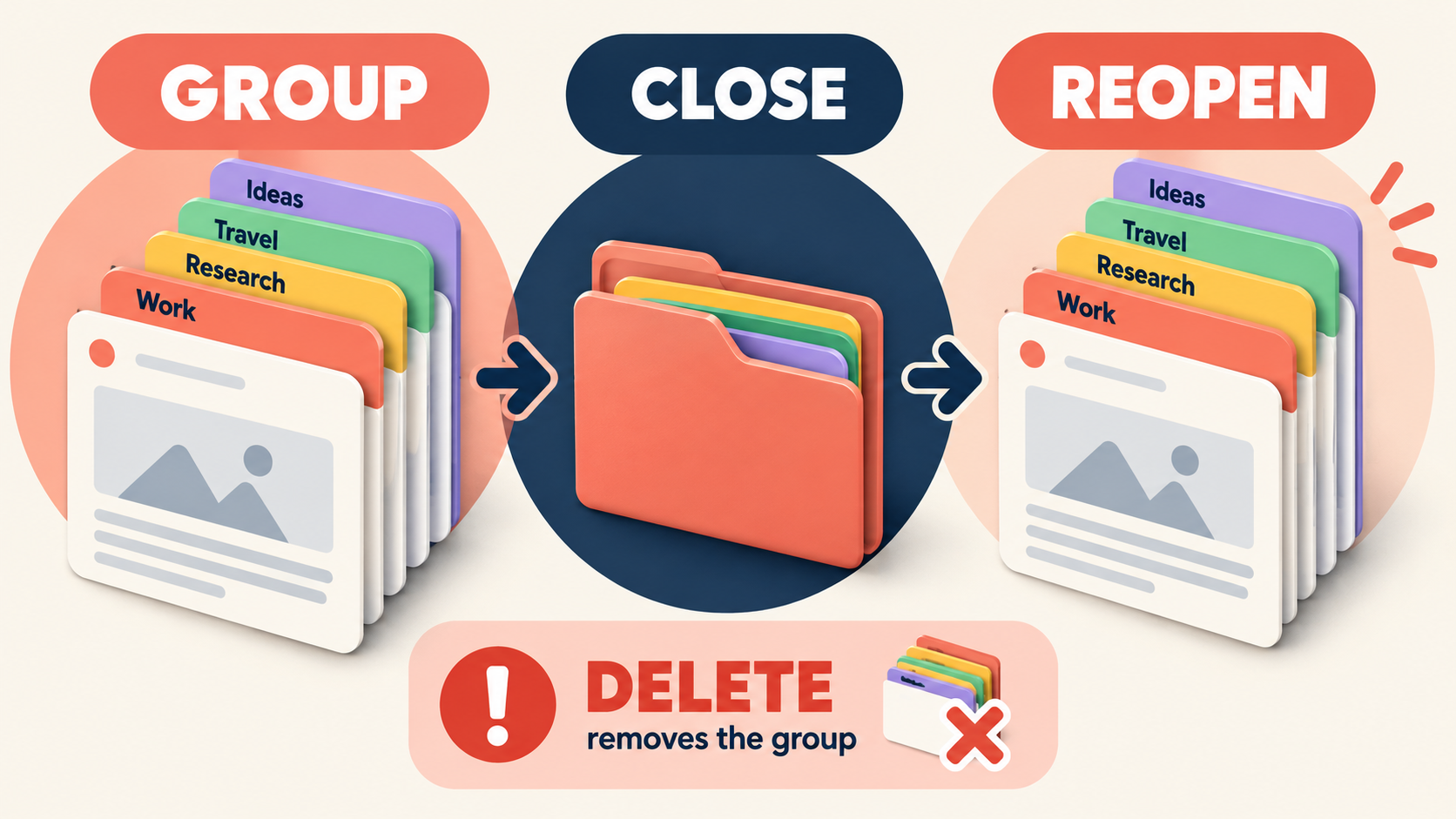
- Choose Close group. Chrome says a closed group remains saved, rather than being deleted.
- When you want it back, look for its name in the saved tab groups area of the bookmarks bar or open the Tab groups menu and select it.
If you don't see it, open Chrome's three-dot menu and choose Tab groups, then select the group. To show groups on the bookmarks bar, check Settings → Appearance → Show tab groups in bookmarks bar. Google's tab management instructions show the current options.
Close is different from delete. Google warns that deleting a group removes it from devices using the same Google Account. If you're merely finished for the day, choose Close group, not Delete group. Ungroup also deletes the group across those devices, although it leaves the individual tabs open on the current device.
Use the same group on another device
Google says changes to tab groups are saved and synced across devices when browsing history and tabs are synced with your Google Account. Sign in to Chrome with the same account on each device and check your sync settings. Then look for the group in the tab groups list on the other device.
Don't assume a group has reached another device before you need it. Open it there and check the pages. A tab group is a convenient way back to pages, not a substitute for saving an unsent form, a document, or a dedicated backup.
If you use a work or school account, your administrator's settings may affect what is available. Keep sensitive projects in the appropriate browser profile, especially on a shared computer.
Make a crowded tab strip manageable
Try one group per active outcome: Trip, Laptop research, or Taxes. Collapse the projects you aren't using, then close the ones you're done with for now. Keep a few truly essential pages pinned separately if that works for you.
Chrome also offers vertical tabs: right-click a tab and choose Show Tabs Vertically. Google says the side layout makes page titles and groups easier to see; you can switch back through the same menu. See Google's announcement for more on the layout.
When things don't work
I can't find the group I closed. Check the saved groups area and the Tab groups menu, and make sure you're in the same Chrome profile. If you expected it from another device, check the account and sync settings on both devices.
I deleted the group. Check Chrome's History for individual pages, but don't assume the group itself will be recoverable. Google's warning says deletion propagates to devices using the same account.
The tab I need isn't in the group. Expand the group and check its contents. If the tab is still open elsewhere, drag it into the group or use its right-click menu.
A page reopened but my work is missing. A tab points back to a page; it doesn't guarantee that a website saved your edits. Use the site's own save or draft feature before closing it.
Once the browser is organized, you can make an individual article easier to read too. Our Chrome Reading Mode guide walks through that side of the cleanup.
Reviewed & written by
Tony Simons
Tony has a bachelor's degree from the University of Phoenix and over 14 years of writing experience between multiple publications in the tech, photography, lifestyle, and deal industries.