AI & Software · Tutorial
How to Use Chrome Reading Mode to Cut the Clutter
Chrome’s built-in Reading mode can make busy articles easier to read or listen to. Here’s how to open it, customize it, and troubleshoot missing content.
 By Tony Simons 5 min read
Disclosure: We may earn a commission when you shop through the links below. It never changes the verdict. Details
Disclosure
We may earn a commission when you shop through the links below. Opinions stay independent. Full disclosure
Some websites make reading an article feel like trying to study in the middle of a shopping mall. Pop-ups, sidebars, animated boxes, and videos all want a piece of your attention. Chrome has a built-in way to quiet things down: Reading mode.
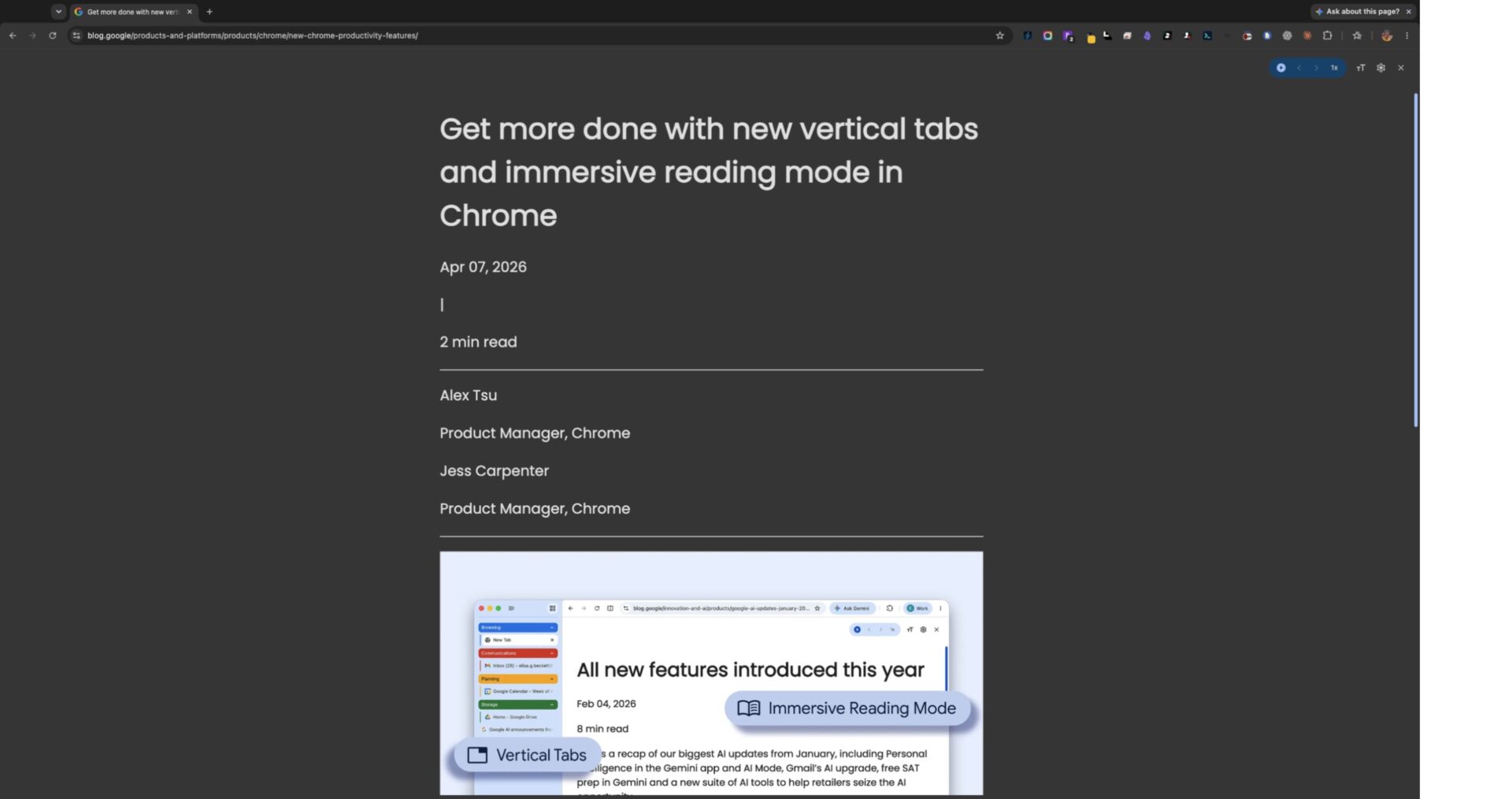
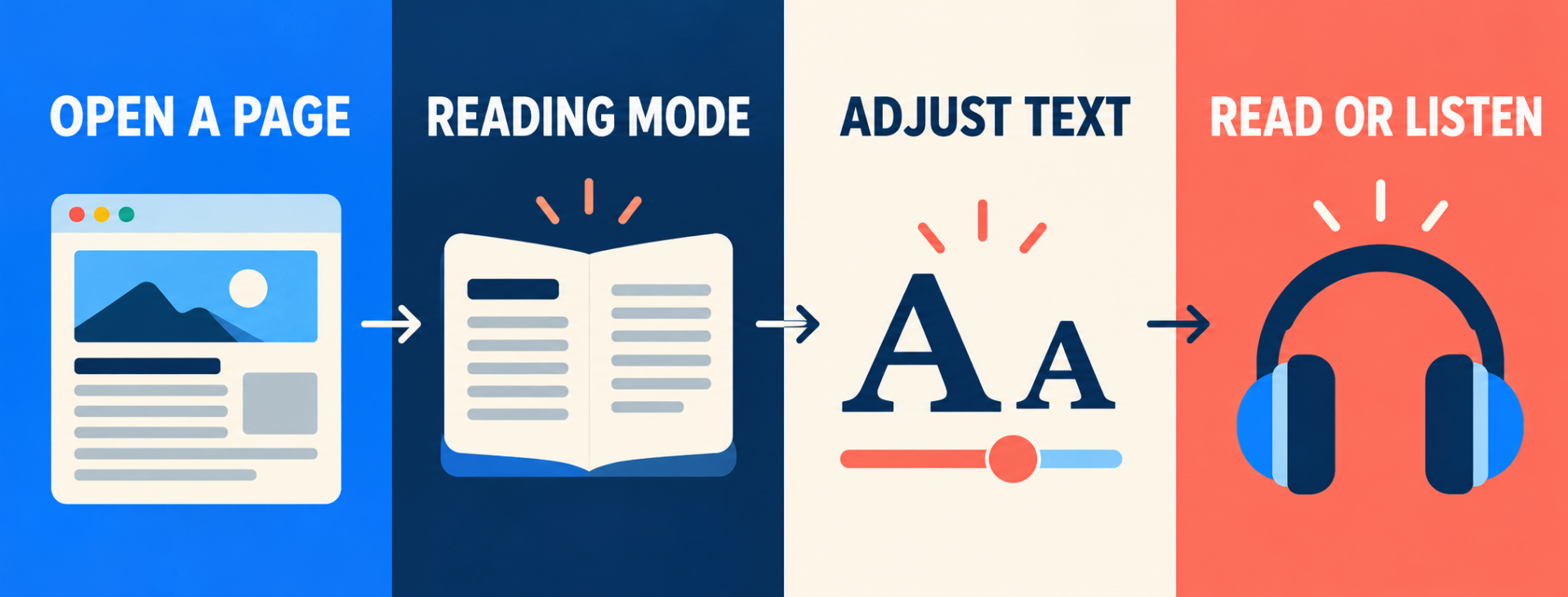
Open a text-heavy page, right-click, and choose Open in reading mode. Chrome can present the article in a cleaner reading view, with controls for text size, fonts, colors, and even reading aloud. There’s also a side-panel option if you’d rather keep the original page beside it. No extension required.
Here’s how to turn it on, make it comfortable, and know when to go back to the original page.
Quick answer: In Chrome on a computer, right-click an article and select Open in reading mode. On a Mac, the shortcut is Command + Option + R; on Windows, Linux, and ChromeOS, it’s Alt + Shift + R. Not every site supports it. Google Chrome Help
Testing note: On October 30, 2026, we opened a Tony Reviews Things article in Chrome on a Mac and used the keyboard shortcut. Chrome displayed the article in Reading mode with font, settings, and playback controls. Windows, Linux, ChromeOS, audio output, and every site type were not independently tested for this guide.
What is Chrome Reading mode?
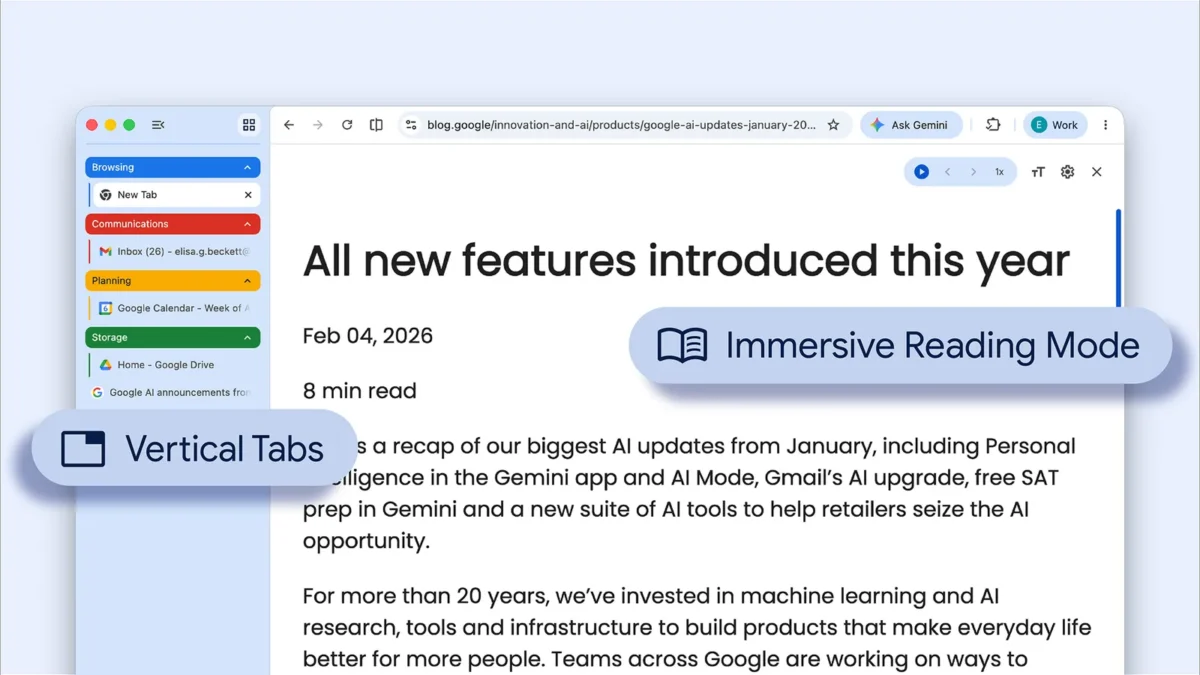
Reading mode extracts readable content into a simpler view so you can focus on the article instead of everything competing around it. Google introduced the full-page reading interface in 2026, and Chrome still offers a side-panel view. Google’s announcement
It isn’t a guarantee that every element of the original page comes along for the ride. During our Mac check, the reading view retained article text, links, and an image. Your results can vary by site, so check the original when a chart, embedded feature, or important context appears to be missing.
How to open Reading mode
- Open Chrome on your computer and navigate to a text-heavy article.
- Right-click an open area of the page.
- Choose Open in reading mode.
- Read the article in the simplified view. Use the close control to return to the page.
If you prefer a shortcut, use Command + Option + R on macOS or Alt + Shift + R on Windows, Linux, and ChromeOS. Google also documents a Reading mode control in the address bar on eligible pages and a menu route through More → More tools → Reading mode. If a shortcut conflicts with another app, check that app’s shortcut settings. Google’s instructions
Don’t see the option on your favorite page? Try a different article first. Reading mode doesn’t support every website or every kind of content.
Full-page view or side panel?
Full-page view gives the text room to breathe. That’s the one to try when you just want to read without a page competing for attention.
The side panel keeps the original page visible alongside the reading view. That’s handy when you need to refer back to a chart, a photo, or the surrounding page while reading. Google says you can switch views from Settings → View → Side panel within Reading mode; Chrome saves that preference. You can resize the panel by dragging its border.
The difference matters: this is a reading layout, not a replacement for the full website. If you need to interact with a form, map, login, or checkout, use the original page.
Make the text easier to read
In Reading mode, look for Font size to increase, decrease, or reset the text size. Open Settings for additional options Google documents:
- Choose a font and color theme.
- Adjust line height and letter spacing.
- Show or hide links and images.
- Pin Reading mode to the toolbar if you use it often.
These changes apply to Reading mode’s text, not every page in Chrome. If you hide images or links, remember that they may carry useful context. Toggle them back on or check the source page when something seems incomplete.
A reasonable starting point: bump the font up one or two steps, choose a comfortable color theme, and adjust line spacing until the text is easy to scan. There’s no trophy for reading tiny type.
Have Chrome read an article aloud
On a computer, Google says Reading mode includes a Play control, plus pause, previous and next sentence, playback speed, and voice options. Select Play to start and use the controls to adjust the experience. In Settings, you can choose a voice and change how the spoken text is highlighted. Google’s read-aloud instructions
This is useful for getting through a long article while following along on screen. It is still worth checking names, numbers, and links yourself—especially if the page has a complex layout.
When Reading mode doesn’t work
The option is missing. Google says it isn’t available on every site. Try a conventional text-heavy article, then check that Chrome is up to date.
The article is incomplete. Return to the original page and compare. Google suggests highlighting the content on the original page if you can’t find it in Reading mode. Images, interactive elements, or site-specific formatting may not carry over as expected.
A form, map, video, or checkout isn’t working. Use the normal page for interactive content. Google specifically warns that reading mode may not work as expected with sites or formats such as image galleries, maps, forms, quizzes, payment pages, and login screens.
The shortcut opens unexpectedly or does nothing. Check for another application using the same shortcut, or use the right-click and menu routes instead.
It looks different from Google’s demonstration. Chrome’s interface can change, and the saved side-panel/full-page preference may affect what you see. Look for the close control, font-size menu, and Reading mode Settings rather than assuming every button will sit in the same spot.
Give it a useful first test
Open an article you actually want to read, switch to Reading mode, and make the text comfortable. Then toggle back to the original and compare the two. If the original has a chart or useful image missing from the simplified view, use both views rather than forcing one to do everything.
That’s the trick: Reading mode makes a busy page easier to focus on; it doesn’t make the source page irrelevant. For another useful browser-focused read, see our Comet browser review.
Reviewed & written by
Tony Simons
Tony has a bachelor's degree from the University of Phoenix and over 14 years of writing experience between multiple publications in the tech, photography, lifestyle, and deal industries.