AI & Software · Tutorial
How to Use Windows Clipboard History (and Keep Your Copied Items Private)
Use Windows + V to recover copied snippets, pin useful items, clear your history, and control cross-device sync.
 By Tony Simons 4 min read
Disclosure: We may earn a commission when you shop through the links below. It never changes the verdict. Details
Disclosure
We may earn a commission when you shop through the links below. Opinions stay independent. Full disclosure
Your clipboard doesn't have to be a one-item waiting room. Windows 11 can remember a short list of things you've copied, so you can grab an earlier snippet without hunting it down again.
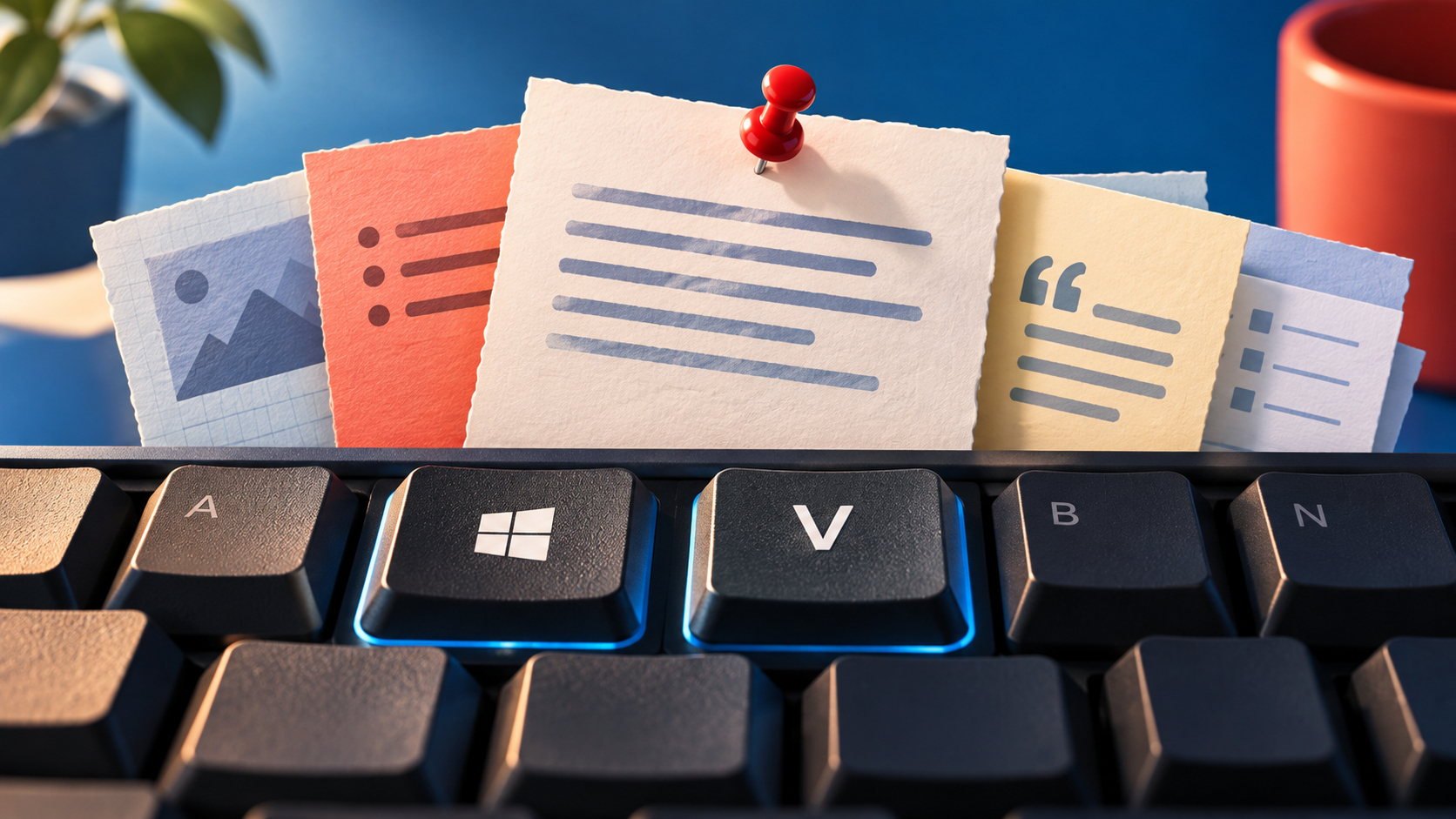
Quick answer: Press Windows key + V, choose Turn on if prompted, then copy a few pieces of text. Put your cursor where you want one, press Windows + V again, and select the item. You can also pin a snippet you use often.
This guide follows Microsoft's Windows clipboard instructions, checked October 30, 2026. The steps and syncing behavior weren't independently tested on a Windows PC for this article; labels may vary with your Windows version or organization settings.
Turn on clipboard history
- Press Windows key + V.
- If Windows offers Turn on, select it.
- Copy a short, non-sensitive phrase with Ctrl + C, then copy a different phrase.
- Open a document or text field and place your cursor where you want the first phrase.
- Press Windows + V and select the earlier item to paste it.
That's the useful part: copying the second phrase doesn't mean you have to go back and find the first one. Try this with a couple of harmless snippets before trusting it with a longer workflow.
Keep a useful item around
Microsoft says clipboard history can hold up to 25 copied entries. Older unpinned entries make room for new ones, and unpinned history is cleared when you restart your PC. Pin an item you want to keep, such as a standard reply or a frequently used address, using the pin control beside it in the history panel.
Pinned items survive a restart and are excluded from the usual clear-all operation. That convenience cuts both ways: don't pin passwords, one-time codes, or other sensitive information. A clipboard isn't a password manager or a permanent backup.
Delete an item or clear the list
To remove one item, press Windows + V, open the three-dot menu beside it, and choose Delete. To clear unpinned history, open the panel and select Clear all, or go to Settings → System → Clipboard and choose Clear under Clear clipboard data. Microsoft says this clears unpinned items on the device and in the cloud.
Check pinned items separately. Clear all leaves them behind. Remove any sensitive pinned entry individually and check the list before handing over a shared computer. The clipboard is useful precisely because it remembers things; that means it's worth knowing what you left in it.
Sync between your PCs—if you want to
Sync is optional. If you want copied text available on another PC, go to Settings → System → Clipboard and turn on Clipboard history across your devices. Microsoft says the feature is tied to your Microsoft or work account, so use the same account on the devices involved.
You can choose Automatically sync text that I copy or Manually sync text that I copy. With manual sync, open Windows + V and select the sync button for the item you want to send to the cloud. Start with manual sync if you want to make that decision item by item. Check the other PC before relying on a snippet being there.
Syncing sends selected text to the cloud. On a work PC, follow your organization's rules and avoid syncing confidential material unless permitted. If you don't need cross-device access, leave sync off and use history locally.
When an item goes missing
- The history panel is empty: Check that history is enabled with Windows + V. A restart clears unpinned items.
- An older item disappeared: The list holds 25 entries, and older unpinned entries can be removed as new ones arrive.
- A copied item isn't appearing: Microsoft lists text, HTML, and bitmap formats, with a limit of 4 MB per item. Try a smaller piece of text first.
- Another PC doesn't show your text: Check that syncing is enabled and both devices use the same account. If you chose manual sync, use the item's sync button. Check any work-account restrictions with your administrator.
- Clear all didn't remove everything: Pinned items are excluded. Delete those individually.
For account security beyond clipboard housekeeping, see our Google passkey and recovery guide. Different tool, same principle: make the convenient option work for you without losing track of what it keeps.
Reviewed & written by
Tony Simons
Tony has a bachelor's degree from the University of Phoenix and over 14 years of writing experience between multiple publications in the tech, photography, lifestyle, and deal industries.