
AI & Software · Tutorial
How to Use Gemini: A Practical First-Day Guide
Gemini is Google's consumer chat assistant (gemini.google.com), a mobile assistant on Android, and a developer platform with Google AI Studio and a Gemini API you can call from Python, JavaScript, or curl. This guide walks a first-day user through signing in, switching between Flash-Lite, Flash, and Pro models, building a Gem for repeatable tasks, running a Deep Research report, co-creating a doc in Canvas, connecting Workspace and YouTube Music through Connected Apps, and then making your first API call with a free Google AI Studio key.
 By Tony Simons Updated 16 min read
Disclosure: This page may contain affiliate links; I may earn a commission at no extra cost to you. It never changes the verdict. Details

Disclosure
I may earn a commission from qualifying purchases. Opinions stay independent. Full disclosure
So you want to know how to use Gemini and you aren’t sure where to start. The first hour is mostly about knowing which of three things you’re actually using. There’s the consumer assistant that lives at gemini.google.com and on the Gemini mobile app, where the surface is a chat box, a model picker, and a sidebar full of “Gems” and “Canvas.” There’s Google AI Studio, where you prototype prompts against the same models in a Playground before exporting code. And there’s the Gemini API, where the same models show up as gemini-3.8-flash and friends and you call them from Python, JavaScript, or curl.
This guide walks all three in order so you learn how to use Gemini the way the product is actually built, not the way a benchmark would rank it. By the end you should know how to sign in, pick the right model for the job, build a Gem for the kind of prompt you write every week, run a Deep Research report, co-create a doc in Canvas, hook up Connected Apps like Workspace and YouTube Music, and finally make your first API call with a free Google AI Studio key.
Where Gemini Lives
Gemini’s web home is gemini.google.com, and that’s the front door for how to use Gemini on a laptop. To use it you need a supported browser like Chrome, Safari, Firefox, Opera, or Edge, plus a sign-in. The sign-in options, per the official Use Gemini Apps help article, are:
- A personal Google Account.
- A work Google Account on a qualifying Workspace edition (and you must be 18 or over).
- A school Google Account, but only if your institution has enabled the service.
If you’re landing here from my guide to using ChatGPT or my guide to using Claude, the mental model carries over: the chat box is where using Gemini begins, but it’s the smallest of the surfaces.
You can use some Gemini features without signing in, but the help article is explicit that signed-out mode hides past chats, personalized responses, Connected Apps integration, image generation, Gems, and file upload. The shortest version: sign in.
On Android, Gemini can replace Google Assistant on your phone. Open Settings > Apps > Default apps > Digital assistant app and pick the Google app, then either open the Gemini app directly or activate by touch (long-press the power button, or swipe up from a bottom corner). Once that’s set, “Hey Google” routes to Gemini instead of Google Assistant. Smart Displays, smart speakers, TVs, cars, and Pixel Tablets still run on Google Assistant, so this is a phone-first change.
On iOS, Gemini is just an app you download from the App Store. There’s no system-wide assistant replacement on iOS.
Knowing where Gemini lives is half of how to use Gemini well. The other half is picking the right surface for the job, which starts the moment you open the chat.
How to Use Gemini: Your First Conversation and the Model Picker
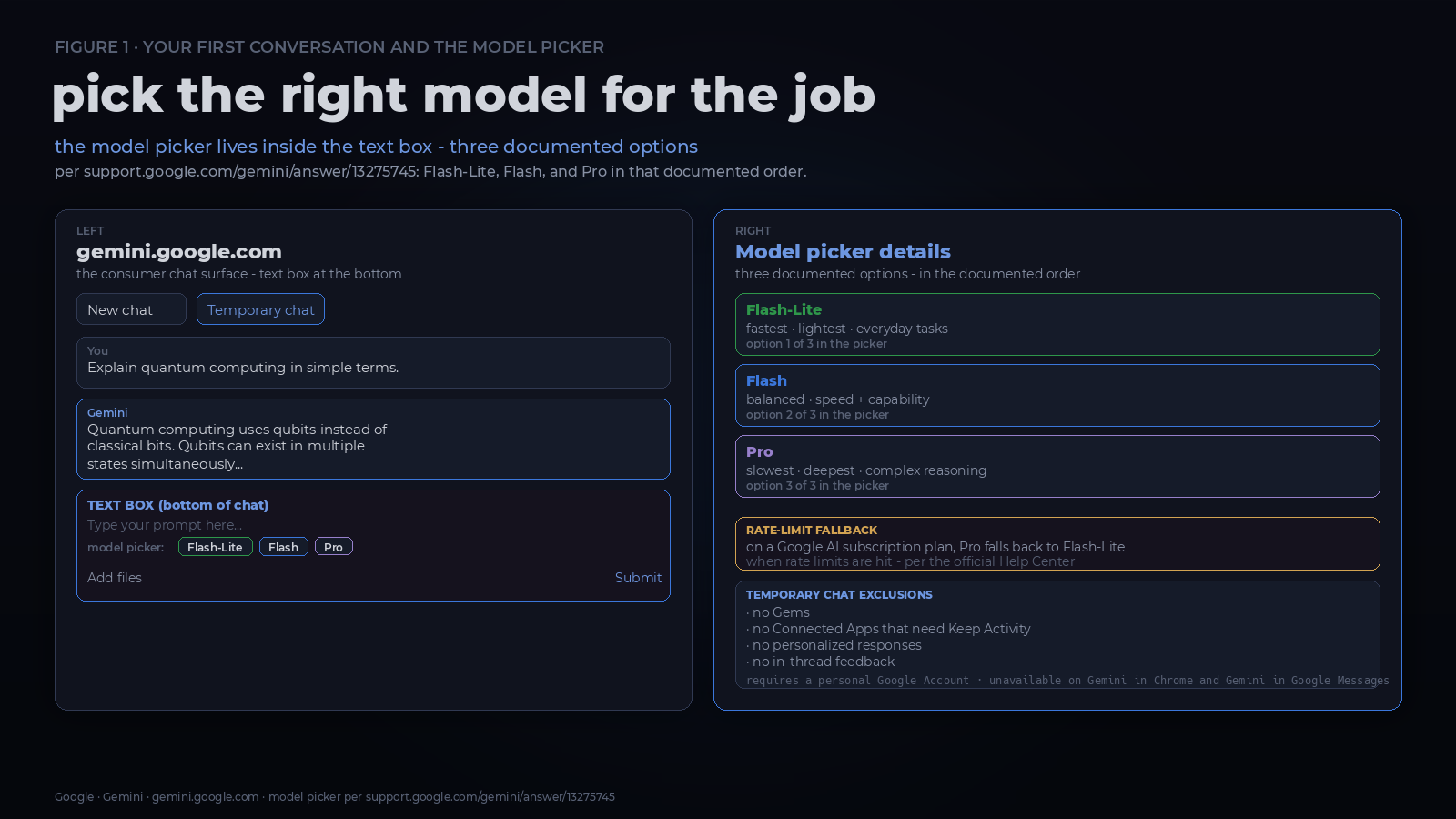
Open gemini.google.com, type into the text box at the bottom, and click Submit. To attach a file or image, click Add files. To start over, click New chat at the top left (or Menu > New chat).
The first lesson in how to use Gemini is the model picker, the control most people never touch. From inside the text box, click the model name and Gemini exposes three documented options per the Use Gemini Apps help article:
- Flash-Lite is the fast workhorse. It’s meant for everyday summarization, brainstorming, and short answers.
- Flash balances speed and reasoning and is the right default for most things you’d type into a chat box.
- Pro is the slowest and the deepest. The help article calls out math, coding, and “complex prompts with high performance and reasoning” as the reasons to switch, and warns that Pro responses take longer than the other two.
This is the step most people skip when they’re figuring out how to use Gemini, and it’s the one that changes your results the most. If you hit a rate limit on Pro and you have a Google AI subscription plan, the help article says you can keep going with Flash-Lite. That’s a useful fallback to remember when Pro is rate-limited mid-project.
There’s also a Temporary chat toggle right next to New chat. Temporary chats don’t appear in your recent chats or Gemini Apps Activity, but they also can’t use Gems, Connected Apps that require Keep Activity, personalized responses, or in-thread feedback. Use it when you want a clean conversation that won’t bleed into your normal chat history. Temporary chat requires a personal Google Account and isn’t available on Gemini in Chrome or Gemini in Google Messages.
That’s the whole first minute of how to use Gemini: type, pick a model, and decide whether the chat should persist.
Generating Files From a Chat
One of the more useful Gemini quirks is that you can ask it to produce a real file. Generating files is one of those how to use Gemini tricks that pays off immediately. The Use Gemini Apps help article lists the supported formats: Google Workspace files (Docs and Sheets), PDF, DOCX, XLSX, CSV, LaTeX, plain text, RTF, and Markdown. Most formats can be downloaded directly to your device or exported to Google Drive.
A useful pattern is to keep the request short:
Put the analysis in a Google Sheet with one tab per competitor.or
Export this as a DOCX I can email.When Gemini is finished, the file shows up in the chat with a download or “Export to Drive” affordance. If you need a particular format, ask for it explicitly and check the download or export options Gemini gives you.
Voice, Images, and the On-Screen Overlay (Mobile)
On Android, the Gemini mobile app gives you three input modes the web app doesn’t. On mobile, how to use Gemini adds voice, camera, and “ask about screen.” The Get started with the Gemini mobile app help article spells each one out.
Voice chat starts when you tap the microphone. The microphone stays open for up to five minutes while you talk. Pause with Stop, resume with Microphone, and tap Send to commit the prompt. That records a spoken prompt. For a back-and-forth conversation, use Gemini Live instead.
Chat with images works two ways. You can take a new photo or pick one from your gallery, or you can be in another app, invoke Gemini (“Hey Google” or by touch), and tap “Ask about screen.” The screen-context toggle (use text from screen and use screenshot) has to be on for the second path to work. It’s in the Gemini app under Settings.
When you invoke Gemini over another app, you get the overlay, not the full app. The overlay does three documented things: it can offer a suggestion to “ask about this screen” on apps like YouTube, it lets you press-and-hold a generated image to drop it into the other app if the other app accepts the gesture, and it otherwise behaves like a smaller version of the chat box.
Gems: Saved Instructions You Reuse
Upcoming change: Google says personal-account Gems will automatically transition to skills starting in November 2026. Work and school accounts follow in 2027. The steps below describe Gems while they remain available.
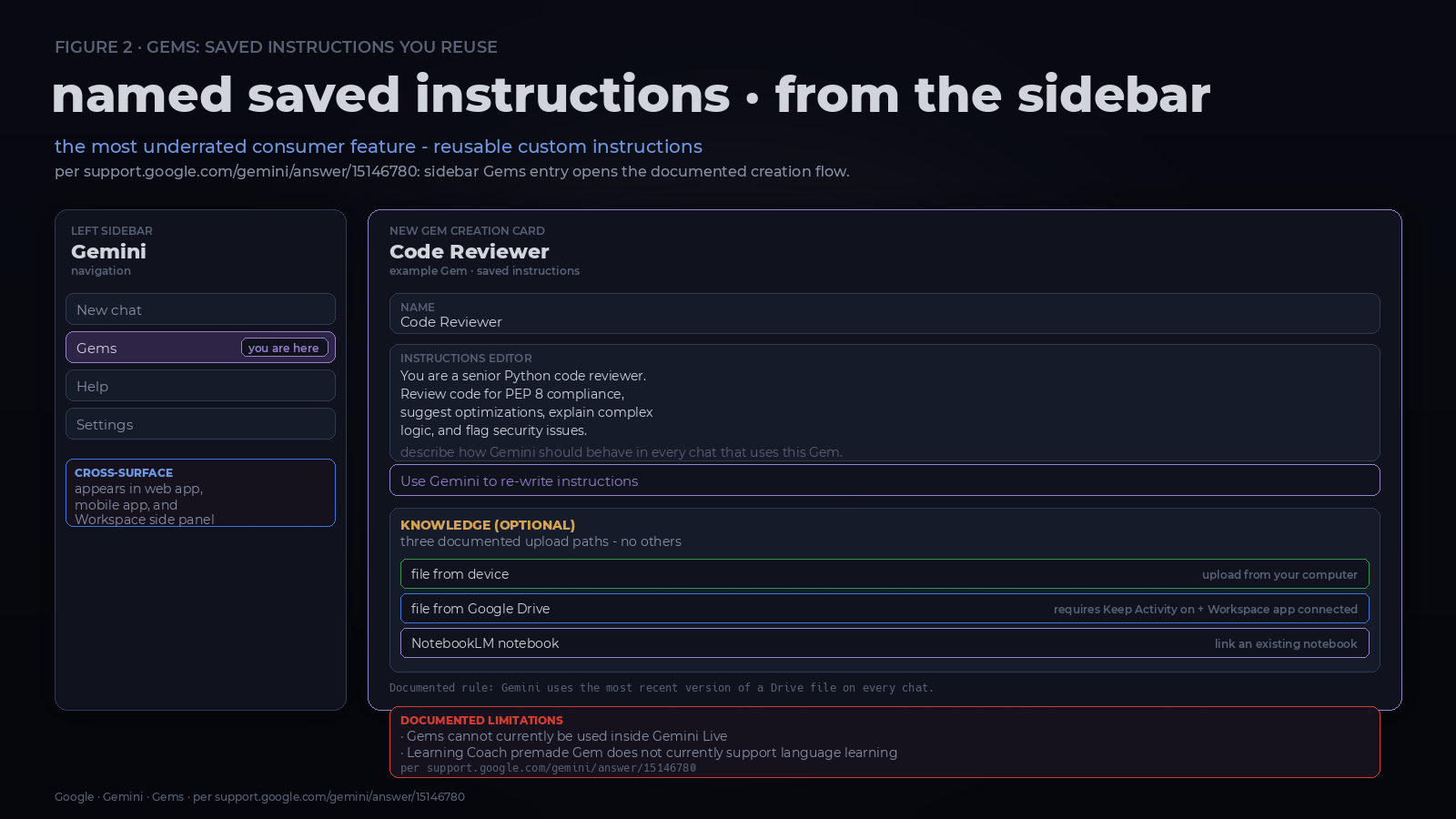
Gems are the most underrated feature in the consumer Gemini surface. A Gem is a named set of instructions that Gemini will follow every time you start a chat with it. The help article’s examples are concrete: a workout Gem that knows your time and physical limits, a recipe Gem that respects your diet, a gardening Gem that knows your climate.
To create one, open Gemini on the web and click Open Sidebar > Gems > New Gem. Give it a name, write the instructions, optionally upload files under Knowledge, and click Save. The Gems you create on the web appear in the Gemini mobile app and the Gemini side panel in Google Workspace as well.
If there’s one thing that separates a casual Gemini user from someone who actually relies on it, it’s Gems. Learning how to use Gemini with Gems is how you stop retyping the same setup prompt every week.
Two details that matter in practice:
- The Knowledge section supports three upload paths: a file from your device, a file from Google Drive, or a NotebookLM notebook. Adding a Drive file requires Keep Activity to be on and Google Workspace to be connected to Gemini. If you add a Drive file, the help article is explicit that Gemini will use the most recent version of that file on every chat, so updates to the source file propagate to the Gem automatically.
- There’s a “Use Gemini to re-write instructions” button in the instructions box. Click it after writing a sentence or two and Gemini will expand your short notes into more comprehensive instructions. This is the difference between a Gem you use once and a Gem you actually keep using.
The help article also flags two limitations. Gems can’t currently be used inside Gemini Live, and the Learning Coach premade Gem doesn’t currently support language learning. Check those limitations if you plan to build a workflow around either feature.
To start a chat with a Gem, open the sidebar, click Gems, pick the Gem from My Gems, and type your question. To edit or delete a Gem, use Options on the Gem card in the sidebar. There are also Experimental Gems, which Google uses to ship early features for feedback.
That’s how to use Gemini with Gems without turning them into a one-time novelty.
Deep Research: A Report, Not a Chat
If Gems are about repeatable short prompts, Deep Research is about handing Gemini a question and getting back a report. Deep Research is the part of how to use Gemini that earns its keep for anyone doing real work. To start one, go to gemini.google.com and click Add Files > Deep Research in the text box. You can optionally upload files or images, then choose your sources. Google Search is included by default; Gmail and Drive appear as source options only if the Workspace app is connected to Gemini. You can deselect Google Search to limit research to your chosen sources.
Type the research question, click Submit, and Gemini shows a research plan. The “Edit plan” step is worth taking. The plan Gemini generates is reasonable, but it’s the plan Gemini is going to follow, and a small edit up front saves a lot of waiting on the wrong path. When you’re ready, click Start research.
The help article documents the runtime as “usually about 5-10 minutes” for a normal report, longer for complex ones. The chat continues in the background while you wait, and you can leave and return when notified. Past research reports only appear under Recent if Keep Activity is on. That’s a small detail that catches people out when they try to find yesterday’s report and the menu is empty.
When the report is ready it opens in the Canvas panel on the right. From there:
- Click Create Audio Overview to listen to a podcast-style summary.
- Click Create to generate a custom visualization by prompt (a chart, a comparison table, an explainer diagram).
- Click Share & export for Share Canvas (link to the report), Export to Docs (open the text in a new Google Doc), or Copy Contents (plain-text clipboard copy).
On a Google AI Ultra plan, Deep Research reports can include inline charts, diagrams, and interactive simulators. The help article is explicit that this feature is unavailable when any Google Workspace source (Gmail or Drive) is included. The visuals path is for web-only research.
Canvas: The Side Panel Where You Co-Write
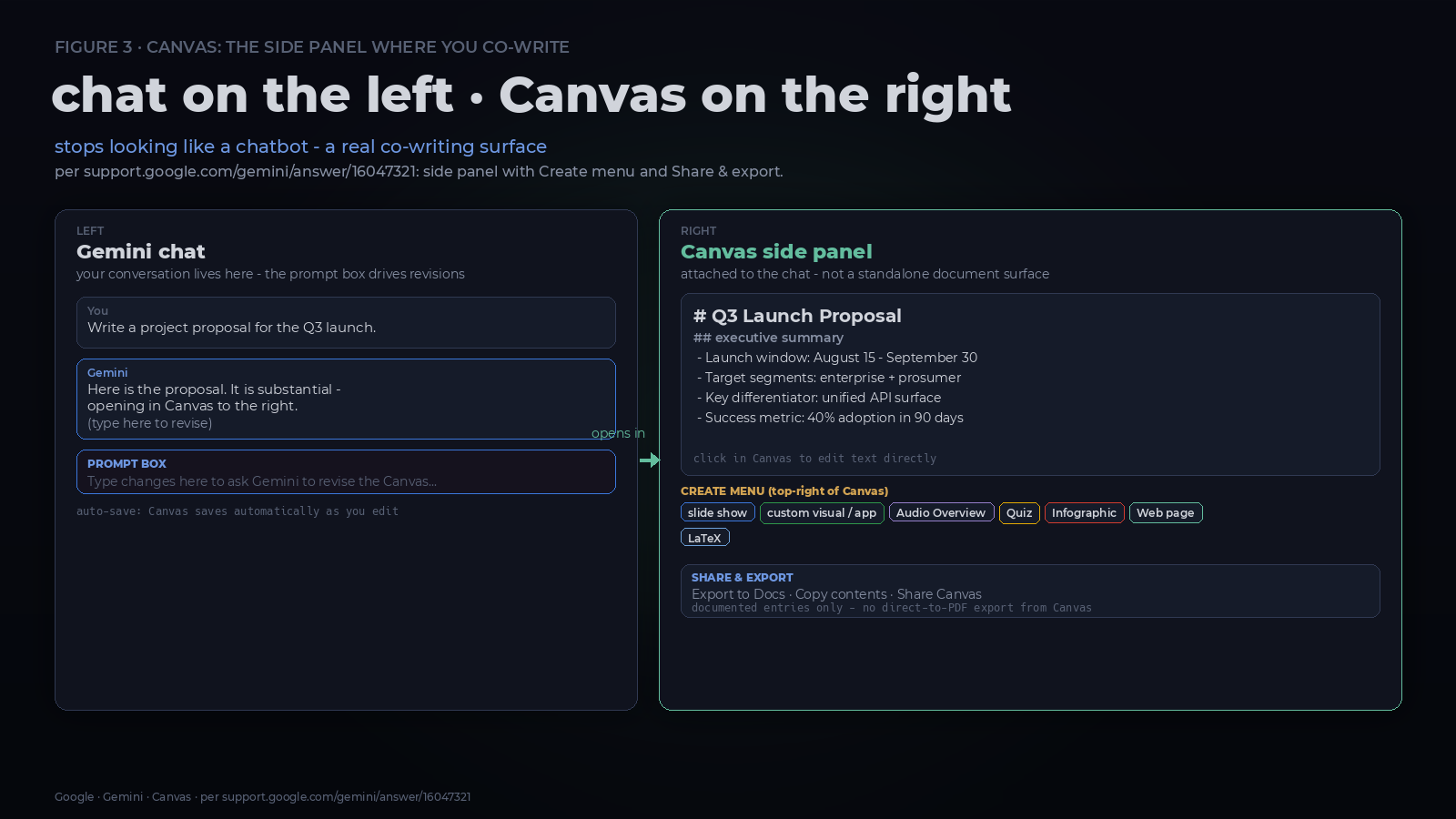
Canvas is what makes a Gemini chat feel different from a normal chatbot. Canvas is where how to use Gemini stops looking like a chatbot. It’s a side-panel workspace where you and Gemini co-create a doc, app, slides, or code, with auto-save. You can edit text directly in the Canvas panel or ask Gemini to make changes in the prompt box, and changes show up immediately.
The interesting controls are in the top-right of the Canvas panel. Click Create to turn the current Canvas into:
- A slide show, custom visual, or app, by describing what you want in the prompt box.
- An Audio Overview (the same podcast-style summary you can generate from a Deep Research report).
- A Quiz, with questions Gemini writes from your content.
- An Infographic.
- A Web page.
You can also click Create > LaTeX and click the formula in Canvas to insert a rendered math expression.
The export menu is also worth knowing. Click Share & export in the Canvas panel to pick Export to Docs (opens the text in a new Google Doc) or Copy contents (plain-text clipboard copy). Share Canvas itself is for sending a link to someone else.
The practical workflow for a first-day user: ask Gemini to draft the doc inside Canvas, click in to edit and shape it yourself, click Create to turn it into the format you actually need (a slide show for a meeting, a Quiz for a study guide, a Web page for a quick share), then Export to Docs for long-term editing in Google’s word processor.
Connected Apps: Making Gemini Useful Across Your Data
Connected Apps are what let Gemini touch the rest of your Google life. Connected Apps are how to use Gemini across the rest of your Google account. The help article lists the defaults: Google Search, Google Flights, Google Hotels, Google Maps, and YouTube. Using public information from Flights, Hotels, Maps, and YouTube requires Keep Activity to be on; Google Search public information works even with Keep Activity off or when you’re signed out.
There are three settings to know about:
- Keep Activity. When Keep Activity is off, Connected Apps are disabled on gemini.google.com and iOS; on Android, Device assistance, Phone, Messages, and WhatsApp remain available. That’s a deliberate carve-out for the most common personal-assistant actions.
- Personal Intelligence. On a personal Google Account, the menu label is Personal Intelligence > Connected Apps. On work or school accounts the available apps differ, and the help article is clear that the exact set varies by Gemini app, device, and country.
- Custom apps via MCP. If your account has Gemini Spark access, you can link a personal or third-party app through its Model Context Protocol (MCP) server and use it in Spark tasks. Check the available actions and trust the provider before connecting it.
To see what you can connect, go to gemini.google.com, open the menu, and look for Connected Apps (or Personal Intelligence > Connected Apps on a personal account). The Connected Apps page lists every app available to your account, your account type, and the Gemini app you’re currently in.
From the Consumer App to the Gemini API
If you find yourself wanting the same model in code, the path is short. The first time you figure out how to use Gemini’s API, it feels bigger than it is. The Gemini API is the same model family the consumer app uses, exposed through three documented paths: Python, JavaScript, and REST.
Google AI Studio is where you prototype. It opens to the Playground with a new Chat prompt. The top-right Run settings panel exposes the system instructions, model parameters, safety settings, and toggle-on tools for structured output, function calling, code execution, and grounding. Write your prompt, click Run, see the result. When it works, click Get code to export to Python, JavaScript, or curl. You don’t have to rewrite anything by hand.
Here’s how to use Gemini from your own code without reading the whole docs site. The examples below follow Google’s quickstart checked on September 30, 2026; model availability and API pricing can change. To go from Playground to a real API key, the Gemini API quickstart documents the standard flow. If you’re a new user, Google AI Studio auto-creates a default Google Cloud project and an API key for you after you accept the Terms of Service; you copy it from the API keys page. If you already have a Google Cloud account, you import your existing project instead of letting AI Studio create one.
Install or update the Python SDK with pip install -U google-genai, set GEMINI_API_KEY in your environment, then make your first call:
from google import genai

client = genai.Client()

interaction = client.interactions.create(
    model="gemini-3.8-flash",
    input="Explain how AI works in a few words",
)
print(interaction.output_text)
The SDK picks up the API key from the GEMINI_API_KEY (or GOOGLE_API_KEY) environment variable, so you don’t have to hardcode it. If both are set, the docs say GOOGLE_API_KEY takes precedence.
That’s the unglamorous core of how to use Gemini’s API: a key in an env var and a model name.
The REST equivalent, per the same quickstart, is:
curl -X POST "https://generativelanguage.googleapis.com/v1beta/interactions" -H "x-goog-api-key: $GEMINI_API_KEY" -H 'Content-Type: application/json' -d '{"model":"gemini-3.8-flash","input":"Explain how AI works in a few words"}'The response is an Interaction object with a steps array that includes any thought steps, the final model_output step, the model name, and usage statistics. The SDKs expose interaction.output_text and interaction.output_image as shortcuts so you don’t have to walk the steps array yourself.
For multi-turn conversations, the Interactions API documents two patterns. The recommended path is stateful: chain calls with previous_interaction_id and let the server manage the history. The alternative is stateless: set store=false and replay the full steps array (including thought and function_call steps) on every request. Stateful is what you want for a chat; stateless is what you want when you need to control exactly what the model sees.
For image generation, the same SDK can call the Nano Banana image models:
import base64
from google import genai

client = genai.Client()

interaction = client.interactions.create(
    model="gemini-3.1-flash-image",
    input="Generate an image of a futuristic city skyline at sunset",
)

with open("generated_image.png", "wb") as f:
    f.write(base64.b64decode(interaction.output_image.data))
For long-running work, set background=True on the create call and poll with client.interactions.get(interaction.id) until status is completed or failed. This is the documented escape hatch for analysis jobs that you don’t want to time out over HTTP.
API Keys: Check the Current Rules
Google’s current API key guidance distinguishes standard keys from authorization keys tied to a service account. New keys created in AI Studio have defaulted to authorization keys since May 28, 2026.
Google rejects unrestricted standard keys, while standard keys with explicit restrictions continue to work under the current guidance. The earlier blanket September cutoff in this article no longer matches that documentation. Check your key type and restrictions before assuming a working integration needs an emergency migration.
Keep keys out of public code and browser bundles. Use environment variables for local development and an appropriate server-side secret store in production. Creating a key doesn’t make every model or request free; check the model’s pricing and your project’s billing settings before running a large job.
Your First Useful Gemini Session
Pick one task you already need to finish. Give Gemini the context, tell it what a useful result looks like, and ask for a specific format. Check the answer before you use it. A confident paragraph still isn’t a fact-check.
Once that works, try a Gem for something you repeat, Canvas for a document you want to refine, or Deep Research for a question that needs sources. You don’t need to master every button on day one. Make one part of your day less annoying and build from there.
Reviewed & written by
Tony Simons
Tony has a bachelor's degree from the University of Phoenix and over 14 years of writing experience between multiple publications in the tech, photography, lifestyle, and deal industries.


