
AI & Software · Tutorial
How to Use Claude: A Practical First-Day Guide
Claude is Anthropic's assistant, and 'how to use Claude' covers more ground than most people realize: a chat surface, an Artifacts panel for standalone content, project workspaces with their own knowledge bases, three documented personalization surfaces, chat search and Memory, and the official API and CLI underneath. This first-day guide walks each of those surfaces using only what Anthropic's own help and docs pages say.
 By Tony Simons 18 min read
Disclosure: This page may contain affiliate links; I may earn a commission at no extra cost to you. It never changes the verdict. Details

Disclosure
I may earn a commission from qualifying purchases. Opinions stay independent. Full disclosure
So you want to use Claude and you want a guide that doesn’t waste your time. Good instinct. The first thing to know about how to use Claude is that “Claude” is actually several surfaces stacked on top of each other, and the right way to think about it is as a chat surface, a content panel, project workspaces, three personalization knobs, and an official API and CLI underneath. This guide walks each of those surfaces using only what Anthropic’s own help center and platform docs say, so what you read here will match what’s actually in the product.
This is a practical first-day path. By the end you should be able to do all of the following:
- Have a productive first conversation in Claude.ai and turn any substantial result into an Artifact you can edit, version, and reuse.
- Create a Project, upload your own files into its knowledge base, set project-scoped instructions, and let Claude use that context across every chat in the project.
- Decide between account-wide Instructions, project instructions, and Skills, and pick the right one for the job.
- Turn on chat search and Memory so Claude can recall earlier conversations, and know where the toggles live in Settings.
- Make your first API call to the Messages endpoint with cURL, the official
antCLI, and the Python and TypeScript SDKs.
What “how to use Claude” actually is
“Claude” is Anthropic’s assistant, and when you’re new and trying to figure out how to use Claude, the Claude.ai web app is the surface you’ll touch first. Underneath that web app are the same Claude models that power the Anthropic API, plus an official command-line client called ant, plus the Anthropic Python and TypeScript SDKs. Every surface ultimately calls the same Messages API, so what you learn in one place carries to the others. If you want the developer walkthrough, my guide to using Claude Code covers the coding-agent CLI that sits underneath these surfaces, and my guide to using ChatGPT is the consumer sibling most first-time Claude searchers already know.
For the first half of this guide I’ll stay inside Claude.ai, because that’s the path a brand-new account actually walks. The consumer app is the heart of how to use Claude for most newcomers, so I’ll spend the first half there. In the second half I’ll switch to the documented first-message path through the API and the CLI for readers who want to use Claude programmatically.
Start a real conversation
Open claude.ai and start a new chat. This is the simplest part of how to use Claude, and the place most people actually begin. Type a real request that has substance to it — not “hi” — because the Artifacts and Projects features below are designed for content that’s substantial enough to be worth keeping. The Anthropic help center describes Artifacts as Claude’s way of surfacing “substantial, standalone content” in a dedicated window so you can “modify, build upon, or reference later” without losing it in the chat transcript.
If your first prompt produces something small — a quick fact, a one-line edit — Claude will answer inline and you can move on. If it produces something you’d want to keep (code, a Markdown document, a website mockup, an SVG diagram, an interactive component, a slide deck), the answer will show up in a dedicated Artifact panel to the right of the main chat. That’s the cue to start using Artifacts, and it’s the moment how to use Claude shifts from chatting to building.
Artifacts: Claude’s content panel
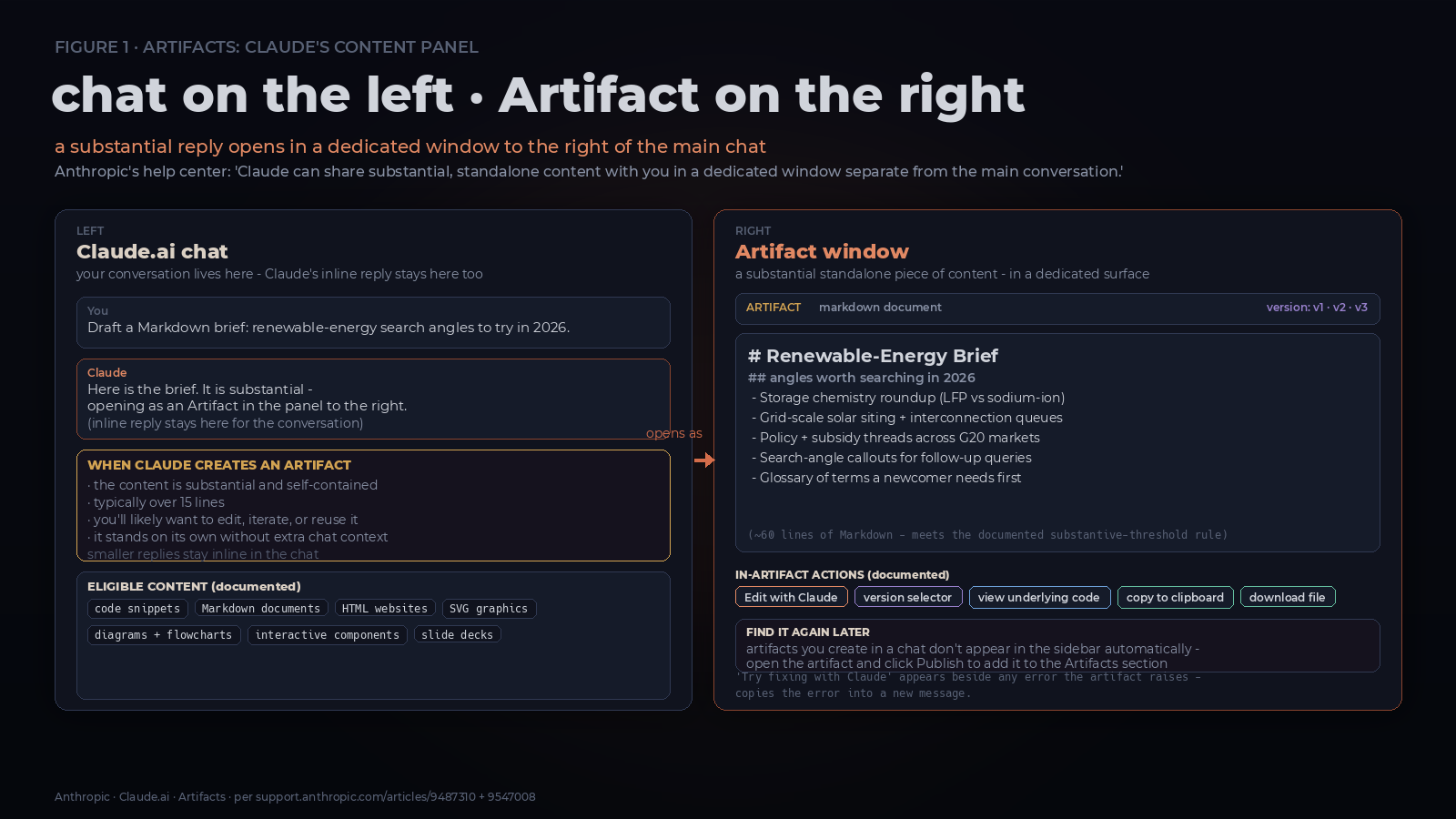
Artifacts are the most important feature a first-day Claude user doesn’t know about, and understanding how to use Claude’s Artifacts panel is what separates a chat toy from a work tool. Anthropic’s help center says Artifacts “allow you to turn ideas into shareable apps, tools, or content — build tools, visualizations, and experiences by simply describing what you need,” and that Claude surfaces them “in a dedicated window separate from the main conversation.”
What that means in practice is this: when Claude generates something substantial during a chat, it shows up in two places at once — the regular chat reply on the left, and a dedicated Artifact window on the right. The chat reply is for the conversation; the Artifact is for the artifact itself. Once you see this split, how to use Claude starts to make sense as more than a chatbot.
When Claude creates an Artifact
Anthropic documents that “Claude creates an artifact when the content it’s sharing meets these criteria” — that is, when the content is substantial enough to be worth its own surface. The help center lists common Artifact content as code snippets, documents, websites, SVG graphics, diagrams, interactive components, and slide decks. When you learn to read that threshold, how to use Claude starts to feel less like chatting and more like building. If your request produces a paragraph or a quick answer, it stays inline. If it produces a 60-line Python function, an HTML page, or a self-contained React component, it becomes an Artifact.
Find your Artifacts later
The dedicated Artifacts section lives in the Claude.ai sidebar. Anthropic documents that you can “access all your artifacts through the dedicated Artifacts section in your Claude sidebar” and that the section lets you “create new artifacts” and find artifacts you’ve made before.
One small but important detail: artifacts you create in a conversation don’t appear in the sidebar automatically. Anthropic’s help center says: “Artifacts you create in a conversation don’t appear in your sidebar automatically. To add an artifact to your Artifacts section, open it and click ‘Publish.'” So if you want to find an artifact again tomorrow, open it and click Publish.
Edit, version, and export
Inside an Artifact window you can do the four things that make Artifacts useful for real work, per Anthropic’s docs. This is where how to use Claude moves from generating content to actually owning it:
- Edit in place on Markdown documents: highlight the text you want changed, click “Edit with Claude,” and type your request. Claude makes the edit “right where you marked it, so you don’t have to describe which section you mean in the chat.”
- Switch between versions with the version selector.
- View the underlying code of any Artifact in the lower-right corner of the Artifact window.
- Copy to clipboard or download the file for use outside the conversation.
If an Artifact generates an error, Anthropic documents a “Try fixing with Claude” button near the error message. Clicking it copies the error details into a new message so you can ask Claude to diagnose and fix the issue without typing the error by hand.
AI-powered Artifacts and MCP
Once you’re comfortable with plain Artifacts, the next step is AI-powered ones. Anthropic documents that “Users of your artifacts can access Claude’s intelligence through a text-based API — answering questions, generating creative content, providing personalized coaching, playing games, solving problems, and adapting responses based on input.” In other words, the Artifact isn’t just a static document — it can call Claude. That’s the part of how to use Claude most people never reach, and it’s where Artifacts get interesting.
If you’re on Pro, Max, Team, or Enterprise, Artifacts can also connect to external services through the Model Context Protocol (MCP). The help center describes MCP integration as “enabling interactive applications that read from and write to tools like Asana, Google Calendar, and Slack” and notes that artifacts can connect to “any custom MCP servers you’ve configured” in addition to Anthropic’s official MCP integrations.
Artifacts in Claude Code
Claude Code, Anthropic’s coding-agent CLI, can publish its session output as an Artifact — a “live, interactive page at a private URL” that updates in place as your session continues. Per the help center, “The page updates in place as your session continues, and you can share it with people in your organization.” The kinds of artifacts Claude Code produces are pull-request walkthroughs with annotated diffs, dashboards built from session data, and investigation timelines that fill in as Claude works.
Share, publish, and embed
When you’re ready to share an Artifact, Anthropic’s publishing article describes three documented paths. Sharing is the last piece of how to use Claude’s Artifacts most newcomers skip:
- Public publishing (Free, Pro, Max plans): click “Publish” on the Artifact, then copy the public link. Anthropic’s help center says publishing “Makes your artifact publicly available. Anyone with the link can view and interact with it.”
- Embedding: after publishing, click “Get embed code” to copy auto-generated HTML you can paste onto another website.
- Internal sharing (Team, Enterprise plans): click “Share,” then “Share & copy link.” Artifacts created on Team or Enterprise accounts can only be shared within the organization, and Anthropic explicitly warns that “When you share an artifact, viewers also gain access to any attachments and files in the conversation that created it” — so think about that before sharing Artifacts from conversations with sensitive documents.
The help center also documents “Build on a published artifact” — copy the code into a new chat, describe the changes you want, and Claude creates a new Artifact with your changes. “Your version is separate from the original, so nothing you do affects the artifact you started from.” Anthropic’s warning is sharp: “Only do this with artifacts from people you trust.”
Projects: workspaces with their own context
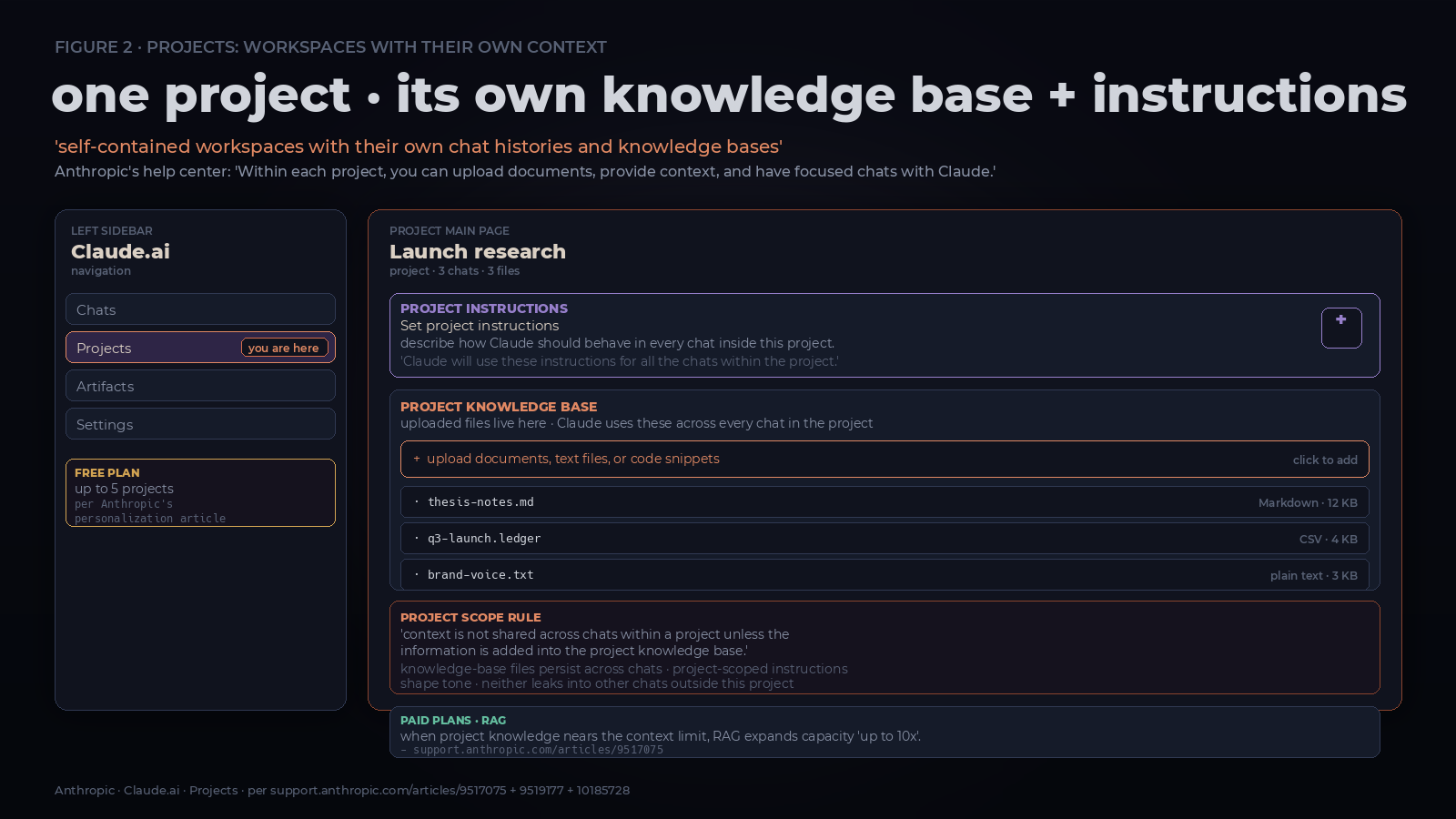
Where Artifacts are about a single substantial result, Projects are about the whole job. Anthropic’s help center describes Projects as “self-contained workspaces with their own chat histories and knowledge bases.” Within a project you can upload documents, provide context, and have focused chats with Claude that all share that context. If Artifacts handle one good output, Projects are how to use Claude for a whole body of work.
The key benefit Anthropic calls out is context: “You can upload relevant documents, text, code, or other files to a project’s knowledge base, which Claude will use to better understand the context and background for your individual chats within that project.” Combined with project instructions, that’s how you turn Claude into a specialist on a specific body of material. That’s the practical payoff of how to use Claude’s Projects: one setup, and every future chat in the project benefits.
Create a project and upload files
The “How can I create and manage projects” article walks the path step by step:
- Click the “+” button on the right side of the project’s main page.
- Upload documents, text files, or code snippets.
- Claude processes that information and uses it as context in every chat within the project.
If you want to set project-wide instructions, the same article tells you to click “Set project instructions,” describe how you want Claude to behave and respond within the project, and click “Save instructions.” Anthropic is explicit about scope: “Claude will use these instructions for all the chats within the project,” and “Context is not shared across chats within a project unless the information is added into the project knowledge base.”
RAG for projects on paid plans
If you upload a lot of material, the project will eventually hit a context limit. That upload-and-instruct loop is the practical core of how to use Claude’s Projects: drop in your files, set the behavior, and every later chat in that project starts from your context instead of zero. On paid plans, Anthropic documents that “Projects automatically scale to handle large amounts of content through Retrieval Augmented Generation (RAG). When your project knowledge approaches context limits, Claude seamlessly enables RAG mode to expand capacity by up to 10x while maintaining response quality.” That’s the mechanism that lets a single Project hold a whole codebase or a year’s worth of notes. It’s also why how to use Claude’s Projects well depends on feeding it the right files, not just more of them.
Free plan limit
Free users get Projects too, but with a documented limit. Anthropic’s personalization article states: “Free users can create a maximum of five projects.” Beyond that, you need a paid plan.
Personalize Claude: Instructions, Project instructions, Skills
This is the part of the help center that has been renamed and reorganized, so it’s worth being precise about the current terminology. The current personalization taxonomy, per Anthropic’s “Understanding Claude’s personalization features” article, has three surfaces. Knowing which surface to pull is a big part of how to use Claude as your own tool rather than a generic chatbot:
- Instructions for Claude: account-wide settings that affect every conversation. Set them by clicking your initials in the lower-left corner, selecting “Settings,” and under “Instructions for Claude” describing your preferred approaches, common terms, typical scenarios, and general communication instructions.
- Project instructions: project-scoped guidance that applies only to chats within that project. You set them per-project, as described above.
- Skills: on-demand behaviors or capabilities you can activate to customize how Claude communicates or applies specialized expertise.
Anthropic’s own guidance on which to use, verbatim from the article:
“Use profile instructions for account-wide settings that affect all your interactions with Claude. Use project instructions when you need specific guidance or context for a particular project (paid plans only). Use skills when you want to customize how Claude formats and delivers its responses.”
The article also points to a “What are skills?” article for the deeper dive — that’s where the per-skill configuration lives. Pick the wrong personalization surface and you’ll fight Claude instead of steering it, so this three-way taxonomy is the quiet core of how to use Claude as your own tool rather than a generic chatbot.
Chat search and Memory
The last Claude.ai surface to know about on day one is chat search and Memory, both documented in Anthropic’s “Use Claude’s chat search and memory” article. Once chat search and Memory are on, how to use Claude changes from a fresh-start tool to one that remembers your context across sessions.
Chat search
Chat search lets you “prompt Claude to search through your previous conversations to find relevant information across sessions and reference specific details when needed.” Anthropic is explicit that “These searches use Retrieval-Augmented Generation (RAG) and will appear as tool calls during your conversations.” So when you ask Claude “what did I tell you about my last launch?”, you’ll see the search invoked in the conversation as a tool call, then the answer. It’s the feature that finally makes how to use Claude feel like one continuous workspace instead of a row of disconnected chats.
To turn chat search off, navigate to Settings > Memory and switch “Search and reference chats” off. If you see Memory under Settings > Capabilities instead of Settings > Memory, you’re on the legacy experience — same toggle, different location.
Memory
Memory is an auto-generated summary of what Claude remembers about you. It’s the part of how to use Claude that turns a one-off assistant into something that accumulates context about you over time. To toggle it on or off, navigate to Settings > Memory and turn on “Generate memory from chats.” To see and edit what Claude remembers about you, click “View and edit memory” — Anthropic’s article says “The Manage memory modal displays everything Claude remembers about you.” You can also add custom instructions to Claude’s memory through the pencil icon in the lower-left corner of the summary.
If you want a hard reset, Anthropic documents: “Reset memory: Permanently deletes all memories including project memories. Once you select this option and click ‘Reset memory,’ this cannot be undone. Upon re-enabling the feature, you’ll start from scratch and Claude will not have its previous memory.” So Reset memory is the button you press when you actually want a clean slate, not the button you press to test.
The two Settings locations
The Memory article explicitly flags the rollout caveat: “We are gradually introducing an improved experience for memory from chats. The sections below only apply to people who have the legacy memory experience and see Memory in Settings > Capabilities. If you see Settings > Memory, you’re using the new memory experience and the sections above apply to you.”
So when you write a guide or a help article about this — and when you read one — describe both locations and let the reader pick the one they actually see.
Make your first API call to Claude
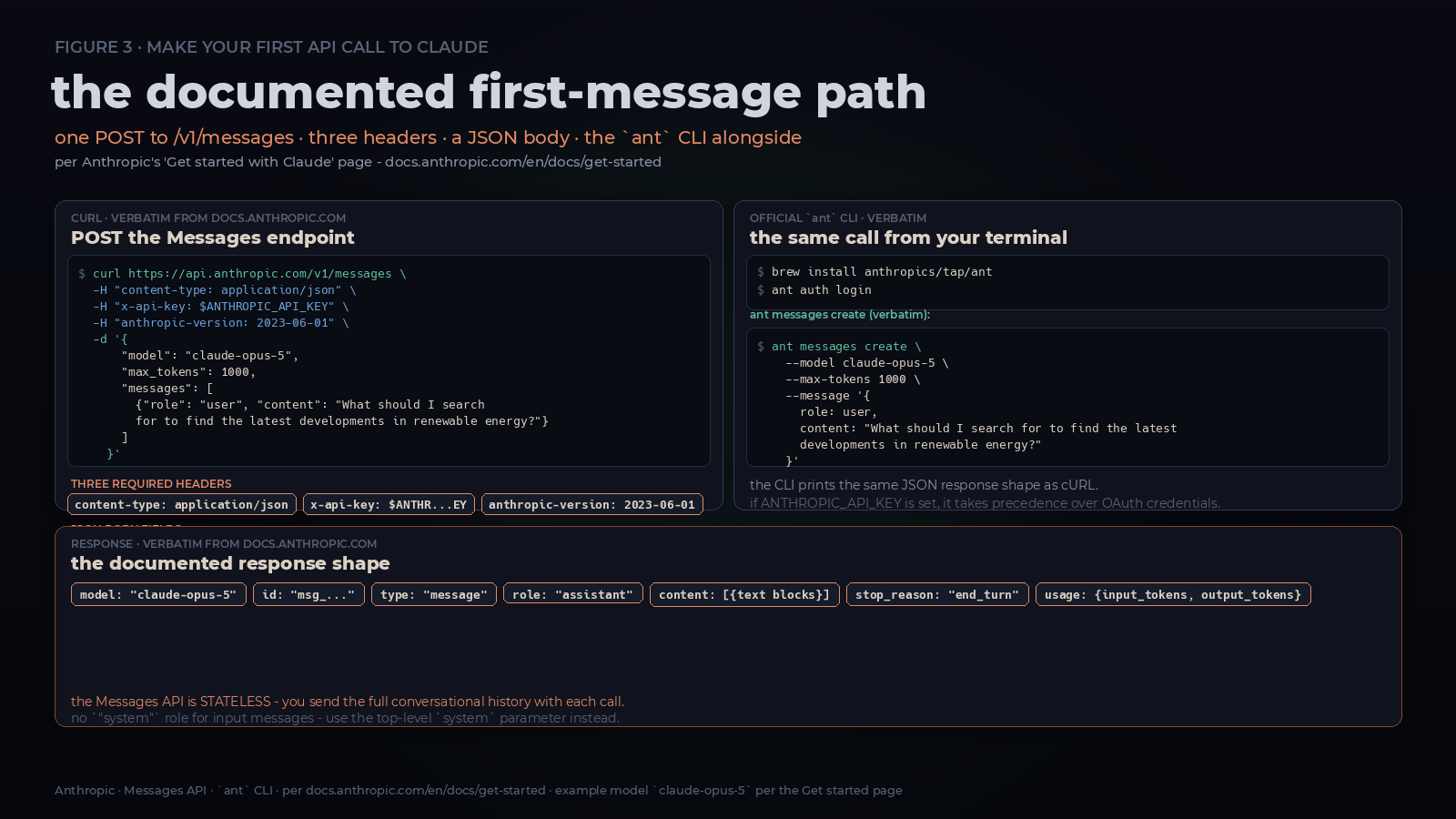
If you’ve outgrown the chat surface and want to use Claude programmatically, the documented first-message path goes through the Messages API at https://api.anthropic.com/v1/messages. Anthropic’s “Get started with Claude” guide lists the prerequisites as a Claude Console account and an API key. This is the one part of how to use Claude that needs a terminal, not a browser.
cURL
The minimum documented request is one POST to /v1/messages with three headers and a JSON body. Per the Get started guide:
curl https://api.anthropic.com/v1/messages \
  -H "content-type: application/json" \
  -H "x-api-key: $ANTHROPIC_API_KEY" \
  -H "anthropic-version: 2023-06-01" \
  -d '{
    "model": "claude-opus-5",
    "max_tokens": 1000,
    "messages": [
      {"role": "user", "content": "What should I search for to find the latest developments in renewable energy?"}
    ]
  }'
The response is a JSON object with the model, a generated id of the form msg_..., a type of “message”, a role of “assistant”, a content array (text blocks for prose, other blocks for tool use), a stop_reason (often "end_turn"), and a usage object with input_tokens and output_tokens.
Three things to know about the Messages API from Anthropic’s docs. The first one trips up almost everyone the first time they figure out how to use Claude’s API:
- The Messages API is stateless. You always send the full conversational history with each call. You can build up a conversation by alternating user and assistant messages, and you can also include synthetic assistant messages that did not actually originate from Claude.
- Each input message’s
contentcan be either a single string or an array of content blocks. A string is shorthand for a one-text-block array. There’s a 100,000-message limit per request. - There is no
"system"role for input messages. If you want a system prompt, use the top-levelsystemparameter instead.
Anthropic CLI: ant
For terminal-first workflows, Anthropic ships an official CLI called ant. Install it on macOS with Homebrew:
brew install anthropics/tap/antLog in with ant auth login, which opens a browser-based OAuth flow. On a remote host without a browser, pass --no-browser to get a URL you can open on another device, then paste the returned code back into the terminal. Confirm credentials with ant auth status. Anthropic’s docs warn: “If ANTHROPIC_API_KEY is set in your environment, it takes precedence over the login credentials.” So in CI, set the env var and skip the OAuth dance.
Send your first message:
ant messages create \
  --model claude-opus-5 \
  --max-tokens 1000 \
  --message '{role: user, content: "What should I search for to find the latest developments in renewable energy?"}'
The CLI prints the JSON response — same shape as the cURL version.
Python SDK
pip install anthropicimport anthropic
client = anthropic.Anthropic()
message = client.messages.create(
model="claude-opus-5",
max_tokens=1000,
messages=[
{"role": "user", "content": "What should I search for to find the latest developments in renewable energy?"}
],
)
for block in message.content:
if block.type == "text":
print(block.text)TypeScript SDK
npm install @anthropic-ai/sdkimport Anthropic from "@anthropic-ai/sdk";
const client = new Anthropic();
const message = await client.messages.create({
model: "claude-opus-5",
max_tokens: 1000,
messages: [{ role: "user", content: "What should I search for to find the latest developments in renewable energy?" }],
});
for (const block of message.content) {
if (block.type === "text") {
console.log(block.text);
}
}Both SDKs follow the same shape as the underlying API: pass model, max_tokens, and a messages array, then iterate the response content for text blocks. Once you’ve sent one message this way, you’ve covered the hardest part of how to use Claude from your own code.
Re-verify before publishing
This guide was written from Anthropic’s official Help Center and platform documentation, accessed August 27, 2026. Several pieces of information in those sources are explicitly time-sensitive in Anthropic’s own words, and they should be re-checked within 30 days before this guide goes live. Even though everything above is about how to use Claude as it stands today, these five details drift faster than the rest, so check them before you rely on the specifics. They are:
- Plan pricing. The Choose-a-plan, Pro, Max, Team, and Enterprise articles all carry price figures. Anthropic’s Pro article states verbatim: “Price and plans are subject to change at Anthropic’s discretion.” The current regional price for any reader is whatever claude.ai/upgrade shows at the moment they look, not what’s printed in this guide.
- Artifact tier availability. Anthropic documents which features are available on Free, Pro, Max, Team, and Enterprise. Tier availability can change. Re-check the Artifacts and Personalization articles against the live pages before publishing.
- Free-plan project limit. The five-project cap on Free is documented; re-check before publishing.
- Default model in code samples. The Get started page uses
claude-opus-5as the example model in every cURL, CLI, and SDK snippet. Model IDs are volatile by their nature. Confirmclaude-opus-5is still the current example in the Get started page before publishing, and update the code samples accordingly. - Memory Settings location. Anthropic is gradually rolling out the new Settings > Memory experience. The exact Settings location a reader sees depends on their rollout cohort. Describe both locations in the published version.
Everything else in this guide is product-mechanic documentation that does not change as quickly, but the five items above should be re-verified at publish time.
What’s next
Once you’ve done all five things in this guide — Artifacts, Projects, personalization, chat search and Memory, and the documented first-message API path — you’re past first-day Claude. You now know how to use Claude well enough to be useful on day one, and the rest is depth. The next steps Anthropic’s Get started page points at are multi-turn conversation patterns, system prompts, the stop reasons catalog, and the broader capabilities surface (tools, context management, structured outputs). Each of those has its own article on the platform docs site, and the same patterns from this guide apply: read the docs, do the documented thing, and let the official reference answer the version-specific question you actually have. If you want the deeper walk, how to use Claude’s API is the path most people graduate to after this guide.
Reviewed & written by
Tony Simons
Tony has a bachelor's degree from the University of Phoenix and over 14 years of writing experience between multiple publications in the tech, photography, lifestyle, and deal industries.


