AI & Software · Tutorial
How to Make a Simple Flowchart in Excalidraw
Draw connected boxes in Excalidraw, inspect the export options, and keep an editable copy of your work.
 By Tony Simons 3 min read
Disclosure: We may earn a commission when you shop through the links below. It never changes the verdict. Details

Disclosure
We may earn a commission when you shop through the links below. Opinions stay independent. Full disclosure
A process that makes perfect sense in your head can get messy fast when you try to explain it in a wall of text. Excalidraw gives you a quick way to turn it into boxes and arrows without opening a full design suite.
Quick answer: Open Excalidraw, draw a couple of shapes, connect them with an arrow, and use the main menu to export an image. Save an editable copy too: the app warns that browser storage can be cleared.
For this guide, we opened the browser editor, drew two rectangles, connected them with an arrow, and inspected the image-export controls. We did not verify a completed file download. Interface labels and shortcuts can change.
Featured image: AI-generated illustration of a diagram; the screen shown is illustrative and is not a screenshot of Excalidraw.
Build your first two-box diagram
- Open Excalidraw in a browser. On the toolbar, choose Rectangle, then click and drag on the canvas to draw your first box.
- Choose Rectangle again and draw a second box with space between them. These can represent any two steps, such as “Idea” and “Published.”
- Choose Arrow and drag from the first box toward the second. Adjust the arrow or boxes using the selection tool if the line needs a better position.
- To label a shape, select it and press Enter, then type its label. Keep the words short enough to read when you share the result.
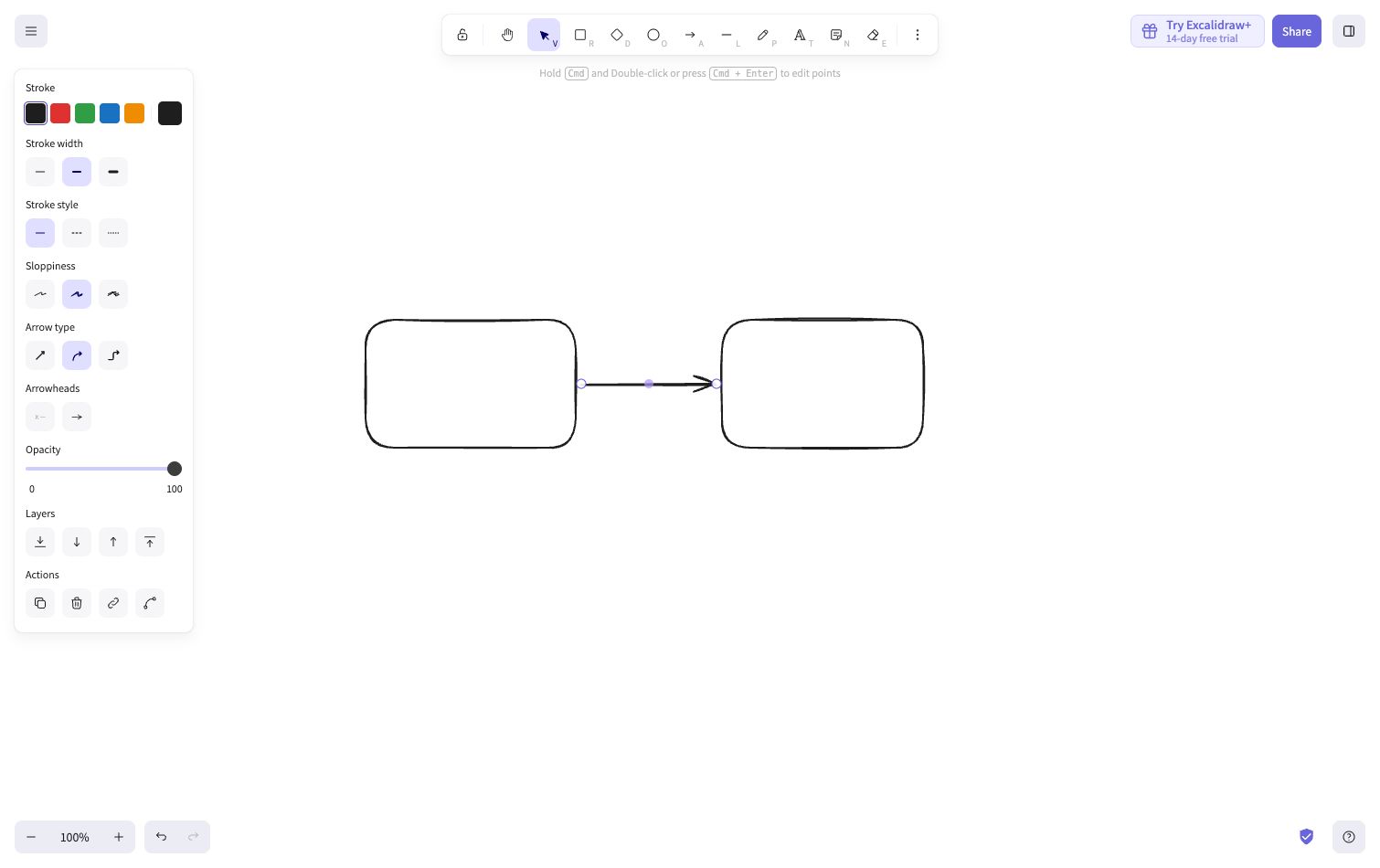
That is enough to map a simple handoff. Add more shapes only when they clarify the process; a page full of boxes can become its own puzzle.
Export an image without losing your editable work
Open the main menu in the upper-left corner and choose Export image. The dialog offers PNG and SVG, background settings, scale, and an Only selected option.
Watch that last checkbox. In our test, the arrow was selected and “Only selected” was on when the dialog opened. If you want the full diagram, turn it off before choosing PNG. We inspected these controls but did not verify the downloaded file, so open your result and check that every element appears.
For work you may want to edit again, open the main menu, choose Save to…, then choose Save to file and keep the editable file in a location you control. The Excalidraw documentation describes its local .excalidraw scene format. The editor itself warns that browser storage can be cleared unexpectedly, so don’t treat an open tab as your only backup.
When something looks wrong
- Only one item appears in the export: Check whether “Only selected” is enabled, turn it off, then inspect the new export.
- The arrow points the wrong way: Select it and adjust its position, or undo and draw it again from the intended starting box.
- The diagram is hard to read: Use fewer words in each box and inspect the exported image at the size your reader will see it.
- You can’t find your drawing later: Check the location you chose when saving the editable file. A shared image is useful to view, but keep the original scene file when you need to keep editing.
For another image workflow, see how to convert and resize images in Preview on Mac. Draw the minimum, export a copy, and check it before sending. A simple diagram that another person can actually follow beats a sprawling masterpiece every time.
The Inner Circle
One AI shortcut a week. Tested first.
The tools and tricks I actually kept using, sent once a week. Skip the hype threads.
- New verdicts and scores
- Same-day workflow tips
- No spam, unsubscribe anytime
Written by
Tony Simons
Tony has a bachelor's degree from the University of Phoenix and over 14 years of writing experience between multiple publications in the tech, photography, lifestyle, and deal industries.