AI & Software · Tutorial
How to Set Up 1Password Recovery Before You Get Locked Out
Prepare a 1Password recovery code and Emergency Kit, protect account email access, and understand the recovery process.
 By Tony Simons 5 min read
Disclosure: We may earn a commission when you shop through the links below. It never changes the verdict. Details
Disclosure
We may earn a commission when you shop through the links below. Opinions stay independent. Full disclosure
Your password manager protects a lot of doors. So what happens when you can’t unlock the password manager itself? With 1Password, a little preparation can make that situation a lot less frightening.
Quick answer: If you have an eligible individual or family account, sign in to 1Password.com, open Manage Account, and set up a recovery code. Save it somewhere secure that you can reach without 1Password. Also save your Emergency Kit, protect access to your account email, and have a plan for any two-factor authentication you use.
This guide follows 1Password’s recovery-code instructions and Emergency Kit guide, checked November 1, 2026. The workflow and recovery were not independently tested for this article; account options and labels can change.
Featured illustration includes the 1Password logo from the company’s press media kit, resized for this editorial layout. 1Password and its logo are trademarks of AgileBits Inc.
First: check which account you have
1Password says its recovery codes are available for individual and family accounts. Team and business accounts use a different recovery process: if you can’t sign in, contact your team administrator. An organization can also disable Emergency Kits, and 1Password says people who unlock with SSO can’t save one. Follow your organization’s policy rather than trying to work around it.
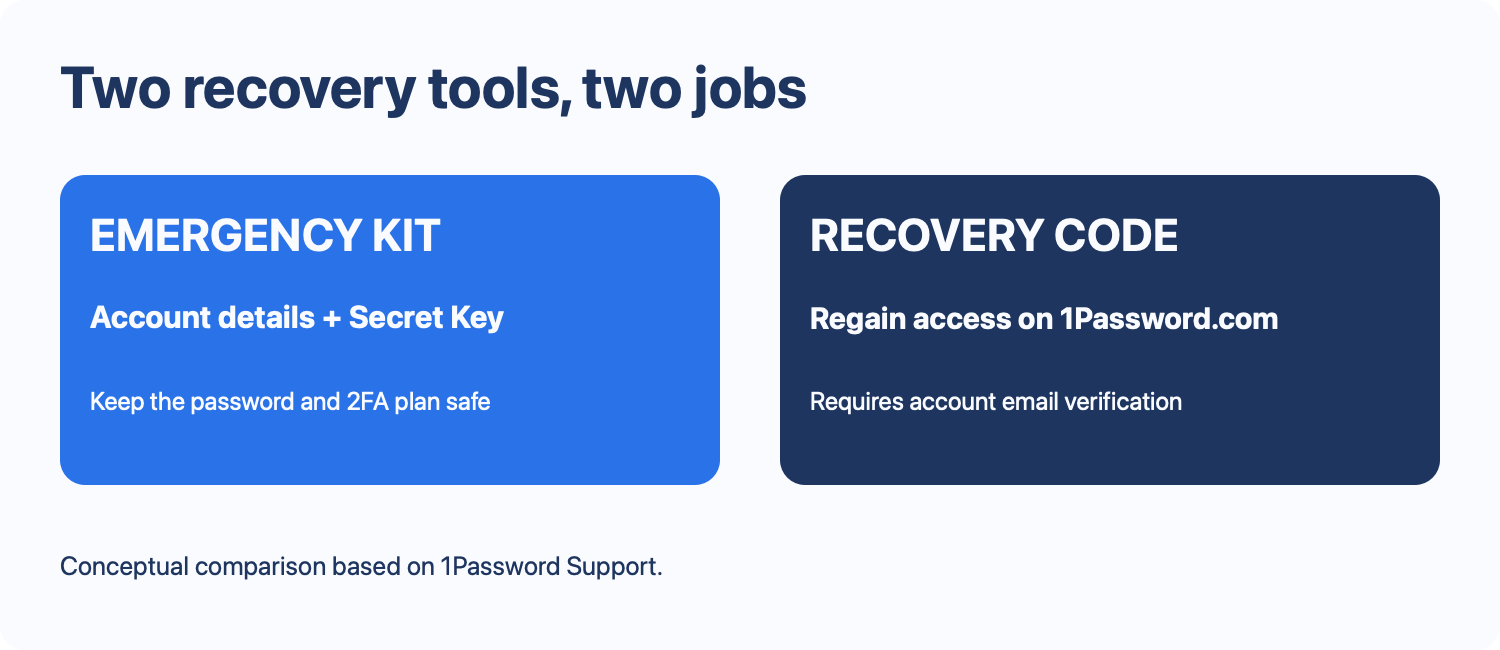
An Emergency Kit and a recovery code are separate things. The kit is a PDF with account information, including your Secret Key, and space to record your account password. The recovery code is an additional way to start account recovery on 1Password.com if you can’t sign in. The code requires verification through the email address associated with the account.
Set up a recovery code while you can still sign in
- On a device you trust, sign in at 1Password.com.
- Select your name in the top right, then choose Manage Account.
- Select Set up recovery code and follow the on-screen instructions.
- Store the resulting code somewhere safe and accessible even if you can’t open your 1Password account. Don’t paste it into a message, send it to someone claiming to be support, or leave it in an unprotected shared location.
- Check that you can still reach the email address associated with the account without relying solely on the locked vault. Keep that email account’s own recovery options up to date.
If you use a passkey to unlock 1Password, 1Password says you must have a recovery code and can replace it rather than delete it. Follow the account-specific prompts.
Creating a code does not itself start recovery or change your account details. Don’t run recovery as a test immediately after creating the code. 1Password says to wait at least an hour; a recovery attempt after a recent sign-in can be blocked and leave the code unusable for 24 hours. There’s no reason to reset a working account just to test this guide.
Save the Emergency Kit, too
- On 1Password.com, sign in, select your name, and open Manage Account.
- Choose Save Emergency Kit and follow the prompts to save the PDF.
- Choose a secure location you can access in an emergency. 1Password suggests a printed copy in a safe place. The kit contains sensitive account details and a Secret Key, so anyone with access to it may have part of what they need to sign in.
- The PDF has a place for your account password; it isn’t filled in automatically. Decide how to record and protect that password so an authorized person can reach it if needed.
If you use two-factor authentication, plan how you’ll access that second factor if your phone or authenticator is lost. 1Password recommends recording the 16-character authenticator secret shown when setting up 2FA; protect it carefully. An Emergency Kit is not a substitute for a working second factor when one is required.
If you actually get locked out
For an eligible account with a recovery code, go to the official 1Password.com sign-in page, select Having trouble signing in?, and choose Use Recovery Code. Enter the code, then the verification code sent to your account email. Follow the prompts to create a new account password and download the new Emergency Kit.
According to 1Password, recovery creates a new Secret Key and account password, and you’ll need to sign in again on your devices. Existing two-factor authentication stays enabled. The recovery code remains valid after use unless you replace or delete it. Save the new kit securely and don’t rely on an old Secret Key after recovery.
If recovery is blocked after recent sign-in or too many incorrect verification attempts, 1Password says an aborted attempt requires waiting a day before using the code again. If you can’t access the account email or still can’t start recovery, use 1Password’s support guidance. A family organizer may be able to help recover a family account; 1Password says an organizer-initiated recovery deactivates the old recovery code, so create a new one afterward.
Keep the plan useful
- Store it outside the lockout. A recovery code saved only inside the vault you can’t open won’t help you reach it.
- Protect the copies. Recovery materials are sensitive. Make them available to you or someone you explicitly trust, not to anyone who finds a screenshot or shared document.
- Update after changes. If you replace the recovery code, the previous one stops working. Save the new one and safely retire outdated copies.
- Keep the scope straight. A 1Password recovery code recovers your 1Password account, not your email account or every website stored in the vault.
If you’re also setting up a Google passkey, our Google passkey and recovery guide covers that account separately. The common theme is simple: make sure your backup isn’t locked behind the thing it’s supposed to rescue.
The Inner Circle
One AI shortcut a week. Tested first.
The tools and tricks I actually kept using, sent once a week. Skip the hype threads.
- New verdicts and scores
- Same-day workflow tips
- No spam, unsubscribe anytime
Written by
Tony Simons
Tony has a bachelor's degree from the University of Phoenix and over 14 years of writing experience between multiple publications in the tech, photography, lifestyle, and deal industries.