AI & Software · Tutorial
How to Back Up and Restore Firefox Bookmarks Without Losing Your Current Ones
Save Firefox bookmarks, understand when a restore replaces your current set, and move bookmarks using HTML.
 By Tony Simons 4 min read
Disclosure: We may earn a commission when you shop through the links below. It never changes the verdict. Details
Disclosure
We may earn a commission when you shop through the links below. Opinions stay independent. Full disclosure
Your bookmarks can be years of useful stuff: project references, favorite tools, and that one page you swear you’ll read later. Losing them stinks. A backup takes only a few clicks—but Firefox’s restore and import options behave very differently.
Quick answer: In desktop Firefox, open the menu → Bookmarks → Manage bookmarks. In the Library, choose Import and Backup → Backup to save a Firefox JSON backup. For an HTML file you can import into other browsers, choose Export Bookmarks to HTML. Restoring a backup replaces your current Firefox bookmarks; importing HTML adds to them.
This guide follows Mozilla’s backup and restore, HTML export, and HTML import instructions, checked October 31, 2026. It covers desktop Firefox; the workflow wasn’t independently tested for this article. Labels and layouts can vary by version.
Featured illustration uses the official Firefox logo from Mozilla’s Firefox repository, resized for the layout. Firefox and the Firefox logo are trademarks of the Mozilla Foundation in the U.S. and other countries.
Back up the bookmarks you have now
- Open Firefox’s menu, choose Bookmarks, then Manage bookmarks to open the Library.
- Select All Bookmarks in the left rail, then choose Import and Backup → Backup.
- Pick a location and save the suggested JSON file. Give it a name and location you can find later.
- Confirm the file exists where you saved it. Keep a copy somewhere separate from the computer if you want protection against losing the computer itself.
Consider the file private: bookmark titles and addresses can reveal projects, accounts, and personal interests. Store and transfer it accordingly. This is a bookmark backup, not a backup of your passwords, extensions, browsing history, or entire Firefox profile.
Restore a Firefox backup without an unpleasant surprise
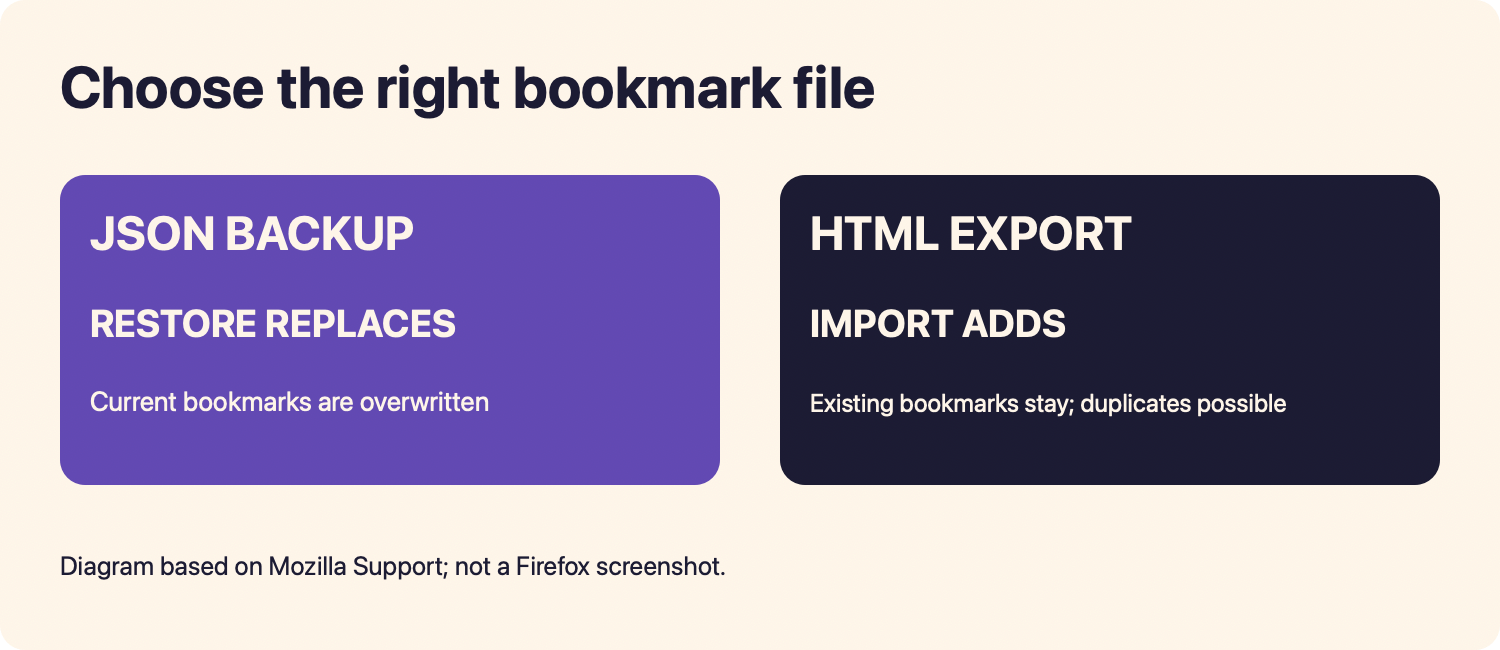
Stop before you click Restore: Mozilla says restoring a bookmark backup overwrites your current set of bookmarks. If the current browser has bookmarks you still want, back those up first. A backup is a snapshot, so bookmarks created after it was made won’t be included in that older snapshot.
- Open Bookmarks → Manage bookmarks.
- Choose Import and Backup → Restore.
- Select a dated automatic backup, or choose Choose File and select your manual Firefox backup.
- Read the replacement warning and confirm only when you intend to replace the current set. Then inspect a few folders and important links in the Library.
Mozilla says Firefox automatically keeps up to 15 bookmark backups. Those local backups are useful for recovery, but a separate copy is a better plan if the device itself goes missing or fails. If bookmarks disappear unexpectedly, Mozilla’s recovery guide also suggests checking whether Firefox is using a different profile.
Export HTML when you want to move or add bookmarks
Want to take bookmarks to another browser or add an older set without replacing the current Firefox set? Use HTML. First, make a backup of the destination browser’s current bookmarks so you have a way back if the result isn’t what you wanted.
- On the source computer, open Bookmarks → Manage bookmarks.
- Choose Import and Backup → Export Bookmarks to HTML, select a destination, and save the file.
- Move the file to the other computer using a transfer method you trust.
- In the destination Firefox Library, choose Import and Backup → Import Bookmarks from HTML, select the file, and open it.
- Check the Bookmarks Menu and your folders. Mozilla says importing adds bookmarks to the existing set and can create duplicates.
Other browsers can have different import menus, so follow the destination browser’s instructions. An HTML export is useful for moving bookmarks; it is not a complete browser-profile backup.
Pick the right option
- Replace the current Firefox bookmark set with a saved snapshot: Restore the JSON backup after backing up the current set.
- Add another set to existing Firefox bookmarks: Import an HTML export and expect possible duplicates.
- Switch browsers: Export HTML, then use the other browser’s import instructions.
- Keep devices in sync: Mozilla also offers Firefox Sync, but a separate backup gives you a saved snapshot to fall back on.
When things don’t look right
I can’t find my saved file. Search the folder you chose for the JSON backup or HTML export. Check the filename and date before selecting it.
I imported and got duplicates. HTML import adds to what is already there. Review the imported folders before deleting anything, and keep the backup you made first.
My bookmarks aren’t on the toolbar. Look in the Library and Bookmarks Menu first; Mozilla also documents how to show the Bookmarks Toolbar in its HTML export guide.
I need passwords and extensions too. These bookmark files aren’t a full profile backup. See Mozilla’s profile backup instructions for the broader job.
Once your backup is safe, another useful Firefox cleanup is separating work and personal accounts with containers. Different problem, same satisfying feeling of getting your browser under control.
Written by
Tony Simons
Tony has a bachelor's degree from the University of Phoenix and over 14 years of writing experience between multiple publications in the tech, photography, lifestyle, and deal industries.