AI & Software · Tutorial
How to Share iPhone Photos Without Location Data
Remove location from photos you share, check a received copy, and control future iPhone Camera geotags.
 By Tony Simons 4 min read
Disclosure: We may earn a commission when you shop through the links below. It never changes the verdict. Details
Disclosure
We may earn a commission when you shop through the links below. Opinions stay independent. Full disclosure
A photo of your new desk can reveal more than your setup. If the image has location metadata, the file you share may also carry the coordinates of where it was taken. Fortunately, the iPhone Photos app has a switch for that.
Quick answer: In Photos, select the image, tap Share, tap Options, turn Location off, and tap Done. Apple says “Location Not Included” appears above Options. Choose how to share, then check the received copy when privacy matters.
This guide follows Apple's Photos sharing instructions and personal safety guide, checked October 31, 2026. The workflow was not independently tested on an iPhone for this article. Labels and options can vary by iOS version and sharing method.
Featured image: AI-generated conceptual illustration, not an iPhone screenshot.
First, check whether a photo has a location
Open a photo in Photos and swipe up or tap the Info button. If location information is present, Photos can show where it was taken. Apple also lists other possible details, such as the date, device, and captions, in its photo information guide.
No location showing? There may be no location attached to that photo, or the information may not be available in the copy you're viewing. Don't assume this means every photo in your library is location-free.
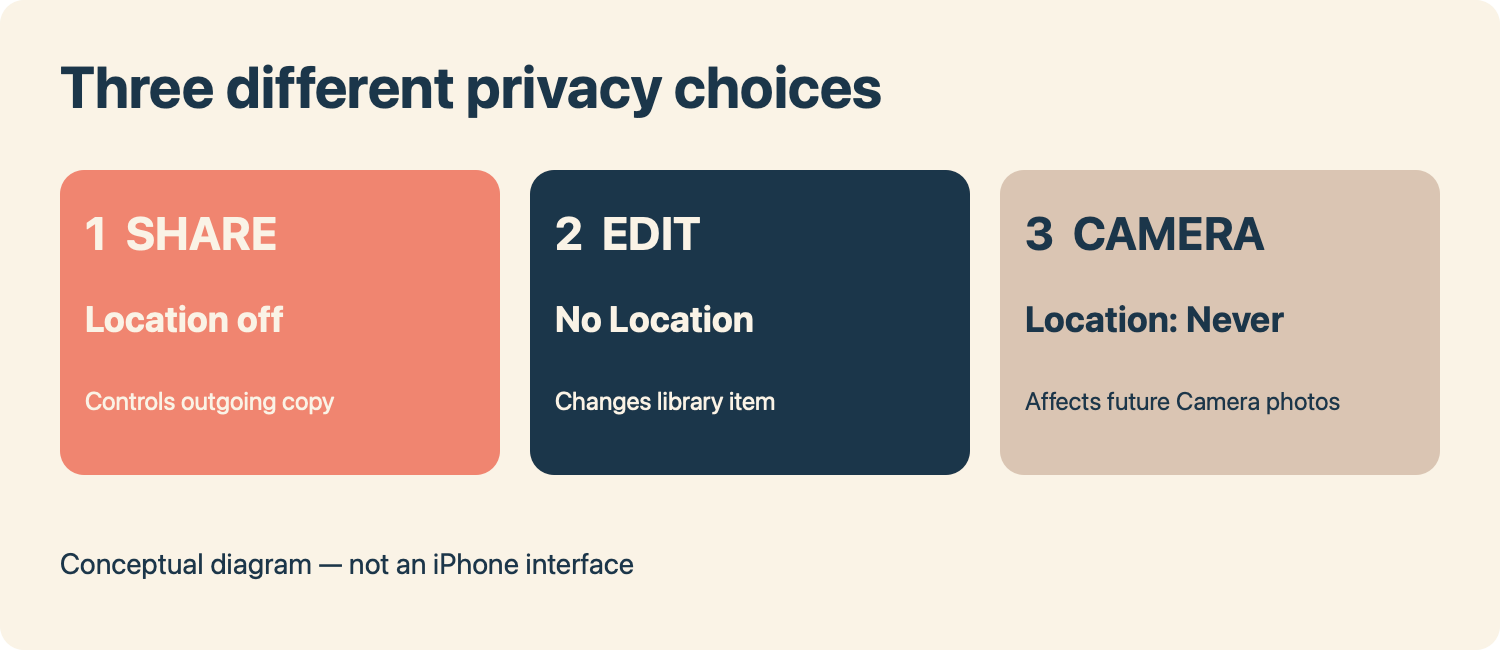
Conceptual diagram: three separate choices; not an iPhone interface.
Share without the location
- In Photos, open the image you want to share. For several images, select them in your library first.
- Tap Share, then tap Options near the top of the share sheet.
- Turn Location off and tap Done. Apple's safety guide says Location Not Included appears above Options.
- Choose your destination and share the photo. Before sending something sensitive, make sure you've selected the intended photo and recipient.
- When the location matters, inspect the actual received file. For example, send a harmless test image to another device or person you trust, save the received copy, and view its information. Check for a displayed location. A missing map is a useful check, but it is not a complete forensic audit of every piece of metadata.
This choice is about the copy being shared through that flow. Don't assume it permanently removes the location from the photo in your library or from copies you already sent. Check the setting again for future shares.
Remove a photo's location from your library
If you want to change the information on a particular photo, Apple documents a separate option: open it in Photos, tap the More button, choose Adjust Info, then Adjust Location and No Location. Apple also describes selecting multiple photos before adjusting their information. Its photo information guide explains how to revert a location change if needed.
This changes the library item's location information; it doesn't reach into a file you've already shared. If a copy is already with someone else, ask the recipient to remove it if appropriate. Keep a backup if the original location matters to you.
Stop the Camera from adding location to future photos
To prevent the iPhone Camera app from collecting location for new photos, go to Settings → Privacy & Security → Location Services → Camera and select Never, as described in Apple's safety guide. This is a tradeoff: location-based organization in Photos may be less useful for future shots.
This setting applies to the Camera app's future access; it doesn't automatically clean location data from photos already in your library, from other camera apps, or from copies already shared. Review those separately.
What this doesn't hide
Turning off location is not the same as removing every clue. Apple notes that shared photos can include other metadata, including date, device, and captions. Street signs, reflections, landmarks, documents, and the contents of the image itself can also reveal where you are. Review the picture as well as the file. For highly sensitive situations, use an appropriate metadata inspection tool or trusted expert rather than relying on one screen.
Apple says All Photos Data can share the original file with edit history and metadata when using AirDrop or iCloud links. Leave it off unless you specifically need those extra details, and inspect the received copy. Apple's AirDrop instructions on TRT cover the transfer itself.
If the option isn't there
- No Location switch: Check whether the selected image actually has location information and that you're sharing from Photos. Menu options can differ by version or destination; consult Apple's current instructions and inspect the copy before sharing.
- The received image still shows a place: Stop and check which file was sent and which sharing options were selected. Try again with a harmless test image and verify the new copy.
- You want to keep location for yourself: Use the share option for a particular outgoing copy instead of changing the library item or turning off Camera access entirely.
- You already posted it: Changing the setting now doesn't retract an existing upload. Check the service's removal and replacement options and any copies you've distributed.
Start with one test photo, check the outgoing copy, and then decide whether the per-share switch or the Camera setting fits how you use your phone.
Written by
Tony Simons
Tony has a bachelor's degree from the University of Phoenix and over 14 years of writing experience between multiple publications in the tech, photography, lifestyle, and deal industries.