AI & Software · Tutorial
How to Record Your Mac Screen With Sound
Record your Mac screen, choose microphone or system audio, and check the finished video before you share it.
 By Tony Simons 4 min read
Disclosure: We may earn a commission when you shop through the links below. It never changes the verdict. Details
Disclosure
We may earn a commission when you shop through the links below. Opinions stay independent. Full disclosure
You don’t need a whole streaming setup to show somebody what is happening on your Mac. The built-in Screenshot toolbar can record your entire display, one window on supported versions, or a selected area. The part that trips people up is sound: your microphone and your Mac’s system audio are different things.
Quick answer: Press Shift–Command–5, choose a recording area, open Options to select your microphone or other available audio options, and press Record. Stop with the menu-bar Stop button or Control–Command–Escape. Apple says the built-in Include System Audio option requires macOS 27 or later.
This guide follows Apple’s current screen-recording instructions, checked October 31, 2026. The steps weren’t independently tested for this article; available controls can vary with macOS version and app restrictions.
Featured image: AI-generated conceptual illustration, not a screenshot.
Record a window, an area, or the whole screen
- Press Shift–Command–5 to open the Screenshot toolbar.
- Choose Record Entire Screen or Record Selected Portion. For a portion, drag the selection borders until the useful part of the screen fits.
- On macOS Tahoe 26 or later, Apple also documents Record Selected Window. If that control isn’t available, use a selected portion instead.
- Open Options before recording. Pick a save location and, if useful, a short timer so you can get the screen ready.
- Click Record. If you chose a window, click the window you want to capture.
- When you’re done, click the Stop button in the menu bar or press Control–Command–Escape. Click the thumbnail to edit the recording, or wait for it to save.
Before you start, close or hide anything you don’t want in the video: notification banners, messages, browser tabs, names, and account details. A selected area helps, but check the finished recording before sending it.
Get the sound you actually want
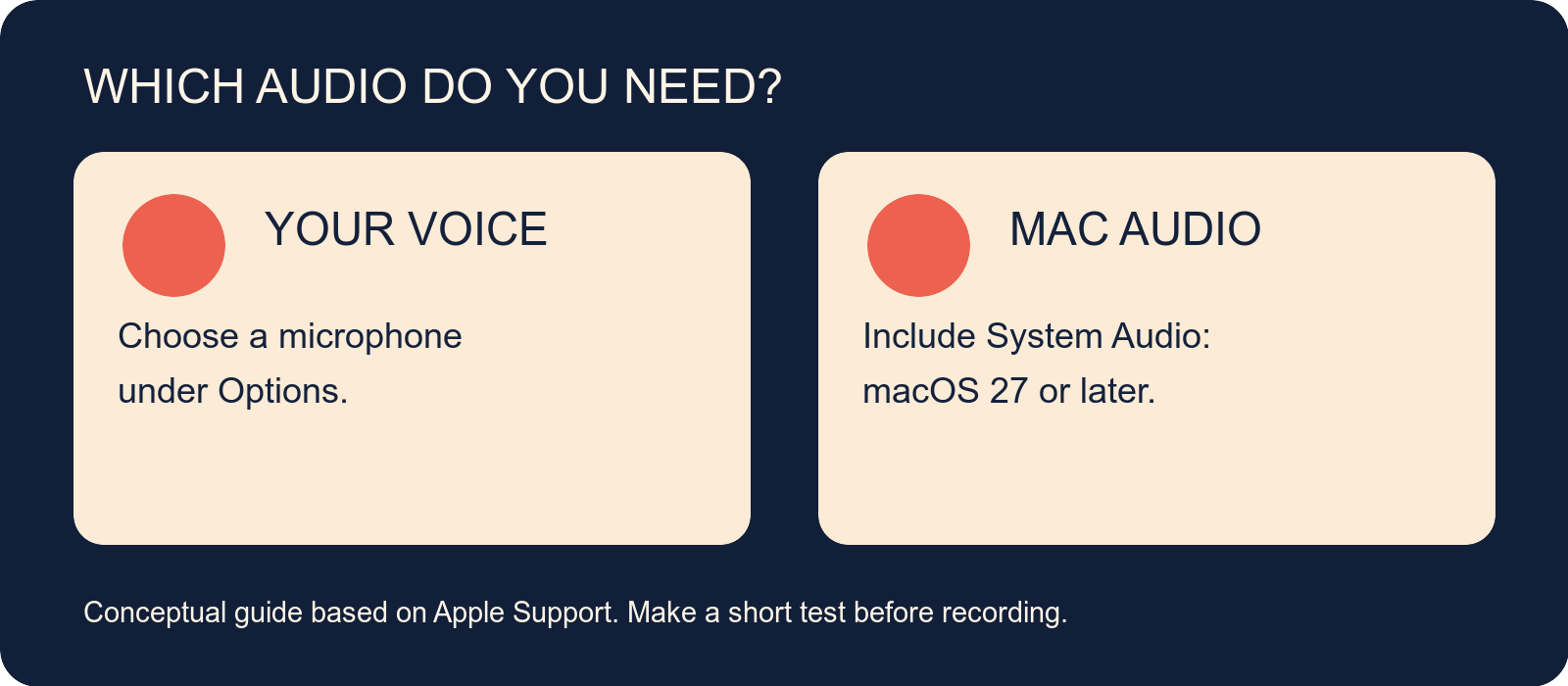
Your voice: In the toolbar’s Options menu, choose the microphone you want to use. Make a short test recording, speak at your normal volume, and play it back. If it’s silent or too quiet, check the selected microphone and its input level before making the real recording.
Audio playing on the Mac: Apple documents a separate Include System Audio option for macOS 27 Golden Gate or later. Look for that option under Options if your Mac has a supported version. Don’t assume that choosing a microphone automatically captures clean computer audio; the microphone can pick up room sound and speakers.
On an older macOS version, Apple’s cited screen-recording instructions don’t document that built-in system-audio option. If you need computer audio there, check the current documentation for a suitable recording app or audio-routing tool and review its permissions and compatibility. Don’t promise yourself a full-length recording before testing the sound.
Find and check the finished file
Apple says recordings save to the desktop by default unless you pick another location in Options. They use a name like Screen Recording [date] at [time].mov. Open the file in QuickTime Player and check the beginning, the end, and the audio before sharing.
QuickTime Player can also start the workflow: open it and choose File → New Screen Recording, or press Control–Command–N. On Macs that open the Screenshot toolbar from QuickTime, use the same recording steps above. Apple also documents a different QuickTime recording window on some older systems.
When a recording goes wrong
- I can’t hear my voice: Make another short clip with the intended microphone selected in Options, then check input level and the recording app’s permissions.
- I can’t hear the video’s audio: Check whether your macOS version offers Include System Audio. On older versions, microphone capture and system-audio capture are separate problems.
- The window option is missing: Apple lists selected-window recording for macOS Tahoe 26 or later. Try recording a portion instead.
- I can’t find the file: Check the desktop and the Save to location in the toolbar’s Options menu.
- Part of the screen is blank or unavailable: Apple notes that some apps, including Apple TV, may not allow their windows to be recorded.
Start with a ten-second test, play it back, and fix the area or audio before recording the whole walkthrough. If you want to follow speech on your screen rather than record it, see our Mac Live Captions guide.
Written by
Tony Simons
Tony has a bachelor's degree from the University of Phoenix and over 14 years of writing experience between multiple publications in the tech, photography, lifestyle, and deal industries.