AI & Software · Tutorial
How to Use Live Captions on Your Mac
Turn on Mac Live Captions, choose computer or microphone audio, and make the text easier to read.
 By Tony Simons 4 min read
Disclosure: We may earn a commission when you shop through the links below. It never changes the verdict. Details
Disclosure
We may earn a commission when you shop through the links below. Opinions stay independent. Full disclosure
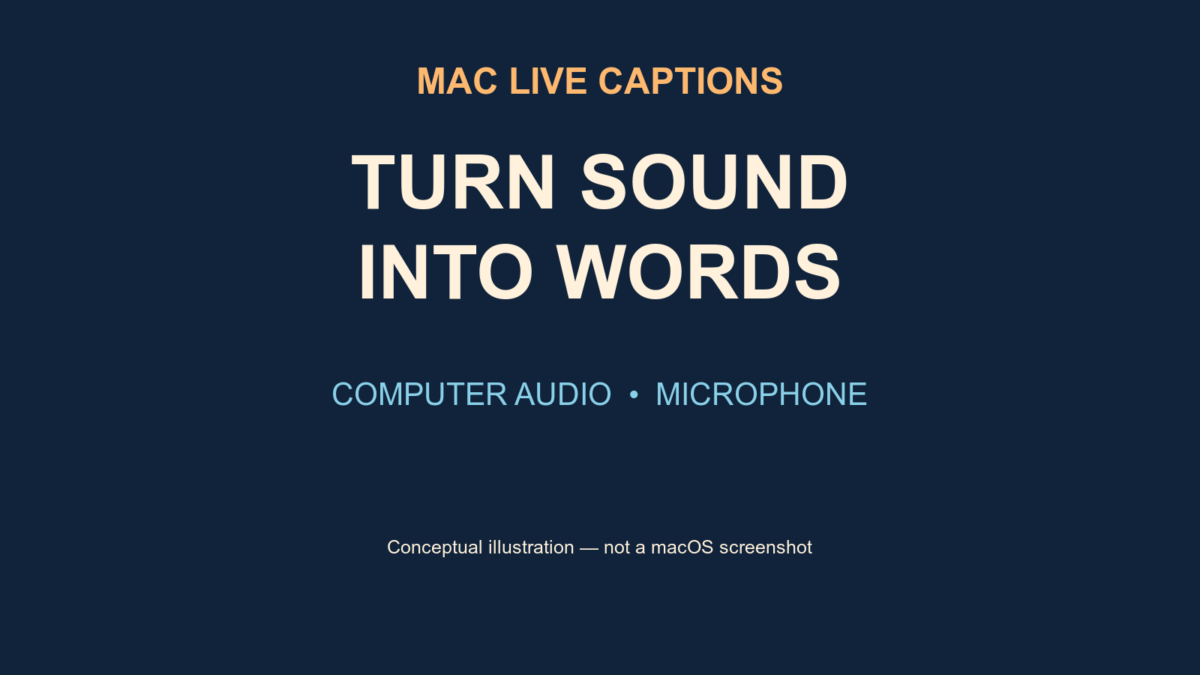
Sometimes you need to see what the audio is saying: a podcast in a noisy room, a video without useful subtitles, or a conversation that’s hard to follow. On a supported Mac, Live Captions can turn spoken audio into text as it happens.
Quick answer: Open Apple menu → System Settings → Accessibility → Live Captions and turn it on. Play speech on your Mac, then check that the caption source is Computer Audio. For an in-person conversation, switch the source to Microphone.
This guide follows Apple’s current Mac User Guide, checked October 31, 2026. The workflow was not independently tested for this article, and menus may differ with your macOS version. Apple says Live Captions requires Apple silicon, isn’t available in every language or region, and may be inaccurate. Don’t rely on it in an emergency or other high-risk situation.
Turn on Live Captions
- Open the Apple menu and choose System Settings.
- Select Accessibility, then Live Captions. You may need to scroll.
- Turn Live Captions on. The first use requires an internet connection to download language data.
- Play a short piece of clear speech on your Mac, such as a podcast, and look for the Live Captions window.
Apple says the window can hide itself when it detects no audio. If it seems to disappear, start speech playing or use the Live Captions menu-bar icon and choose Keep Onscreen. That makes it easier to find while you’re setting up.
Choose the sound you want to follow
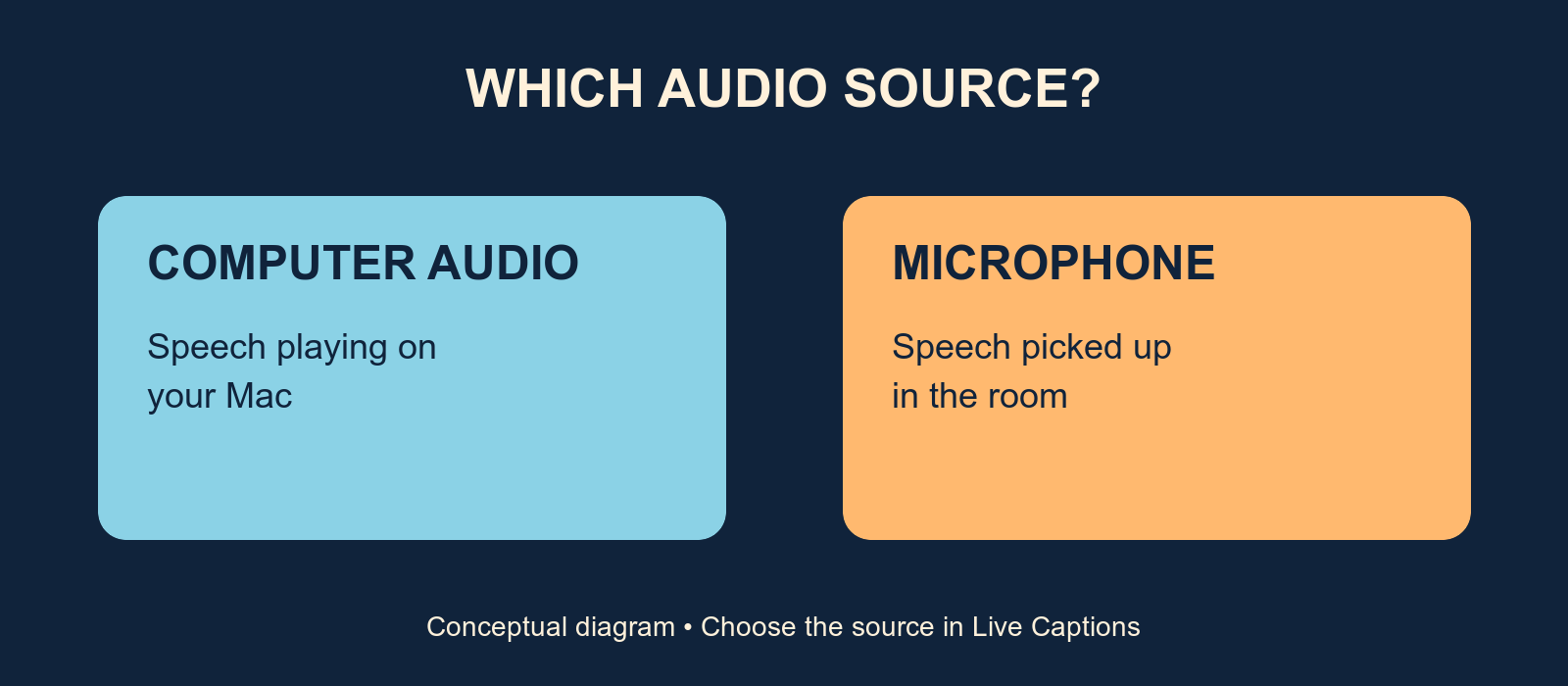
There are two different jobs here. Computer Audio is for speech playing through the Mac, such as a video or podcast. Microphone is for sound picked up around the computer, such as someone speaking in the room. Apple says you can change between them with the microphone control in the caption window, or use the menu-bar Live Captions icon and choose the source.
Try one source at a time: play a clear spoken clip for Computer Audio, then switch to Microphone for an in-person conversation. If the wrong words appear—or nothing does—check the source first. A caption window listening to the room isn’t necessarily following the video you meant to watch.
Make the window easier to read
Back in System Settings → Accessibility → Live Captions, Apple documents controls for font, text size and color, and background color. Choose a combination you can read comfortably; a little more contrast can be more useful than squeezing the window into a tiny corner.
Drag a window edge to resize it and move it where it doesn’t cover what you’re watching. If you’ve lost your preferred layout, the Live Captions menu includes Restore Default Position. Use the pause control in the window to stop captioning temporarily, and the play control to resume.
Use it with subtitles—not as a perfect transcript
Live Captions generates text from speech. If a video offers proper subtitles or closed captions, compare them with Live Captions and use whichever makes the content easier to follow. Names, accents, background noise, overlapping speakers, and specialist language can make any automatic transcription harder to interpret. Check important details with the speaker or a reliable written source.
Apple says the audio is processed on the device. That describes this feature’s processing; it doesn’t change the privacy practices of the meeting app, video service, or any recording tools you also use. Captions appearing on a shared screen can themselves reveal the words, so check what you’re sharing before displaying a private conversation.
When captions aren’t appearing
- There’s no Live Captions setting: Check that the Mac has Apple silicon and review Apple’s feature availability for your language and region. The feature isn’t universal.
- The window vanished: Apple says it can hide when no audio is detected. Start some speech or choose Keep Onscreen from the menu-bar icon.
- The text doesn’t match what you expect: Switch between Computer Audio and Microphone to match the sound you want, then test again.
- Setup won’t finish: Check the internet connection needed for the first language-data download, then try again.
- The words are wrong: Treat the text as an aid, not a guarantee. Reduce competing noise when possible and verify consequential details.
Start with a short, familiar recording, choose the right source, and adjust the text until it is comfortable. Once that works, try it in the apps where captions would actually help. For another way to make text easier to follow, see our Chrome Reading Mode guide.
Written by
Tony Simons
Tony has a bachelor's degree from the University of Phoenix and over 14 years of writing experience between multiple publications in the tech, photography, lifestyle, and deal industries.