AI & Software · Tutorial
How to Copy Text From a Screenshot in Windows 11
Use Microsoft Snipping Tool to copy text from a screenshot, quickly redact contact details, and check for unredacted copies.
 By Tony Simons 4 min read
Disclosure: We may earn a commission when you shop through the links below. It never changes the verdict. Details
Disclosure
We may earn a commission when you shop through the links below. Opinions stay independent. Full disclosure
You’ve got a screenshot with an address, an error message, or a paragraph you need to paste somewhere. Retyping it works, but it’s a spectacular waste of time. On Windows 11, Microsoft Snipping Tool can recognize text in a capture and let you copy it.
Quick answer: Press Windows key + Shift + S, capture the text, and open the resulting snip in Snipping Tool. Select Text actions, then select the words you need or choose Copy all text. Paste into a document and check the result against the image.
This guide follows Microsoft’s Snipping Tool instructions, checked October 31, 2026. It covers the Windows 11 version of the tool. The workflow wasn’t independently tested on a Windows PC for this article; labels and availability can vary with your version.
Featured image: AI-generated conceptual illustration, not a screenshot of Windows.
Capture the words you need
- Bring the text you want to copy onto the screen. Start with a non-sensitive example, such as a short error message or a few lines of a public document.
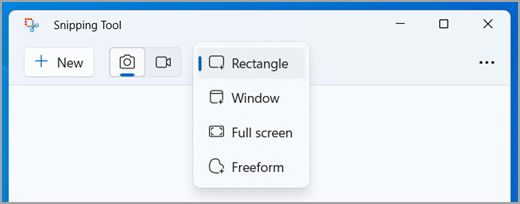
- Press Windows key + Shift + S. Choose a capture mode and drag around the relevant words if you’re using a rectangular snip.
- Open the resulting snip in Snipping Tool. Microsoft says you can select the notification that appears after the capture to open it in the editor.
- Select Text actions in the editor toolbar. Microsoft says this runs optical character recognition on the captured image.
- Select and copy the text you want, or choose Copy all text. Paste it into a document or other destination with Ctrl + V.
- Compare the pasted result with the original. Pay special attention to numbers, punctuation, names, and lookalike characters such as 0 and O.
Try a tight crop first: if you only need an order number or a few lines from an image, don’t capture the whole desktop. Cleaner, larger text is also easier to check than a tiny line surrounded by unrelated material.
Hide an email address or phone number
Text actions has another useful job: Quick redact. Microsoft says it can automatically hide email addresses or phone numbers detected in a snip. Open the capture, select Text actions, and choose Quick redact. Review the result before saving or sharing it.
Don’t treat a quick redaction as a privacy guarantee. It targets the types Microsoft describes and may miss something; it doesn’t mean the rest of the image is safe to share. Look for names, addresses, account numbers, notification banners, and anything else that shouldn’t leave your computer. If any detail remains visible, use an appropriate redaction workflow before sharing.
Check for the original, too. Microsoft says Snipping Tool can automatically save captures to the Screenshots folder, and its settings control that behavior and location. A redacted copy does not prove an earlier unredacted capture disappeared. Check which file you’re about to share, and manage any unredacted copies according to your needs and your organization’s rules.
What happens to the recognized text?
Microsoft says Snipping Tool’s text recognition happens locally on the device. Once you copy or paste text, what happens next depends on the destination and your settings. For example, check your Windows clipboard history and sync settings before copying something sensitive, and don’t paste private material into a service you haven’t chosen to use.
When it doesn’t work
- I don’t see Text actions: Make sure the image is open in Snipping Tool’s editor and check for app and Windows updates. The control or feature may differ by version or organization settings.
- The text is incomplete or wrong: Capture a closer, clearer view and try again. Always compare important details with the original; OCR can make mistakes.
- Quick redact missed something: Inspect the entire image, not just the detected words, and avoid sharing until every sensitive detail is properly hidden.
- I can’t find my capture: Check the Screenshots folder and Snipping Tool’s save settings. If a notification appears after a new capture, select it to open the image in the editor.
- I copied the wrong thing: Try again with a smaller selection, then check the pasted text before sending it.
Start with a harmless screenshot, copy a few words, and verify the paste. Once that works, this little feature can turn an unhelpful image of text into something you can actually use—without retyping the whole thing.
Written by
Tony Simons
Tony has a bachelor's degree from the University of Phoenix and over 14 years of writing experience between multiple publications in the tech, photography, lifestyle, and deal industries.