AI & Software · Tutorial
How to Edit Documents and PDFs Directly in Gemini
Google says Gemini can now create, preview and edit files inside chat. Here’s how the workflow works, what’s supported on mobile, and what to check before you share.
 By Tony Simons 7 min read
Disclosure: We may earn a commission when you shop through the links below. It never changes the verdict. Details
Disclosure
We may earn a commission when you shop through the links below. Opinions stay independent. Full disclosure
Google wants Gemini to stop handing you a file and waving goodbye. The company says you can now generate, preview, and edit documents, PDFs, spreadsheets, presentations, and more directly inside a Gemini conversation. The idea is simple: make the draft, fix the messy parts, and keep the conversation going without bouncing between a half-dozen tabs.
There’s a catch worth knowing before you try this on your phone: Google says PDF preview and editing work on web and mobile, while its newly announced support for other listed formats is web-only. And a shiny preview doesn’t guarantee a useful result. You still need to check the file before you send it to someone who pays attention to details.
Here’s the practical route from a blank prompt to a file you can inspect, edit, and actually use.
Quick answer: Open Gemini, ask for a specific file or use Canvas for a document, then open the result, review it, and either edit directly or tell Gemini what to change. For the widest range of the new editing options, use the web app. Google's announcement
Testing note: Google announced this feature on October 29, 2026. During a desktop web check on October 30, two sample requests returned errors, and a third did not finish during our check. The Canvas menu was visible, but the complete generate-to-edit flow could not be verified in that session. The steps below combine the observed menu with Google's documentation; exact controls and availability may vary.
What Gemini’s new file editor actually does
Google says the Gemini app can generate, preview and edit files inside a chat. You can expand the preview, type edits directly, highlight content to ask questions, or request refinements from Gemini. In its announcement, Google specifically lists PDFs on web and mobile; it lists Google Docs, Sheets, slide decks, Markdown, TXT and code as supported on the web. Google says the capabilities are available to users in the languages where the Gemini app is available. Read the announcement.
That is a product announcement, not a promise that every format behaves identically. A slide deck, spreadsheet and PDF are different beasts. Start with a low-stakes file and see what controls your account actually offers.
The useful distinction: Ask Gemini to make a file when you want a file. Ask it to change a particular passage when that is the only thing that needs fixing. If you ask it to “make it better,” you’re inviting a very confident rewrite of whatever it thinks “better” means.
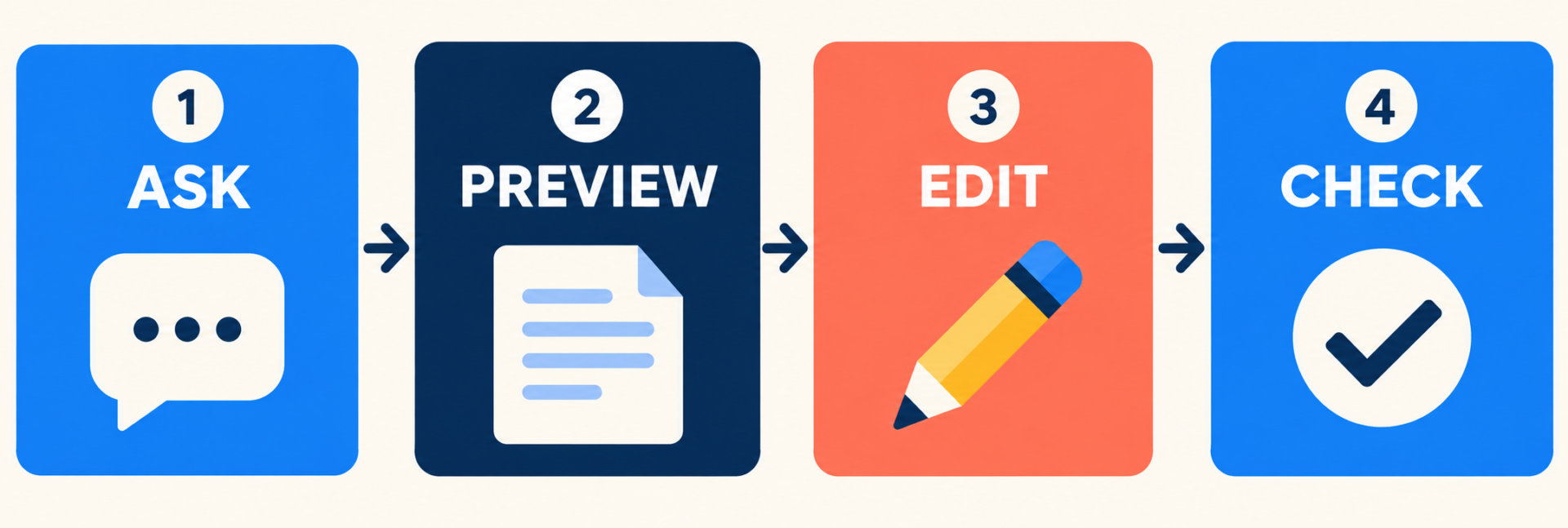
The basic loop: ask, preview, edit, then check the exported file.
Before you start
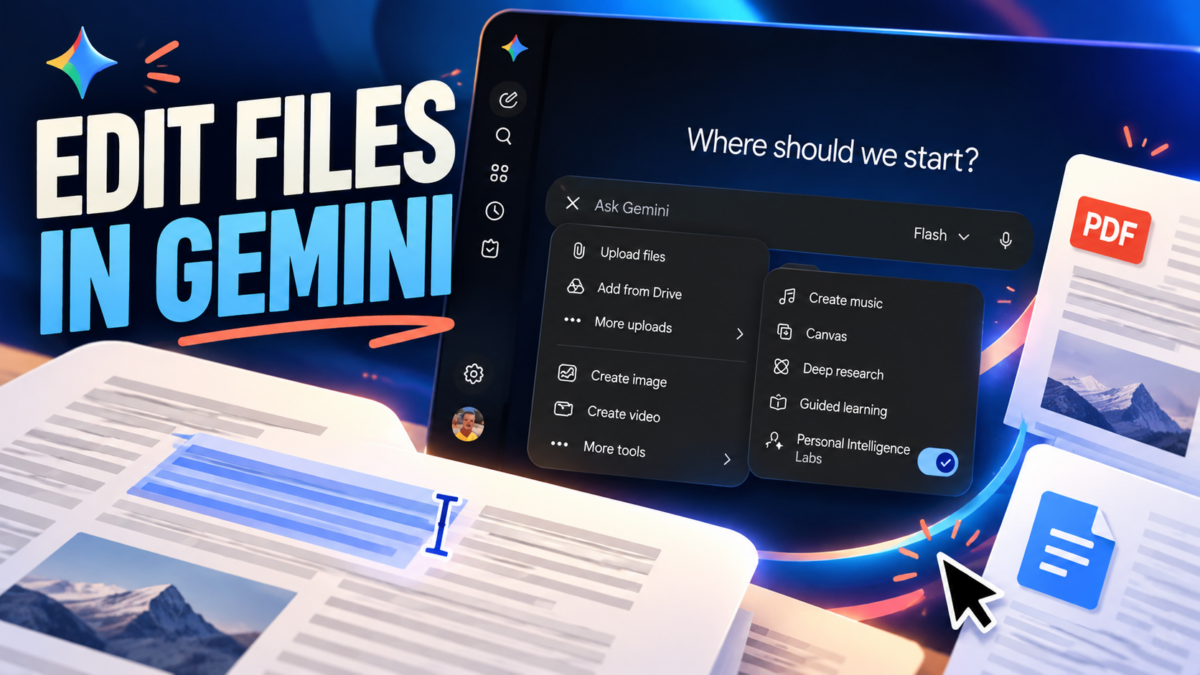
You need to be signed in to Gemini. On a computer, open gemini.google.com. Google’s Canvas instructions describe using the add-files menu to select Canvas; in the desktop interface we checked, Canvas appeared under Upload & tools → More tools → Canvas.
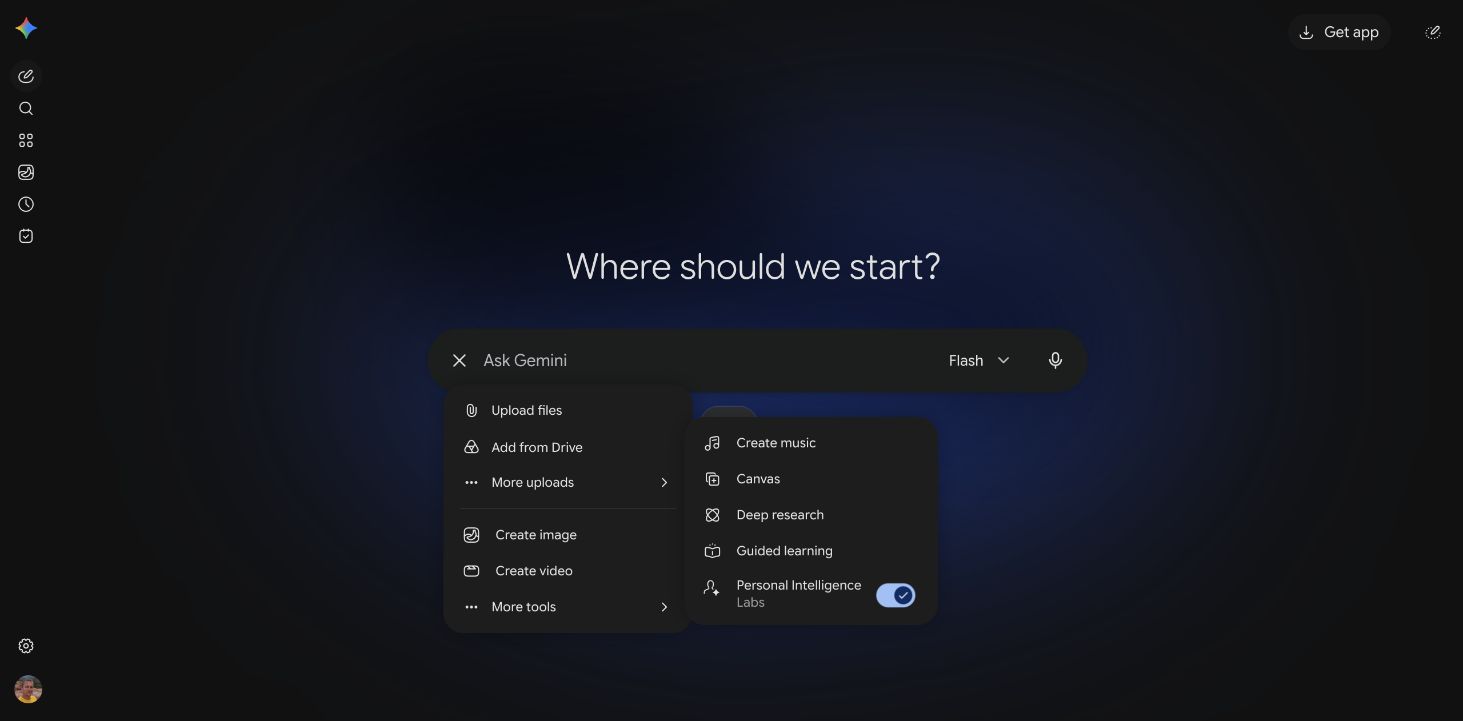
The real Gemini web interface during our check: Canvas appeared under More tools.
Use a sample file or information you’re comfortable submitting to an AI service. Keep an untouched copy of anything important, and check your account’s data controls before uploading sensitive material. A good test file is a short checklist or a page of fictional notes, not your only copy of a contract.
Step 1: Ask for a specific result
Tell Gemini what the file is for, who will read it, what format you want, and what the content should contain. For example:
Create a one-page PDF checklist for setting up a small home recording desk. Include five numbered steps, a short equipment checklist, and a final section called “Before you record.” Use plain language and do not invent product specifications.
Want a working document rather than a PDF? Say so:
Create an editable document in Canvas for a beginner’s home recording setup. Use a short introduction, five numbered steps, and a troubleshooting section. Keep it concise enough to scan on a phone.
You can also add a file or image for context where the interface supports it. Google’s Canvas help describes optional uploads alongside the prompt. Don’t assume that every uploaded file will retain every bit of formatting or that all file types have identical editing controls.
Step 2: Open and inspect the preview
When Gemini returns a file or Canvas document, open the result. Google says the new in-chat experience can expand to full screen; the task workflow also provides an Open action for linked files and a download control when available. Google’s task and file help describes these routes.
Read the output before treating it like a finished deliverable:
- Does it contain the sections you requested?
- Are names, figures, links and instructions correct?
- Did the generated file keep the structure you need?
- Does the layout still make sense when expanded or downloaded?
If you asked for a PDF and got a chat answer instead, clarify: “Please create the PDF file, not just the text.” If the output is missing or a request errors, try again later or use another editor; don’t assume a successful file exists just because Gemini replied.
Step 3: Make the small fix—or ask Gemini
Google describes two useful paths: type directly in the expanded editor, or select content and ask Gemini to revise it. For a Canvas document on desktop, its help page says you can select text in the Canvas panel, enter an instruction, and press Enter. It also describes formatting controls and saved version navigation. Canvas help
Try requests that define the boundary:
Shorten the selected paragraph to two sentences. Keep the equipment names and all factual claims unchanged.
Turn the selected steps into a checklist. Do not add equipment that isn’t already mentioned.
Explain what is unclear in this section before rewriting it.
If a control looks different in a PDF or another file type, use the options shown for that file. The announcement describes the general experience; it doesn’t establish that every editing button is identical across formats and devices.
Step 4: Check the finished file outside the chat
Download or export the result using the controls available for that format, then open the file in the app your recipient will use. Inspect the page breaks, headings, tables, links, and any visuals. For spreadsheets, check formulas and values; for slides, inspect text overflow and layout. If the file needs citations, check that each source exists and supports the claim.
For Canvas documents, Google documents options to copy or export content to Google Docs. For files created in task threads, Google documents opening and downloading linked files, and exporting Markdown or text from the Canvas editor. The exact route depends on the type of artifact you created. Canvas export instructions · Task file instructions
A file that looks clean in a preview can still fall apart in a different viewer. Five minutes of checking beats sending someone a PDF with a missing page and hoping they don’t notice.
What works on mobile?
According to Google’s October 29 announcement, PDF preview and editing are supported on web and mobile. The announcement lists the other formats covered there—Docs, Sheets, slide decks, Markdown, TXT and code—as web-only for that new in-chat experience.
That doesn’t mean Gemini’s mobile app has no other document features. Google separately documents mobile Canvas workflows, including conversational changes and export options, with some direct formatting controls limited to desktop web. If a feature or button is missing on your phone, try the web app on a computer and check Google’s current help pages.
When Gemini doesn’t cooperate
The file never appears or I get an error. Rephrase the request with a simple format and a short, fictional example. If it still fails, wait and retry later or use another editor. During our check, Gemini returned errors on two requests; we could not determine the cause.
I can’t find Canvas. Check that you’re signed in, then open the add/upload menu. In the interface we saw, it was under More tools. Menus may change. Google’s official instructions are the fallback.
The text changes I asked for are too broad. Select the specific passage, name what must stay unchanged, and request a limited edit. Review the result against the original.
My formatting looks wrong after export. Open the downloaded file in its destination app. Fix the layout there if needed, and keep a copy of the original.
I’m using a phone and can’t edit a spreadsheet or slide deck. Try the Gemini web app on a computer. Google’s announcement limits those listed formats to the web for the new preview and editing experience.
The bottom line
The appeal here isn’t another AI document generator. It’s a shorter loop between “make me a draft” and “fix this exact part.” If Gemini can keep the useful bits intact while you make targeted changes, that’s a workflow worth trying. Just keep your source copy, inspect the output, and don’t mistake a slick preview for a fact-check.
New to the app? Start with our first-day Gemini guide for the basics, then come back and put a real document through the editor.
Reviewed & written by
Tony Simons
Tony has a bachelor's degree from the University of Phoenix and over 14 years of writing experience between multiple publications in the tech, photography, lifestyle, and deal industries.