AI & Software · Tutorial
How to Text Your OpenAI Dot From iMessage or Android
OpenAI’s dot can now text you. Here’s how to set up iMessage or RCS, what to try first, and where approvals and app permissions come in.
 By Tony Simons 7 min read
Disclosure: We may earn a commission when you shop through the links below. It never changes the verdict. Details
Disclosure
We may earn a commission when you shop through the links below. Opinions stay independent. Full disclosure
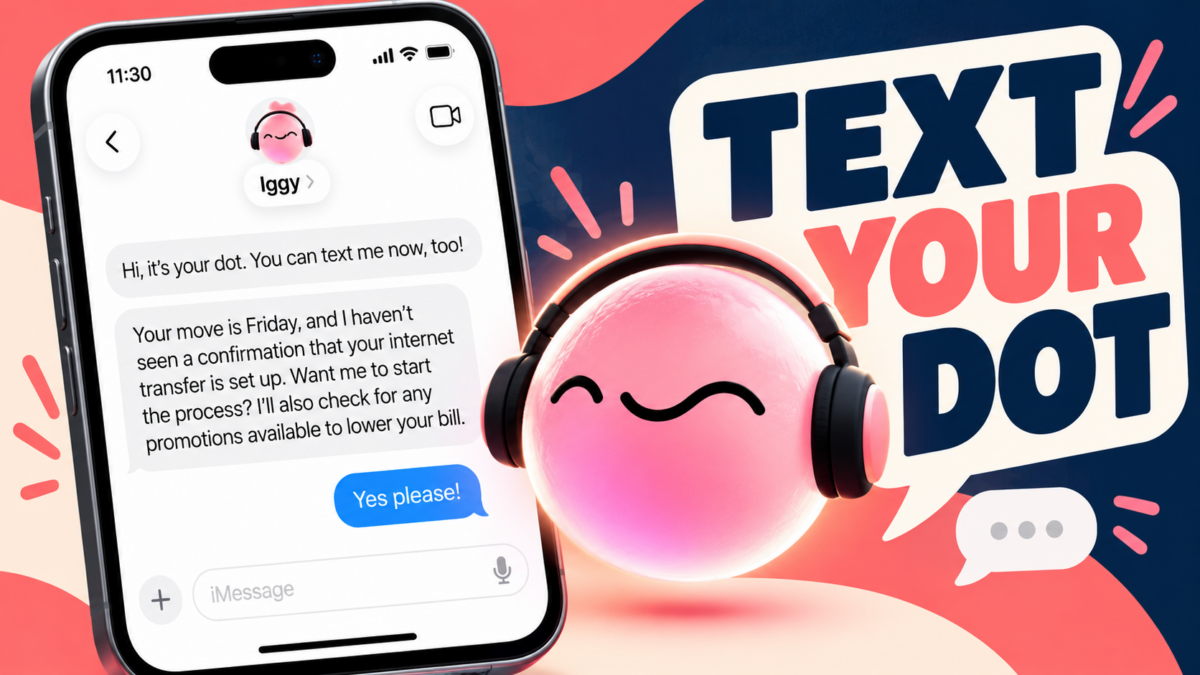
OpenAI just made its dot a little harder to leave behind. You can now reach the same AI agent you use in ChatGPT through iMessage on an iPhone or RCS on Android. That means you can send a task from your phone and ask for an update later without sitting in front of your computer.
The catch? This is a beta, not a universal rollout. And texting your dot does not magically connect it to your email, WordPress site, or laptop. The phone number is the doorbell. What your dot can do after you ring it depends on the tools and permissions you’ve actually given it.
Here’s how to set it up, what to try first, and where the handoff back to ChatGPT can trip you up.
Quick answer: Open your dot’s profile in ChatGPT, select Texting, verify your phone number, save the contact card, and send your dot a message. On iPhone, send from the verified number. On Android, turn on RCS. OpenAI says texting is rolling out in beta to ChatGPT Pro users in the U.S. Source: OpenAI
Scope: This guide is based on OpenAI’s published documentation, checked October 30, 2026. It is not a controlled hands-on test of every setup path. Availability and menus may change as the beta rolls out.
What you need before you start
You need a dot set up in ChatGPT, an eligible account with the texting option available, and a phone number you can verify. OpenAI describes the texting rollout as a beta for ChatGPT Pro users in the United States. Having Pro does not guarantee the option has reached your account yet. See OpenAI’s texting documentation.
If you haven’t created a dot, start with OpenAI’s setup guide. Your dot is an agent that can continue work across conversations and bring decisions back to you; texting is one way to reach it.
One useful distinction: an iMessage conversation with your dot is not a group chat full of other people. OpenAI says texting is one-to-one: your dot can text you, and you’re the only person who can text your dot. Group chats, phone calls, and FaceTime aren’t supported through texting. You can call your dot in ChatGPT where that feature is available.
How to connect your dot to iMessage or RCS
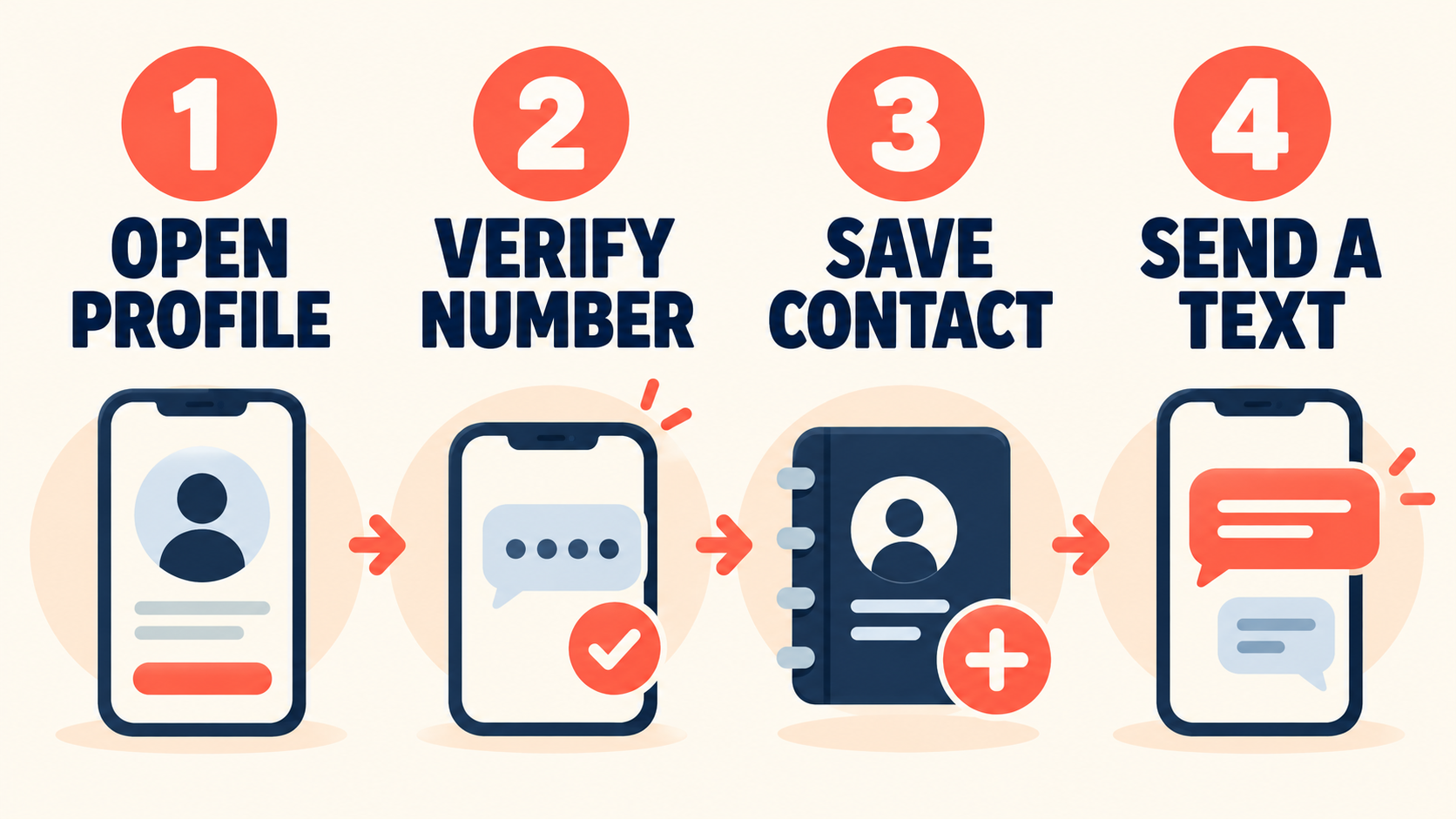
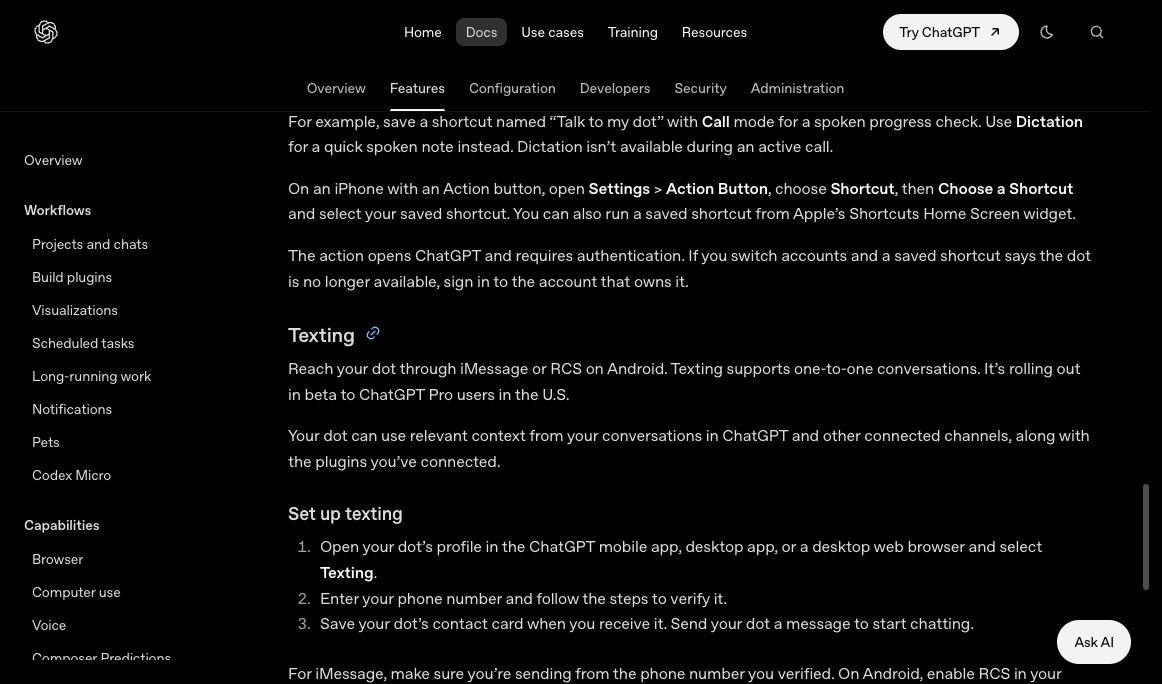
1. Open your dot’s profile in the ChatGPT mobile app, desktop app, or a desktop web browser. 2. Select Texting. If it isn’t there, check the eligibility and troubleshooting notes below before assuming you missed a secret menu. 3. Enter your phone number and verify it using the steps ChatGPT provides. 4. Save the contact card when you receive it. 5. Send your dot a message to start the conversation.
On an iPhone, make sure your message is sent from the phone number you verified. On Android, enable RCS in your messaging app. The setup flow is described in OpenAI’s channel guide.
Try a small first message:
“Hey, give me three ideas for organizing my week. Keep it short and ask me before making any changes.”
That’s enough to see whether the connection works without putting a bunch of accounts or decisions in play. Then give it something more useful.
Three first tasks that make sense on a phone
A good mobile task has a clear outcome, a boundary, and a way for the dot to tell you when it needs you. These are examples to adapt, not promises that every connected service will support every action.
1. Research while you’re out
“Find three reliable sources on [topic]. Give me a short comparison with links, and text me when it’s ready. Don’t post or send anything.”
This is a clean starting point: you get something to review, and there’s no ambiguity about sending it to anyone else.
2. Prepare a draft for your review
“Draft a guide to [task] for beginners. Use current sources, show the steps, and flag anything you couldn’t verify. Send me a link to the draft when it’s ready. Don’t publish it.”
If the draft needs to live in a particular service, connect that service separately and confirm the dot has the necessary permissions. Don’t assume access just because texting works.
3. Keep a project moving
“Track this project: [goal and deadline]. Tell me what’s blocked and what decision you need from me. Keep routine progress in ChatGPT and text me when something needs my attention.”
OpenAI says you can tell your dot which channel to use for different updates. Be specific about what deserves an interruption, or your phone may become the least relaxing place in your house. Source: OpenAI
What texting does—and doesn’t—give your dot access to
Texting is a communication channel. It doesn’t automatically hand your dot the keys to everything on your phone or computer.
OpenAI says you connect apps and your computer separately. A supported plugin’s available actions depend on its connected account, permissions, and the environment where the work runs. A connected personal computer must be online with the ChatGPT app open when the dot needs to use it; the dot also has its own cloud computer and browser for work that doesn’t require yours. Source: OpenAI
That matters when a request sounds simple. “Text me when the draft is ready” is a channel preference. “Create a draft in WordPress” also requires a working route to WordPress. Those are two separate pieces of the setup.
OpenAI also says setting up texting doesn’t give the dot or OpenAI access to your other text conversations. It can use relevant context from your conversations and connected channels, along with connected plugins. If you’re handing an agent ongoing work, it’s still smart to be explicit about what it can access and what should stay private. Source: OpenAI
What happens when your dot needs approval?
Don’t assume a quick “yes” in Messages is always the last step. OpenAI says that when your dot needs approval, it sends a link to review the request in ChatGPT. Open the link, read the actual action, and complete the approval there if prompted.
For a draft workflow, make the boundary unmistakable:
“Create and revise drafts for my review. Do not publish anything unless I explicitly approve that article.”
That instruction gives the dot a clear job and gives you a chance to evaluate the result. It doesn’t override an app’s permissions or any approval check. OpenAI says actions can be reviewed against your instructions, permissions, custom rules, and safeguards. Source: OpenAI
If it isn’t working
I don’t see Texting in my dot’s profile. First check that you have a dot and that you’re using the account where it was set up. OpenAI describes texting as a U.S. Pro beta rolling out gradually, so the feature may simply not be available to your account yet. Check the current documentation for changes.
I verified a number but can’t message from my iPhone. Check that iMessage is sending from the same number you verified, then try the saved dot contact. OpenAI specifically calls out the verified-number requirement.
I’m on Android and messages aren’t working. Check that RCS is enabled in your messaging app. If the setup screen offers a specific error, follow that guidance rather than repeatedly attempting verification.
The dot says it can’t access a file or app. Texting and app access are separate connections. Check the relevant plugin, signed-in account, and permitted actions. For local files or apps, check whether your computer is connected and online. The dot’s cloud browser also has its own sessions; it does not inherit the logins in your personal browser.
I got an approval link. Open it in ChatGPT and inspect the requested action. If the link or request doesn’t match what you intended, stop and clarify the task.
Is it worth setting up?
If you already use a dot, texting is a practical way to reach it when you’re away from your desk. The best first test is a small task with a concrete result, a clear “don’t send or publish” boundary, and an update requested by text.
If you’re looking for a fully independent employee who can access every account and complete every approval inside Messages, that’s not what OpenAI’s documentation describes. You still need to connect the tools, set the limits, and handle approval handoffs when they appear.
For the bigger choice between agents, see our comparison of OpenAI dots, Grok Bot, Meta Muse, and Hermes Agent.
Reviewed & written by
Tony Simons
Tony has a bachelor's degree from the University of Phoenix and over 14 years of writing experience between multiple publications in the tech, photography, lifestyle, and deal industries.