

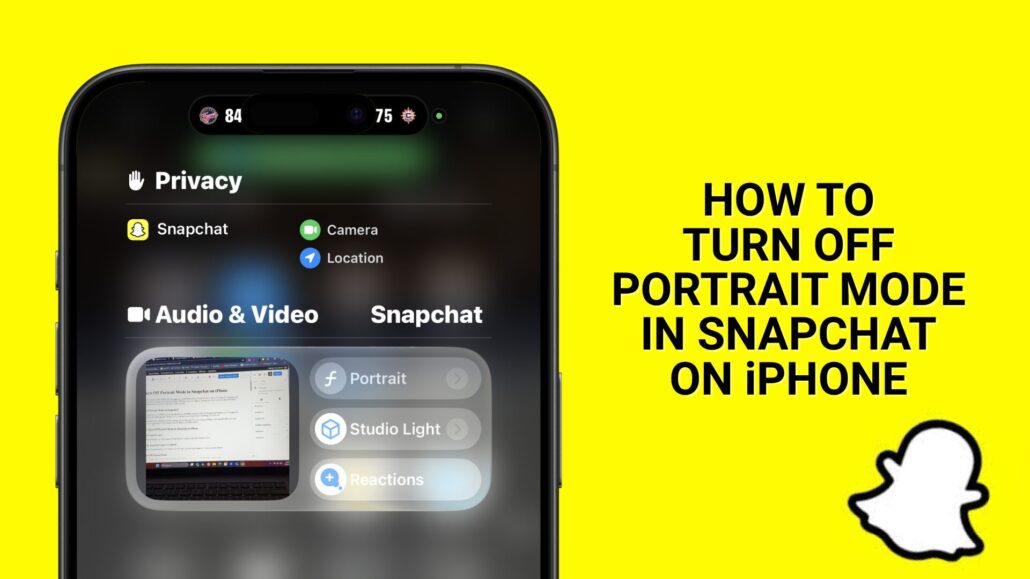
If your selfies look weirdly blurry on Snapchat, you’re probably seeing Portrait Mode in action. It’s Snapchat’s background blur effect, and it’s turned on by default on many iPhones. If you’re ready to stop the blur, here’s how to turn off Portrait Mode in Snapchat on iPhone. It only takes a few seconds.
The “Portrait Mode” Fixer
Stop relying on software fixes. This 10″ ring light with a tripod stand creates perfect, soft lighting for your Snapchat and TikTok videos instantly. Includes remote shutter.
What Is Portrait Mode in Snapchat?
Portrait Mode uses your iPhone’s front-facing camera and depth sensors to blur the background behind you. It’s designed to mimic DSLR-style photography. When it’s on, your face stays sharp while everything else goes soft.
Snapchat enables it by default in certain camera views, especially if you’re using an iPhone with Face ID (iPhone X and newer). If your app looks overly blurry, Portrait Mode is probably active.
How to Turn Off Portrait Mode in Snapchat on iPhone
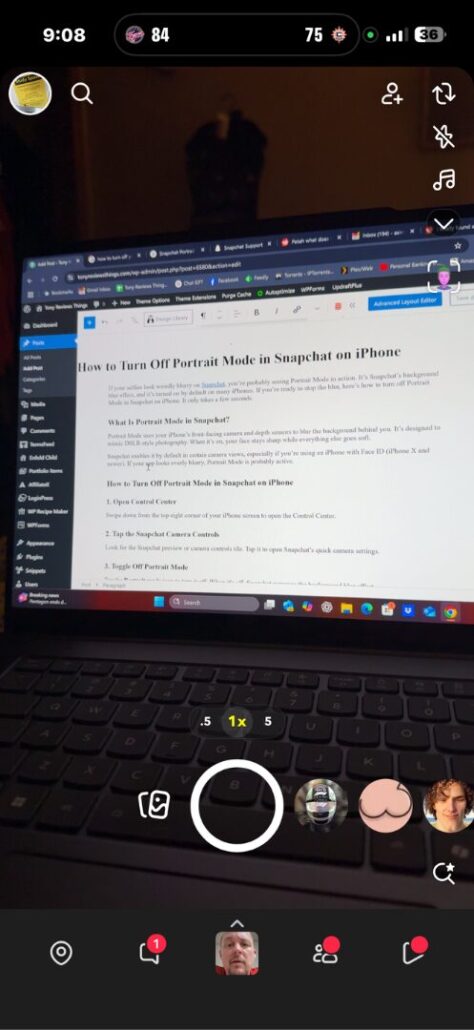
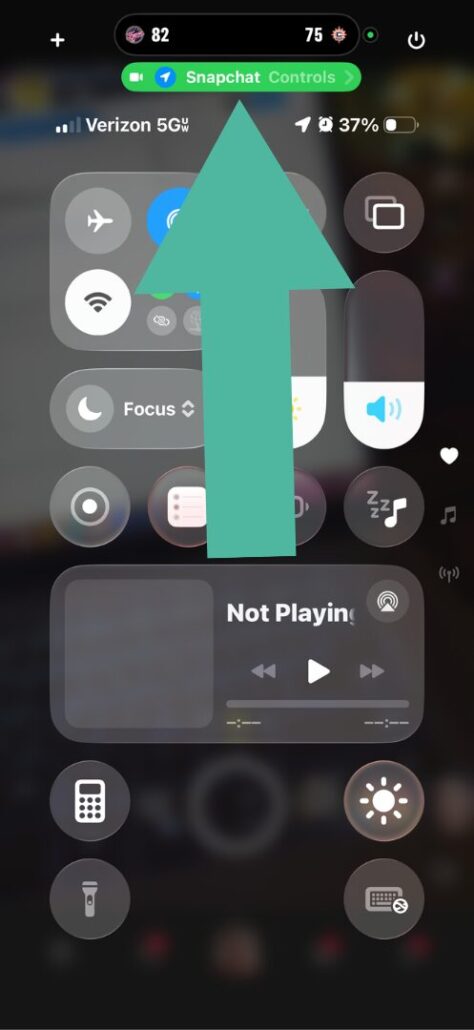
1. Open Control Center
Swipe down from the top-right corner of your iPhone screen to open the Control Center.
2. Tap the Snapchat Camera Controls
Look for the Snapchat preview or camera controls tile. Tap it to open Snapchat’s quick camera settings.
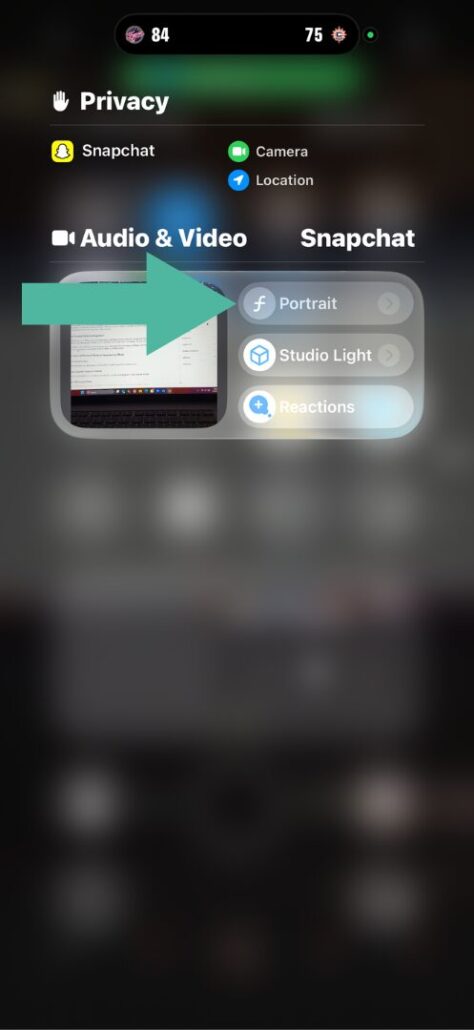
3. Toggle Off Portrait Mode
Tap the Portrait mode icon to turn it off. When it’s off, Snapchat removes the background blur effect.
Where the toggle lives (2026): On current iOS, the Snapchat tile sits in Control Center next to rotation lock and screen mirroring. The icon is labeled Portrait or Video Effects depending on your app version — either way, blue means the blur is on, gray means it is off. If the tile is missing entirely, swipe down from the top-right corner again after opening the Snapchat camera; the tile only appears while Snapchat has camera access.
Optional: Check iPhone Camera Settings
Snapchat uses your iPhone’s system-level camera features. If you’ve enabled Portrait in your iOS Camera settings, Snapchat might mirror those choices. To double-check:
- Open the Camera app.
- Switch to the Portrait tab.
- Exit and reopen Snapchat to reset the camera behavior.
Still troubleshooting? My Snapchat camera fixes guide covers permission and cache issues, and if the blur you’re seeing is in video calls instead, see how it works in Google Meet portrait effects for comparison.
Pros and Cons
Pros:
- Makes selfies look more polished.
- Useful in messy environments.
Cons:
- Can blur too aggressively.
- Sometimes struggles with hats, glasses, or poor lighting.
If you want to control how your snaps look, turning off Portrait Mode gives you a cleaner, more natural image.
Quick Answers
How do I know if Portrait Mode is on?
Why does my Snapchat camera look blurry?
Does turning this off affect photo quality?


